Manage comments
See every comment of a document in a list with its replies, go to a comment, reply to it, delete it, set your name as the author, make a summary of the comments, and flatten them, on iPhone and iPad.
When several people review a document, the comments add up. The list of comments shows them all, page by page, with their replies, and takes you to any of them.
The list of comments
- Tap Comment at the bottom of the screen.
- At the end of the row of tools, tap Comments (on an iPhone, swipe the row sideways to reach it).
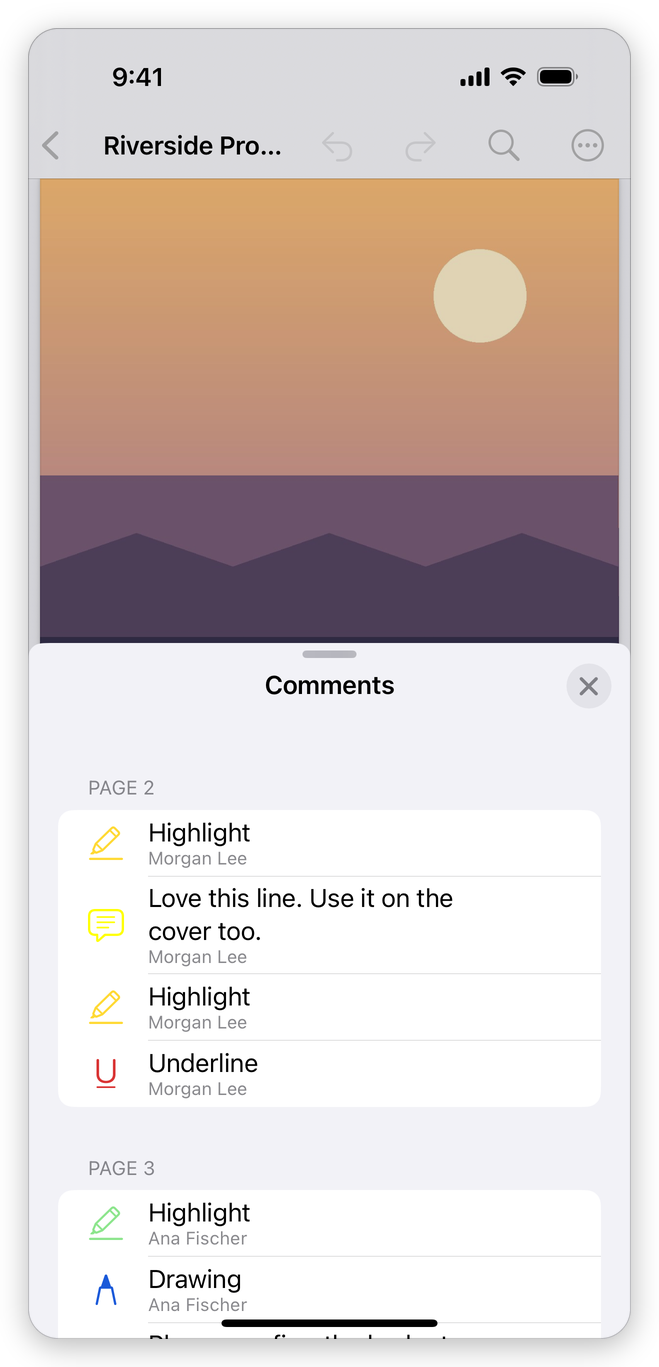
The list opens as a sheet over the document: drag it up to see more, or down to see more of the page. It has a section for each page with comments. Each comment shows:
- its text, or its kind when it has none (Highlight, Drawing...), with an icon in the comment's colour;
- its author and when it was last changed;
- its replies under it, each with its author and date.
Tap a comment to go to it: the list closes, the page scrolls to the comment, and the comment is selected, ready to change. Tap a reply to go to the comment it answers. Tap the close button (×) at the top right to close the list.
A document with no comments says so.
Reply to a comment
- Select the comment: tap it on the page with Select, or tap it in the list.
- Tap Reply in the bar of the comment.
- Type your answer and tap Reply.
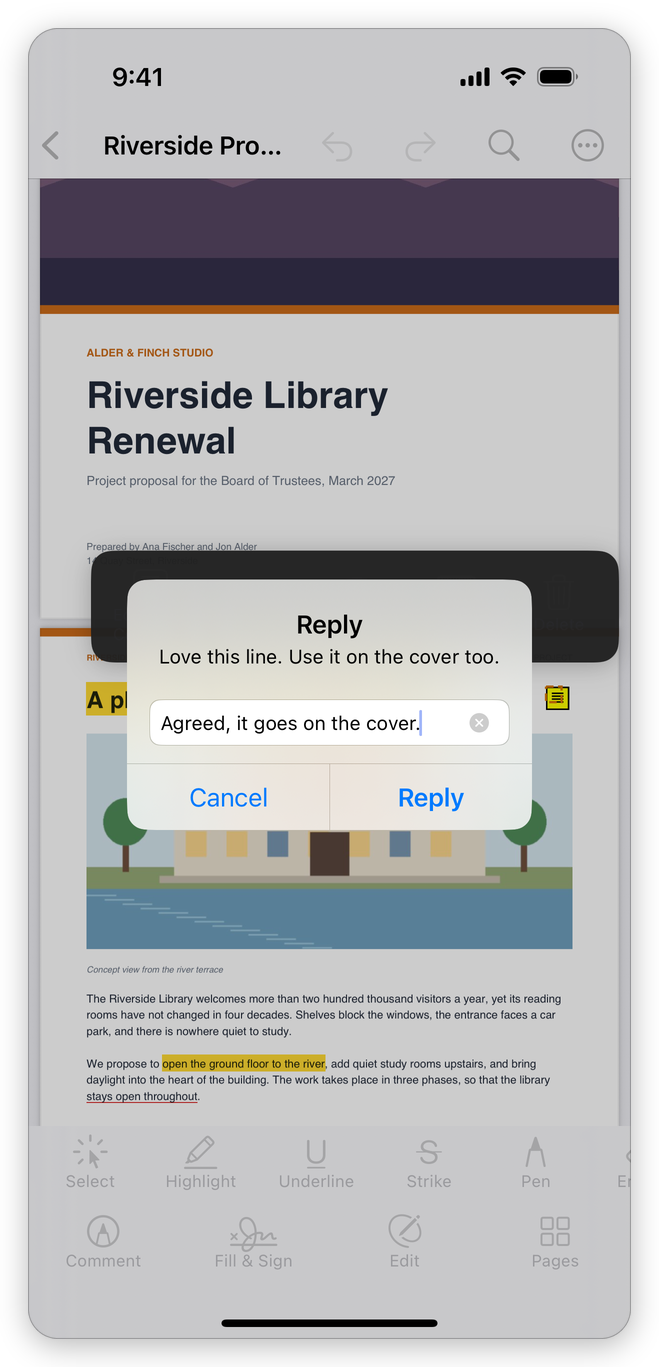
The reply shows under the comment in the list, with your name. Replies are saved in the PDF with the comment, so other PDF readers show the conversation too.
Delete comments
- In the list: swipe a comment to the left and tap Delete.
- On the page: select the comment and tap Delete in its bar.
A comment's replies are deleted with it. Undo at the top of the screen brings a deleted comment back.
Your name as the author
Each comment and reply carries the name of its author. Yours is Author Name in Settings > Comments: tap it, type your name and tap Done. Until you set it, the app uses your device's name. The name applies to the comments you add from then on. See Settings.
Summarize comments
A summary is a new PDF that lists the comments: handy to read them all in one place, to file them, or to send them to someone who reads on paper.
- Tap More (the circle with three dots) at the top right, then Tools > Summarize Comments.
- Choose the layout:
- Comments only: the list of comments, page after page of the document;
- Document and comments on separate pages: each page of the document, followed by a page with its comments.
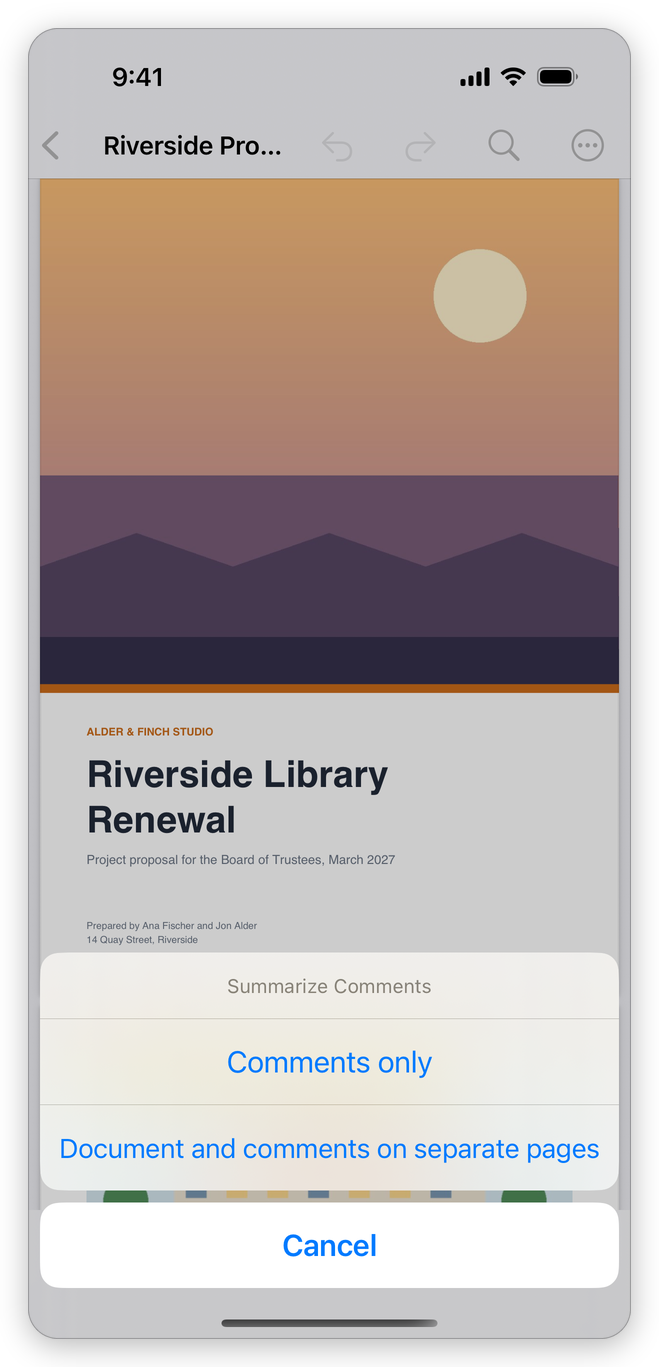
The summary is saved in your library, next to the document, named Comments on and the document's name, and the share sheet opens so that you can send it at once. The document itself does not change. Each comment in the summary shows its kind, its author and its date, then its text and its status.
Flatten comments
Flattening makes comments part of the page content. They stay visible, and print as they look, but they can no longer be selected, changed, replied to or deleted as comments. Do this when a review is over and you send the final document.
- Tap More, then Tools > Flatten.
- Tap Flatten to confirm.
Filled form fields are flattened too: they become part of the page and can no longer be changed. Undo takes flattening back while the document is open (a document with comments and filled fields: one tap for each).
The list of comments, replies, the summary and flattening are free.
Related pages
- Comment on a PDF: adding and changing comments.
- Drawings and shapes and Stamps: the other kinds of comments.
- Sanitize: removing every comment, with other hidden information.