Bookmarks
Go to a part of a document with its bookmarks, and add, rename, move and delete bookmarks.
Bookmarks are a document's table of contents: each one leads to a page, and some have bookmarks inside them.
Go to a bookmark
- Tap More, then Navigate, then Bookmarks.
- Tap a bookmark: the document goes to its page.
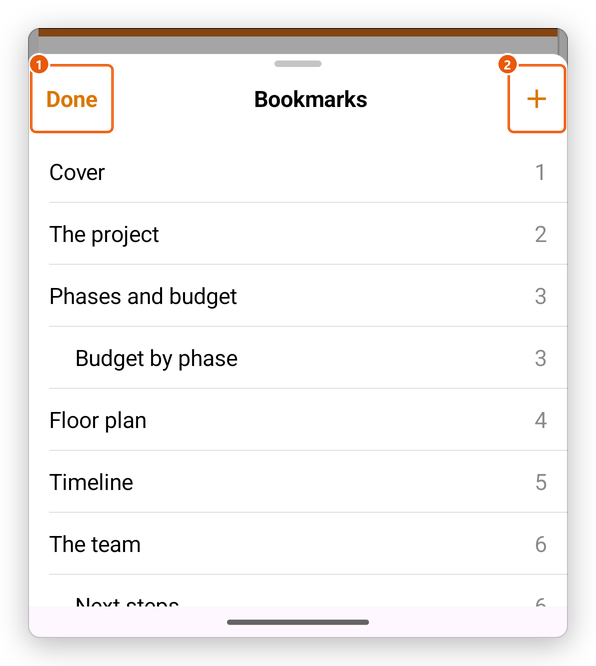
- Done closes the bookmarks.
- Add bookmark (+) adds one for the page shown.
The page number of each bookmark is on the right. Bookmarks inside another one are indented under it.
Add a bookmark
- Go to the page the bookmark should lead to.
- Open the bookmarks, and tap Add bookmark (+).
- Type its name, and confirm.
Change a bookmark
Touch and hold a bookmark to open its menu:
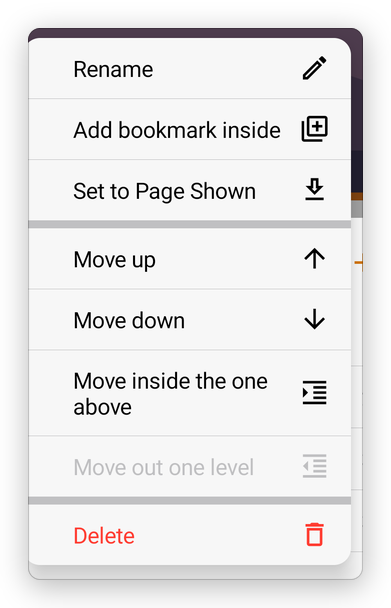
- Rename: type a new name.
- Add bookmark inside: a new bookmark under this one, for the page shown.
- Set to Page Shown: the bookmark leads to the page shown now.
- Move up and Move down: change its place in the list.
- Move inside the one above and Move out one level: put it under the bookmark above, or take it out to the level of its parent.
- Delete: the bookmark and those inside it.
Each change can be undone with Undo, and the document is saved as for any change.