Create forms
Turn a document into a form that others fill in: find its fields automatically, add text fields, check boxes, radio buttons, lists, dates, images, buttons and signature fields, and move, copy or delete them.
Making and changing form fields needs Pro. Filling in forms is free.
Tap More, then Prepare Form.
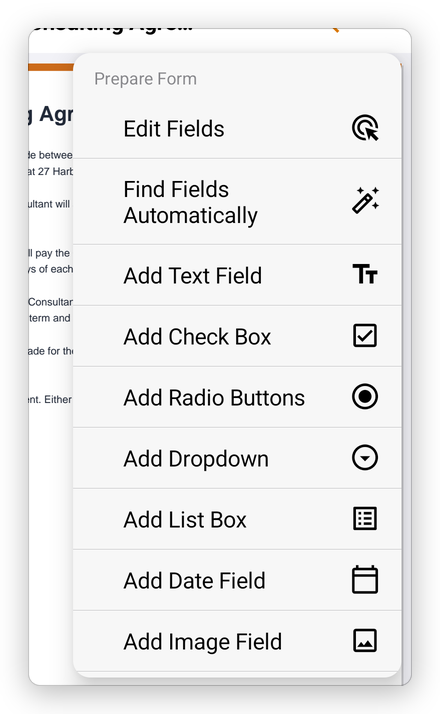
- Edit Fields: show the form's fields, to move, change or delete them.
- Find Fields Automatically: the app looks for the lines and boxes of a form that has no fields, and makes fields of them.
- Add Text Field, Add Check Box, Add Radio Buttons, Add Dropdown, Add List Box, Add Date Field, Add Image Field, Add Button and Add Signature Field: add one field of that kind.
- Tab order: the order in which the keyboard's Next key goes through the fields.
- JavaScript: the scripts and actions of the document and its pages. See JavaScript and actions.
- All Fields lists the fields; Highlight fields tints them or not.
- Reset form, Export data, Import data, Check Required Fields and Flatten form: see Fill in a form.
Add a field
- Tap More, then Prepare Form, then the kind of field, for example Add Text Field.
- The app says Drag on the page where the field goes. Drag a box where it should be.
The field is added with a name, such as Text1, and selected:
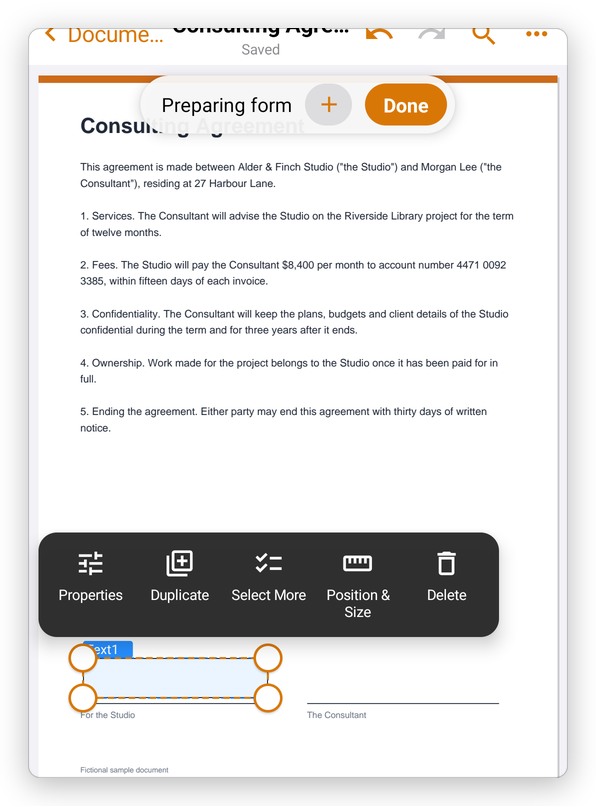
Its menu has Properties (see Form field properties), Duplicate, Select More (to choose several fields and change them together), Position & Size and Delete. Drag the field to move it, and its round handles to change its size.
Change the fields of a form
Tap More, then Prepare Form, then Edit Fields. Every field shows as a box with its name above it:
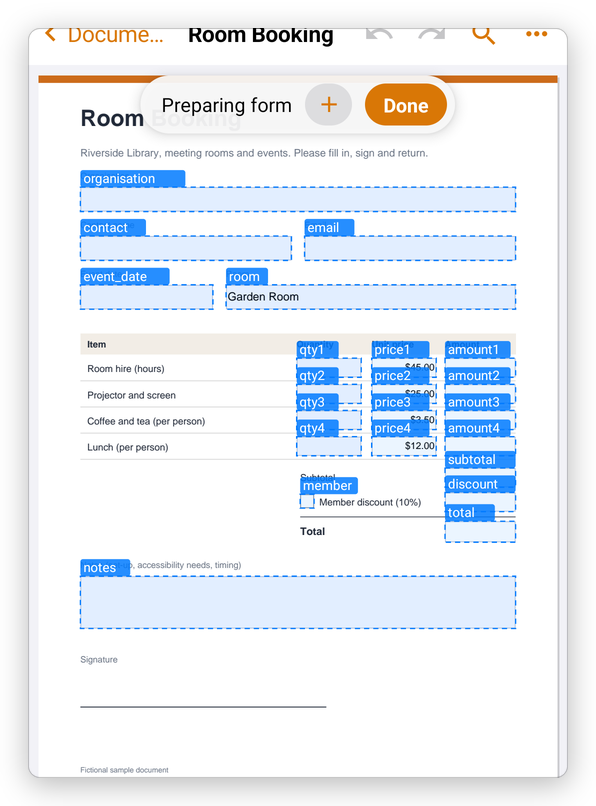
Tap a field to select it, with the same menu as above. The bar at the top says Preparing form: the + button adds a field, and Done goes back to the form as people fill it.
Each change can be undone with Undo, and the document is saved as for any change.