Page size and cropping
Crop the margins of pages to the part you want to keep, and change the size and orientation of pages.
Crop pages
Cropping keeps a part of the page, for example to cut away wide margins or the edges of a scan.
- Tap Tools at the bottom of the screen, then Crop Pages, and choose the document. It opens at its first page.
- The app says Drag the corners to the part of the page to keep. Drag the round corners.
- Tap Apply. For a document of several pages, the app asks Crop which pages?: this page, or all of them.
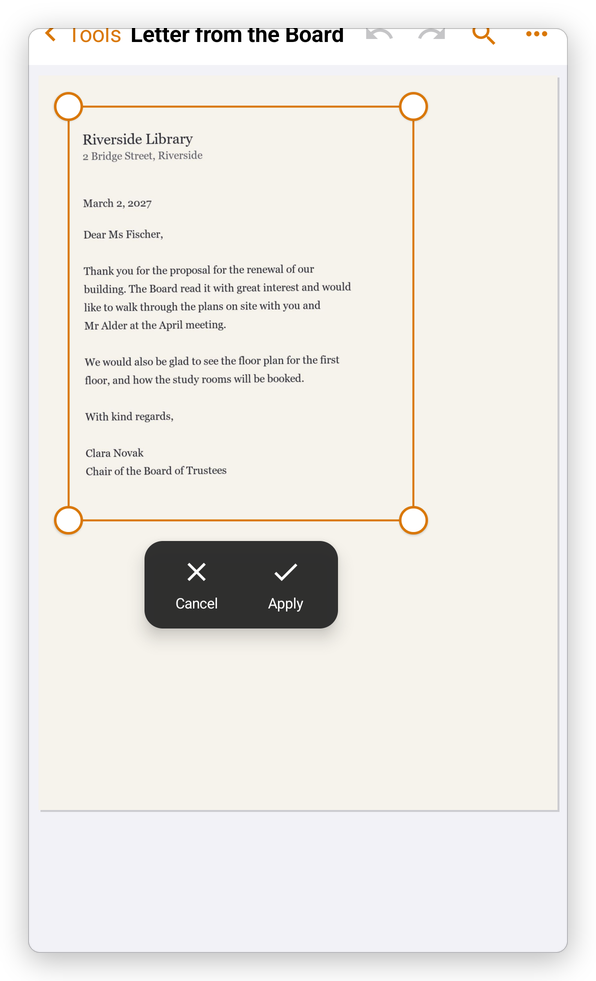
The cut part is hidden, not deleted: other PDF apps show the page as you cropped it, and the content outside is still in the file. To remove content for good, use Redact.
Cancel leaves the page as it was, and Undo takes back a crop.
Page size and orientation
In the Pages mode, select pages and tap Page Size: Portrait, Landscape, or Custom Size…. See Organize pages.