Open a PDF
Keep PDFs in the app's library, bring them in from your phone or a cloud service, find them, sort them into folders, open recent and favourite documents, and open password-protected files.
Your library
The Files tab is your library: the documents you keep in the app, in folders of your own. Tap a document to open it, or a folder to see what is in it.
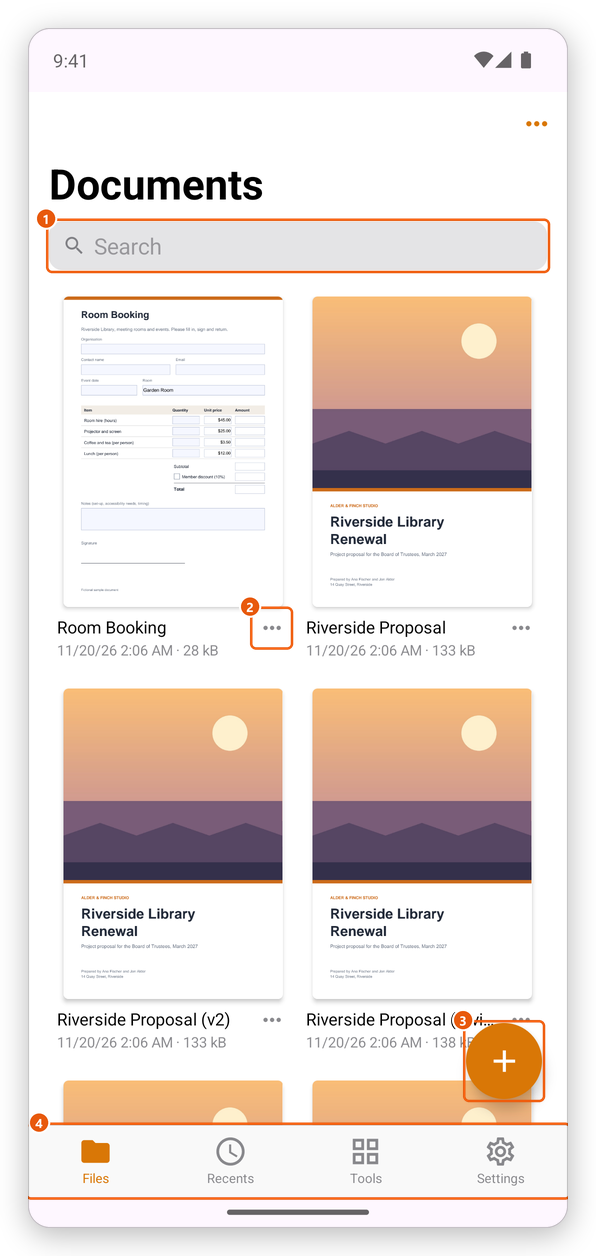
- Search the library by a document's name.
- A document's menu.
- Add (the + button): bring in documents, scan or make new ones.
- The tabs.
The three dots at the top right change how the library looks: sort it by Date, Name or Size, show Icons (a picture of each first page) or a List, make a New Folder, or Select several documents to share, move, combine or delete them together.
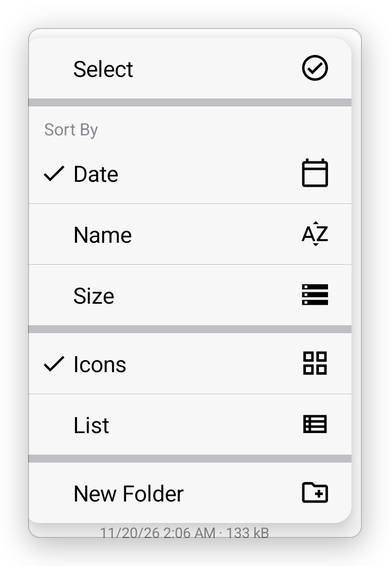
Each document has its own menu: tap the three dots next to it.
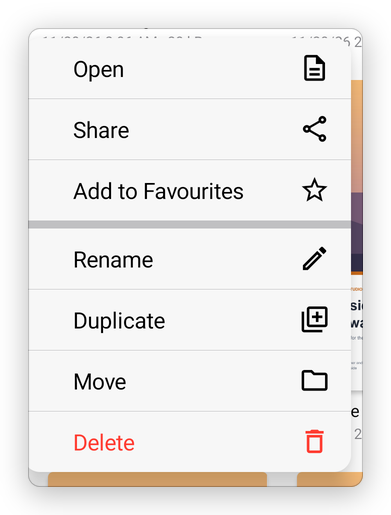
- Open, Share and Add to Favourites.
- Rename, Duplicate (a copy next to it), Move (to another folder) and Delete.
By default the library is kept on your phone, in the app. To keep it in a folder of Google Drive, a memory card or another service, see Documents Location in Settings.
Bring documents into the library
Tap Add (the + button).
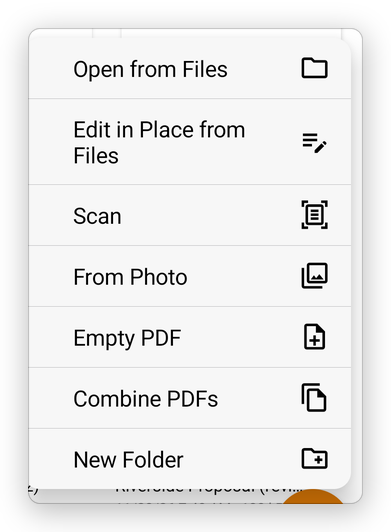
- Open from Files: choose one or several PDFs, or pictures, on your phone or in a cloud service. The app adds a copy of each to your library (a picture as a one-page PDF), and opens it when you chose one.
- Edit in Place from Files: choose a PDF to work on where it is, without a copy: every save goes back to that file. It is listed in Recents.
- Scan, From Photo, Empty PDF and Combine PDFs make new documents. See Create a PDF and Combine files.
- New Folder makes a folder in the folder you are in.
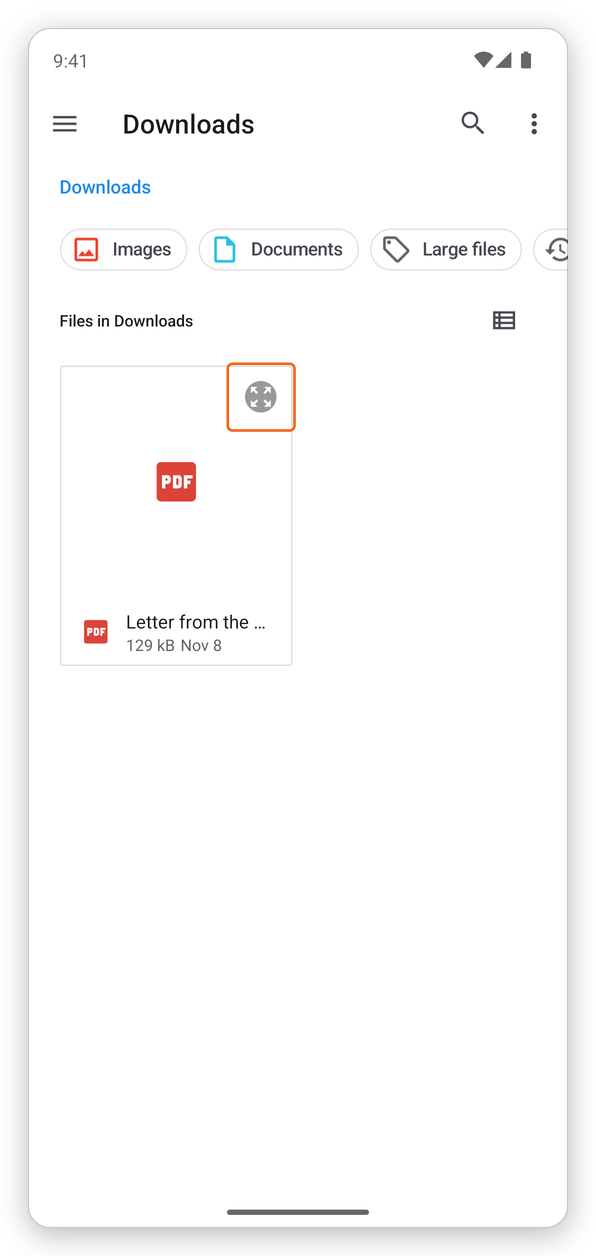
PDFs that other apps open or share with SelectPdf come in the same way. See Open from other apps and share.
Recent and favourite documents
The Recents tab lists the documents you opened lately, the latest first, and above them your favourites.
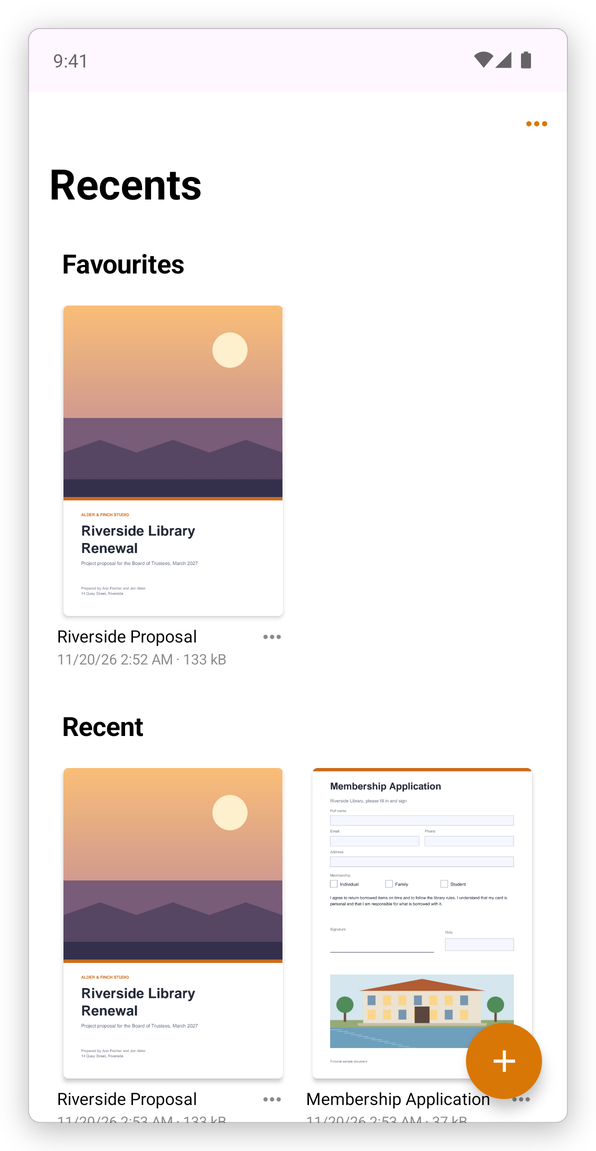
To make a document a favourite, tap the three dots next to it, then Add to Favourites: a star shows next to it. Remove from Favourites takes it off.
Open a password-protected file
A PDF can be protected with a password that is needed to open it. In the library, such a document shows a padlock instead of its first page. When you open it, the app asks for the password:
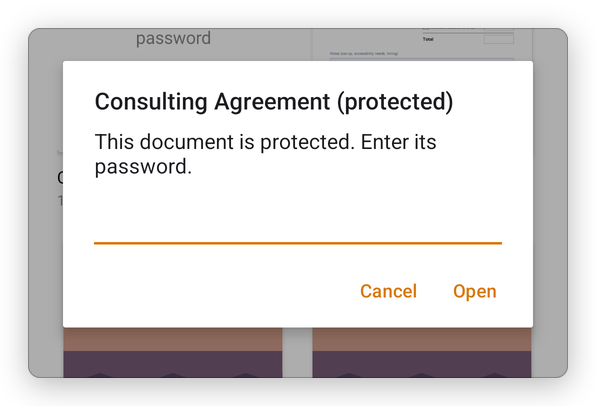
- Type the password. Passwords are case-sensitive: River is not river.
- Tap Open.
If the password is wrong, the app says That password is not right. Try again. Tap Cancel to give up. Without the password the file cannot be opened: nobody, the app included, can recover a forgotten password.
A document can also be protected from changes with a second password, the permissions password. Such a document opens without a password, and the app asks for the permissions password when you change it. A document encrypted for certain people, with their digital IDs, opens with one of those digital IDs: see Certificate security. To protect your own documents, see Protect a PDF.
Several documents
One document is open at a time. Tap the arrow at the top left to go back to the library, and open another. The document you leave is saved first, so nothing is lost; see Save a PDF.