View a PDF
Zoom, scroll or turn one page at a time, go to a page, use page thumbnails, read in Reading Mode or Night Mode, and listen to a document.
Zoom and scroll
- Zoom: spread two fingers on the page to zoom in, pinch them to zoom out. Double-tap to zoom in on a spot, and double-tap again to fit the page to the width of the screen.
- Scroll: swipe up and down. The pages follow each other with no break.
- Go to a page: tap More, then Navigate, then Go to Page, and type its number.
Turn your phone sideways to read wider pages larger. To read on the whole screen, tap the page when no mode is chosen: the bars hide. Tap again to bring them back.
The Display menu
Tap More, then Display.
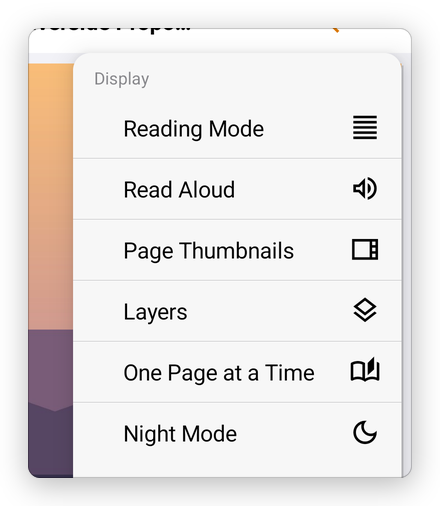
- Reading Mode: the text, reflowed to the screen. See below.
- Read Aloud: listen to the document. See below.
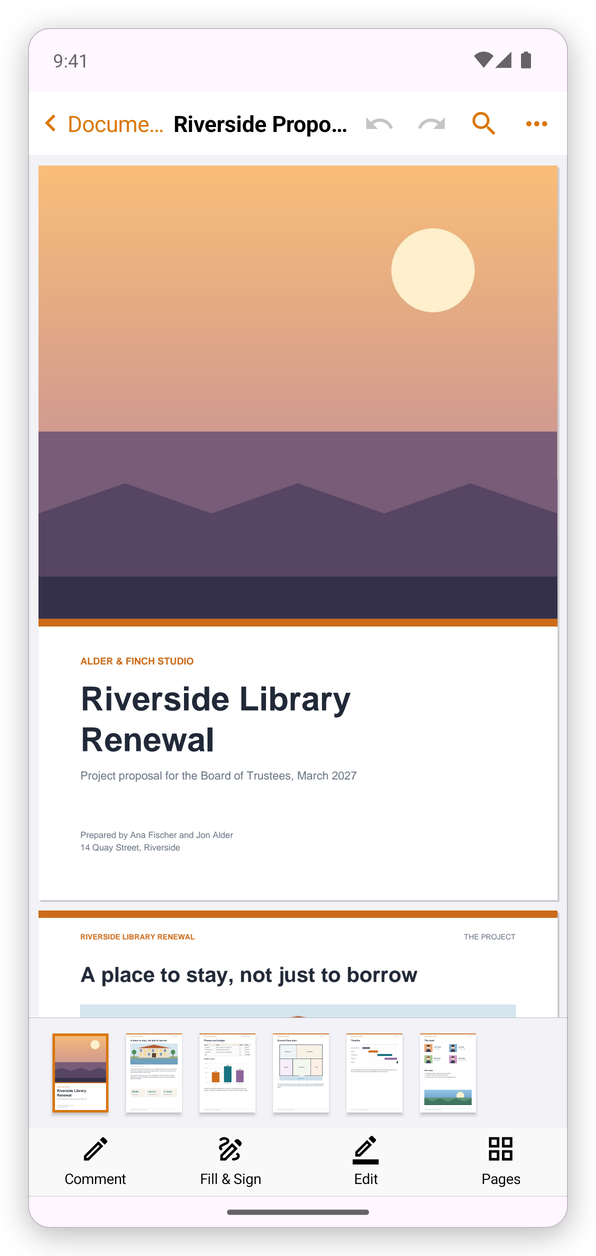
- Page Thumbnails: a strip of small pages at the bottom.
- Layers: show and hide a document's layers. See Layers.
- One Page at a Time: one page fills the screen, and you swipe sideways to turn to the next, like a book. Continuous Scrolling goes back to scrolling.
- Night Mode: the pages in dark colours, for reading in the dark. Day Mode goes back.
Page thumbnails
Page Thumbnails shows a strip of the pages above the modes. The page you are on is marked. Tap a page to go to it, and swipe the strip sideways to see the others. Choose Page Thumbnails again to hide it.
To move, rotate or delete pages, use the Pages mode instead: see Organize pages.
Night Mode
Night Mode shows the pages light on dark, which is easier on the eyes at night. Pictures keep their colours. It changes only how the pages look on your screen, not the document. Choose Day Mode to go back.
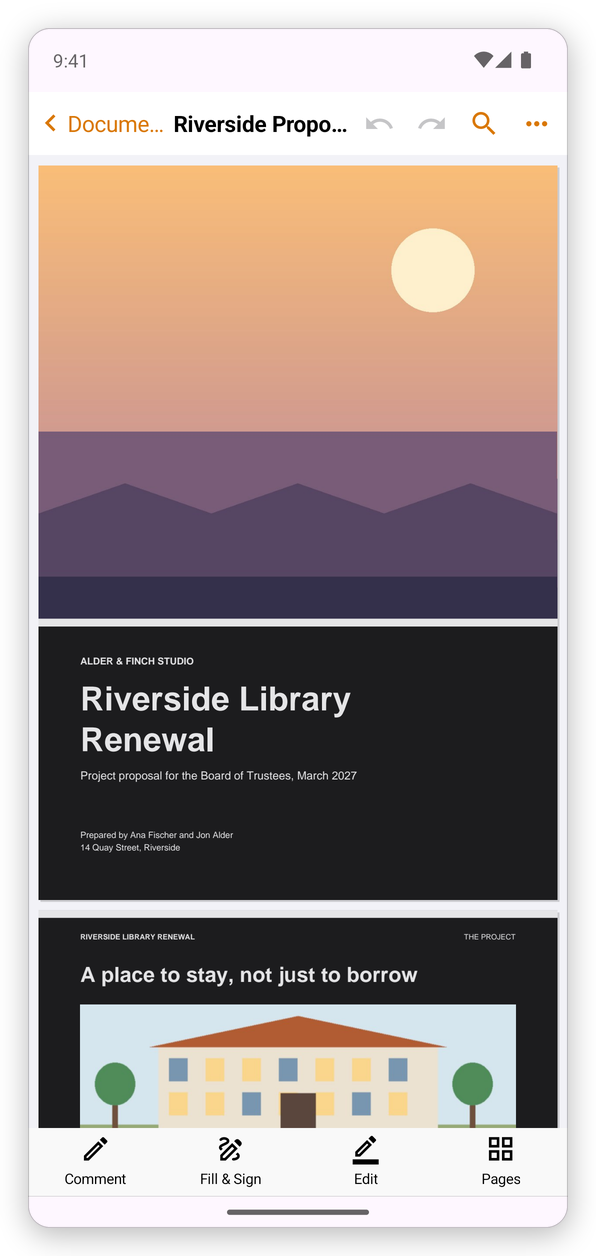
The app's own look, light or dark, is the Theme in Settings.
Reading Mode
On a phone, reading a whole page means zooming and scrolling sideways. Reading Mode shows the document's text reflowed to the width of the screen: its headings, paragraphs, lists and pictures in reading order, page after page.
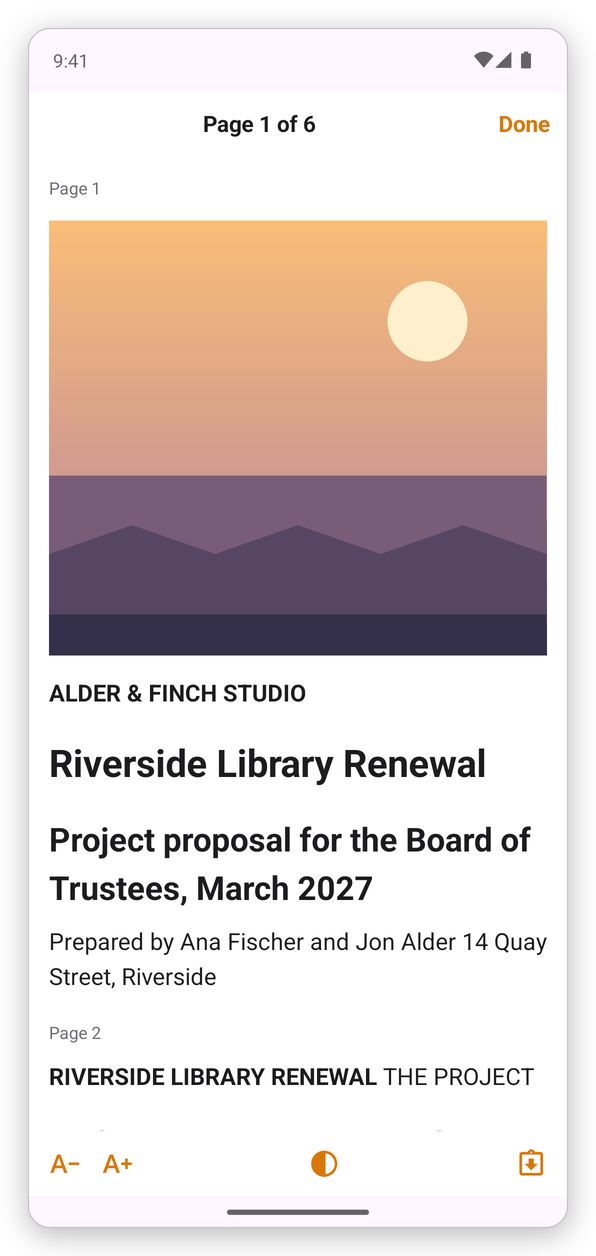
- Smaller Text and Larger Text (the A buttons) change the text size.
- Theme chooses Light, Sepia or Dark paper.
- Go to Page jumps to another page.
- Done closes Reading Mode, on the page you were reading.
The app remembers the text size and the theme.
Reading Mode shows the text the pages have. A scanned page is only a picture: recognize its text first. See Recognize text.
Listen to a document
Read Aloud reads the text with your phone's voice, from the page you are on. Small buttons at the top of the screen control it:
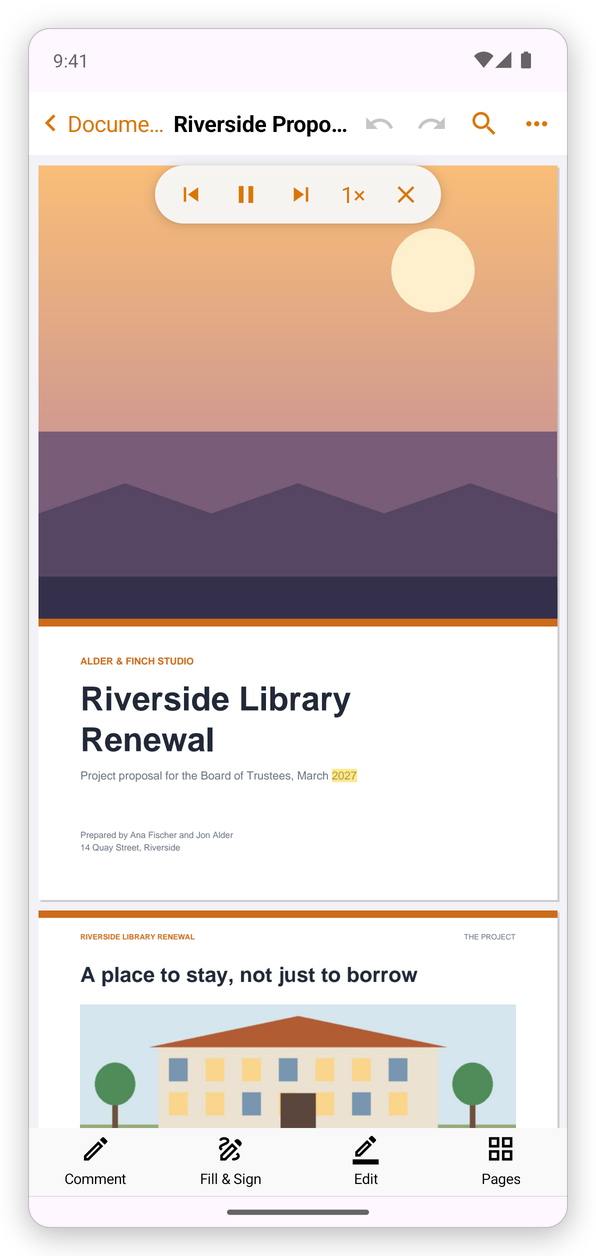
- Previous Page and Next Page: go back or ahead a page.
- Pause and Resume.
- Speed: tap the number (1×) to choose a slower or faster voice.
- Stop Reading: the ✕.
The reading goes on when you switch to another app or turn the screen off: Android shows it as a notification, with the same buttons. The first time, Android asks whether the app may show notifications. To change the voice, open Android's Settings, then Accessibility, then Text-to-speech output.