Headers, footers and watermarks
Add a watermark, a header and footer, page numbers or a background to the pages of a document, and remove them again.
Page elements are part of editing a PDF, a Pro tool.
Tap More, then Page Elements.
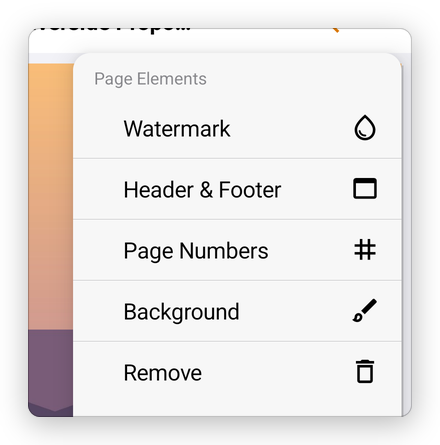
Each page element opens a sheet with a preview of the current page at the top, which changes as you change the settings. Apply adds it to the pages; Cancel leaves the document as it was.
Watermark
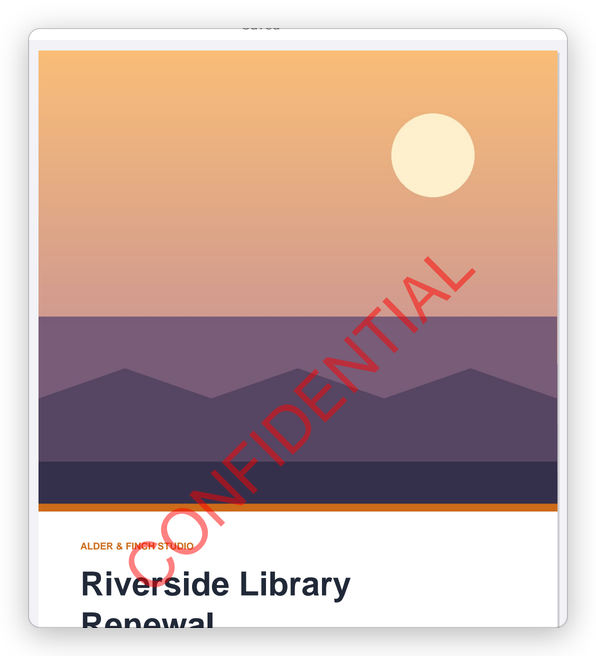
A watermark is a text or a picture across the pages, such as CONFIDENTIAL or a logo.
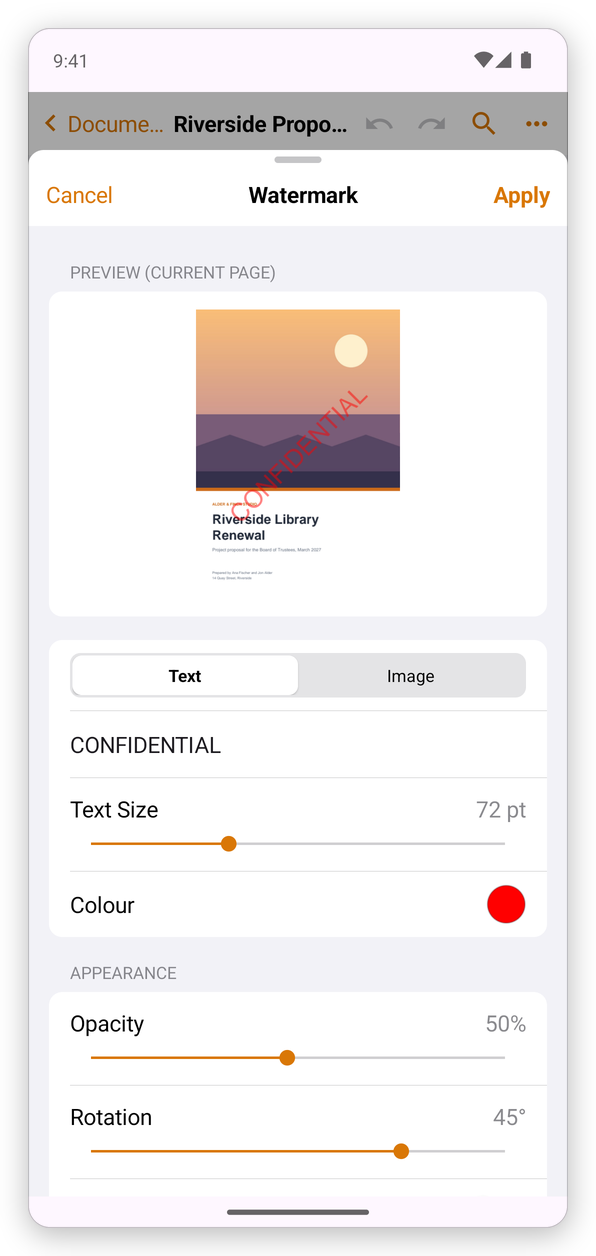
- Text or Image: type the text, or choose a picture.
- Text Size and Colour.
- Opacity: how much the page shows through it.
- Rotation: its angle; 45° goes across the page.
- Behind the page: under the page's content instead of over it.
Header & Footer
Text at the top and at the bottom of every page: on the left, in the centre and on the right of each.
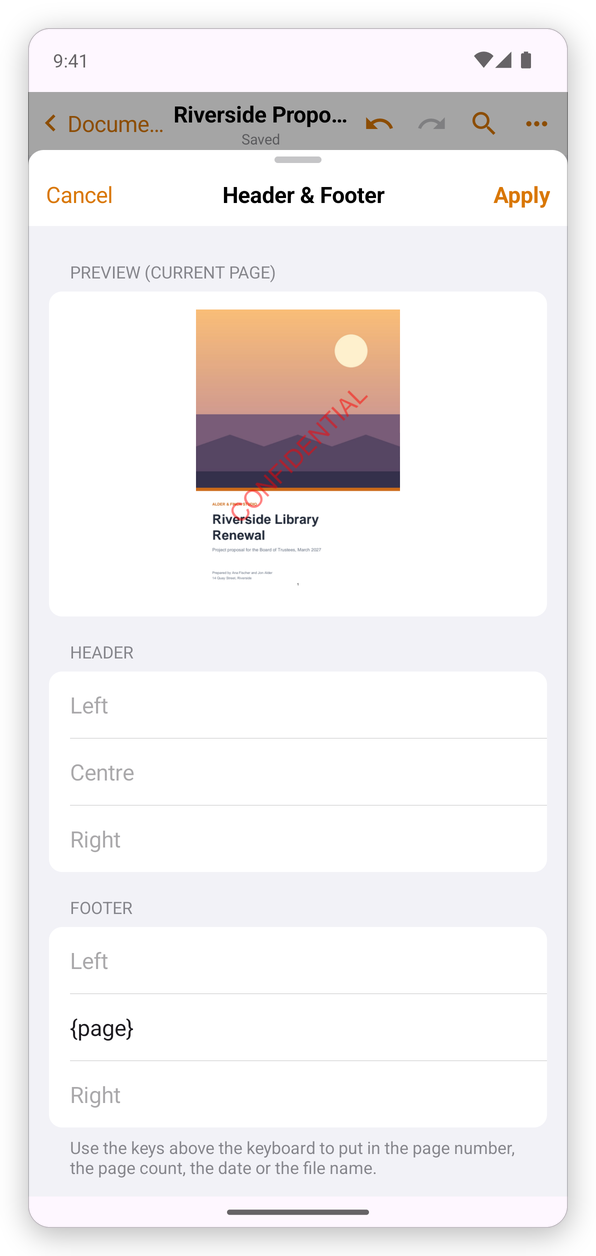
Type the text in the boxes. The keys above the keyboard put in the page number, the page count, the date or the file name, which each page fills in with its own.
Page Numbers
A page number on every page, such as 1, Page 1 or Page 1 of 6.
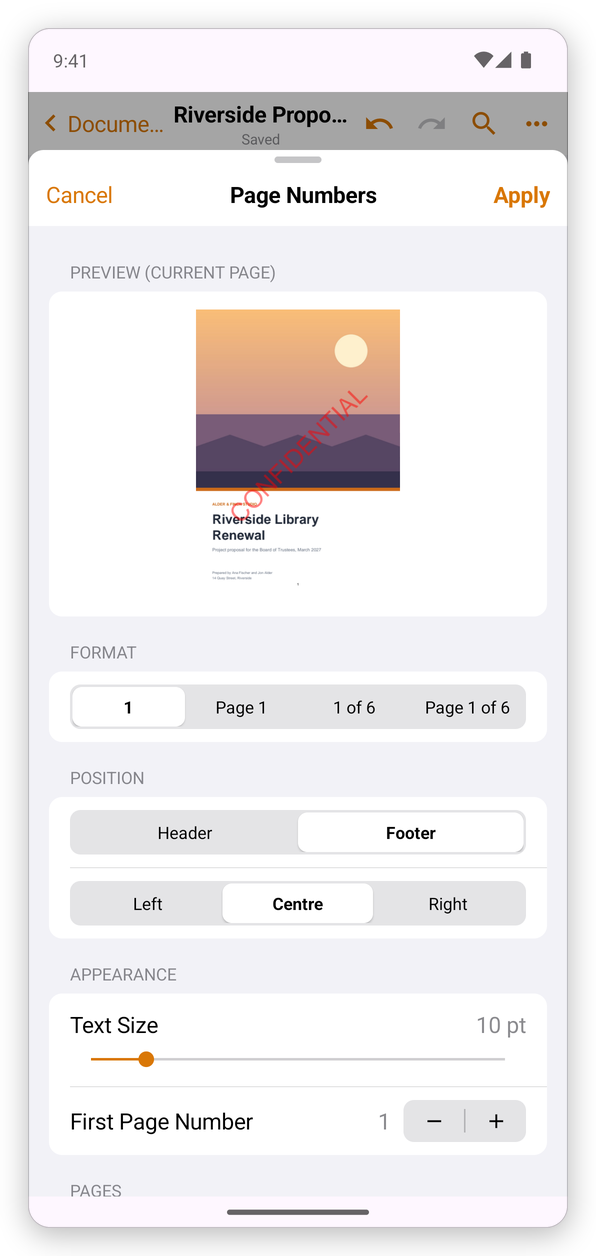
Choose the format, the position (Header or Footer, and Left, Centre or Right), the text size, the First Page Number, and the pages.
Background
A colour or a picture behind the content of the pages, for example a light tint or letterhead paper.
Remove them
Tap More, then Page Elements, then Remove, and choose Remove Watermark, Remove Header & Footer or Remove Background.