Organize pages
See all the pages of a document, select them, move, rotate, delete and extract them, insert blank pages, other PDFs, photos and scans, and split a document.
Tap Pages at the bottom of a document. The pages show as thumbnails, with the page you were on selected.
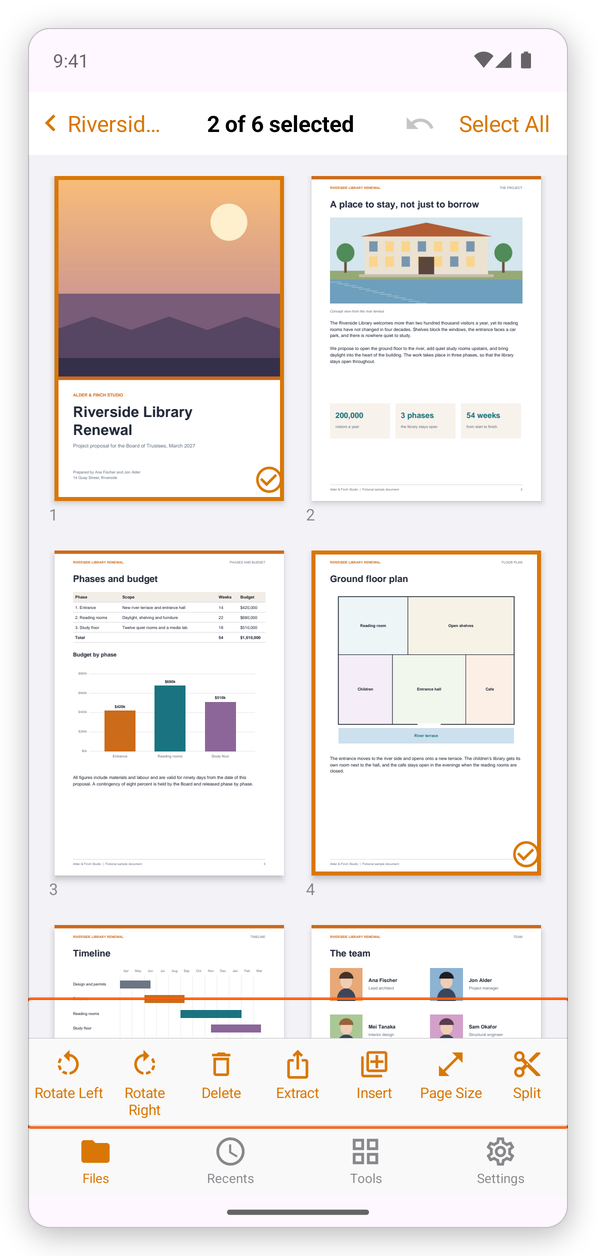
- Tap a page to select it, or to take it out of the selection. The top says how many are selected; Select All selects every page.
- Touch and hold a page, then drag it to move it to another place.
- The tools at the bottom act on the selected pages:
- Rotate Left and Rotate Right: turn them a quarter turn.
- Delete: take them out of the document. The app asks first.
- Extract: make a new document of them, in your library, named after the document and the pages (for example Riverside Proposal (pages 1-2)). The document itself does not change.
- Insert, Page Size and Split: see below.
Every change can be undone with Undo at the top. The arrow at the top left goes back to the document, at the first page selected.
Insert pages
Select the page the new pages go after, and tap Insert:
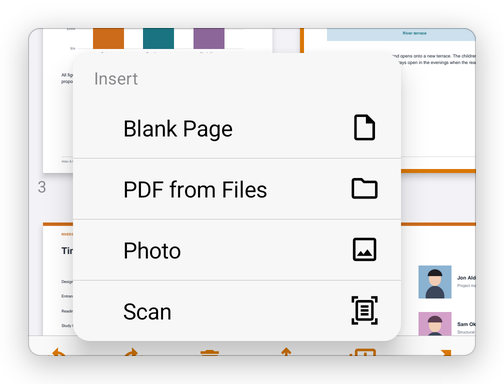
- Blank Page: an empty page of the same size.
- PDF from Files: the pages of another PDF.
- Photo: a picture from your photos, as a page.
- Scan: pages photographed with the camera. See Create a PDF.
Change the page size
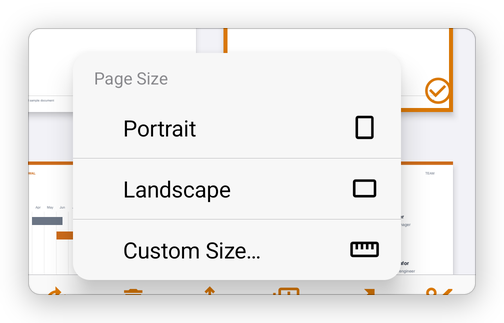
Page Size makes the selected pages Portrait or Landscape, or gives them a Custom Size…. The content is fitted on the new page.
To cut away the margins of a page instead, see Page size and cropping.
Split a document
Split makes several documents of one: type how many pages each one has, and tap Split.
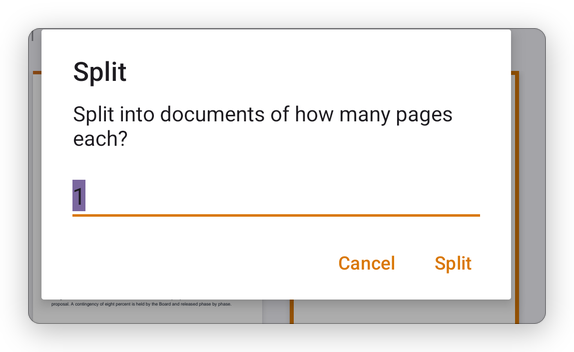
The new documents are added to your library next to the original, which does not change.
The Tools tab also has Split PDF and Extract Pages: choose the document, then the same steps.