Sign a PDF
Sign with your finger or a stylus, a typed name or a photo of your signature, add your initials, and save your signature for next time.
A signature you draw or type is a picture of your signature on the page, as on paper. To sign so that anyone can check who signed and that nothing changed since, use a digital ID: see Digital signatures.
Make your signature
- Open the document, and tap Fill & Sign, then Signature.
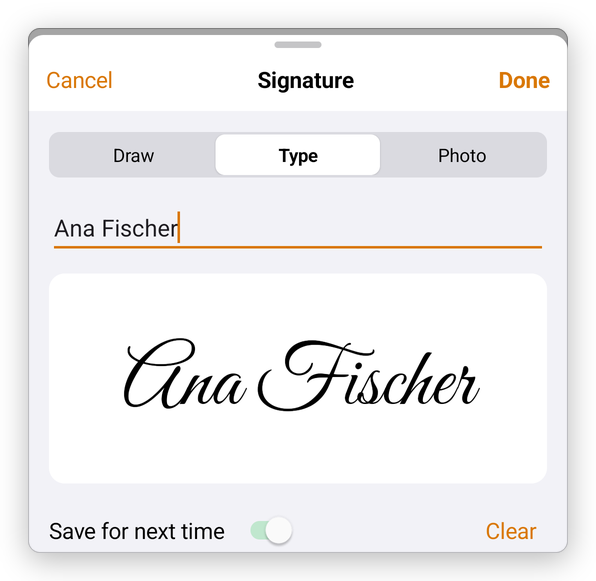
- Make your signature, in one of three ways:
- Draw: sign with your finger or a stylus in the box. Clear starts again.
- Type: type your name; the app writes it in a handwriting style.
- Photo: choose a photo of your signature on paper. The app takes the paper away and keeps the ink.
- Keep Save for next time on to use the same signature again without making it.
- Tap Done.
Put it on the page
After Done, the app says Tap the page where it goes. Tap the signature line. The signature is placed there.
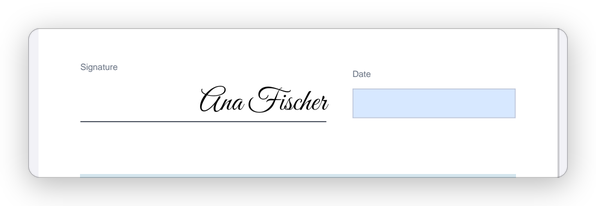
Drag the signature to move it, or drag its corners to make it larger or smaller. Tap it, then Delete, to remove it.
If the form has a signature field, tap the field instead: the app asks whether to sign in it with your handwriting or with a digital ID.
The next time you tap Signature, the saved signature is ready to place. Initials works the same way, for your initials.