Install and buy Pro
What the Android app needs, installing it from Google Play, the 14-day Pro trial, buying Pro in Google Play, entering a license key, and updates.
What you need
- A phone or tablet with Android 8.0 or later.
- An internet connection to install the app, to start the Pro trial or check a license, and the first time you use a feature that downloads something (a text recognition language, a translation language). Reading, editing and saving your documents work without one.
Install the app
- Open Google Play on your phone or tablet.
- Search for SelectPdf PDF Editor, or open its page on Google Play.
- Tap Install. When it is done, tap Open.
Google Play keeps the app up to date, like your other apps.
The 14-day Pro trial
The first time the app starts with an internet connection, it starts a free 14-day trial of Pro: every tool works, with nothing to sign up for and no email address to give. The trial is once per device: installing the app again does not start a new one. When it ends, the app keeps working as the free version, and your documents stay as they are.
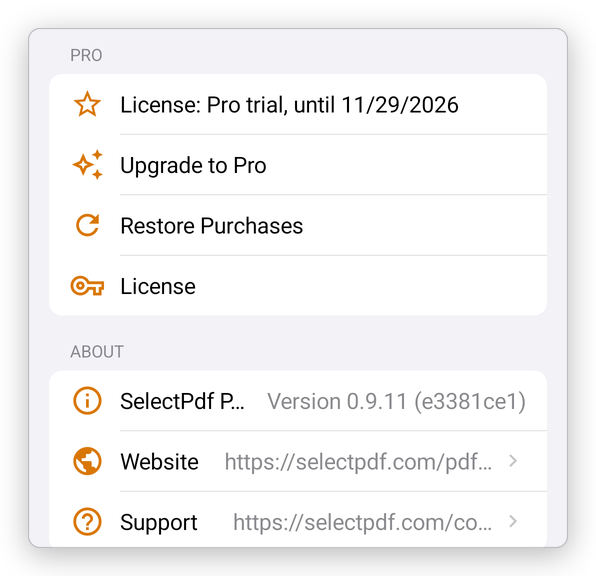
Settings shows what you have, under Pro: for example License: Pro trial, until a date.
Buy Pro in Google Play
- Tap Settings, then Upgrade to Pro. A tool that needs Pro opens the same sheet when you use it.
- Choose a plan: yearly, monthly, or Lifetime, paid once. The prices are in your currency. A new subscriber starts with two weeks free.
- Confirm the purchase in Google Play's own sheet.
Pro is unlocked at once, on this phone and on every Android device signed in to the same Google account. Google Play charges the subscription and renews it until you cancel it: tap Manage Subscription on the same sheet, or open Google Play, then Payments & subscriptions, then Subscriptions. Settings then shows the plan, and for a subscription the date it is paid until.
- Restore Purchases: on a new phone, or after installing the app again, unlocks what your Google account has already bought.
- I Have a Licence Key: if you bought Pro on our website, or in the app on another platform, enter its key here.
Use Pro on your other devices
Every plan works on one device of each platform at the same time: one Android device, one iPhone or iPad, one Windows computer, one Mac and one Linux computer. When you buy Pro in Google Play, the app gets a license key for your other platforms and shows it under Settings, License: copy it and enter it in the app on your computer.
Enter a license key
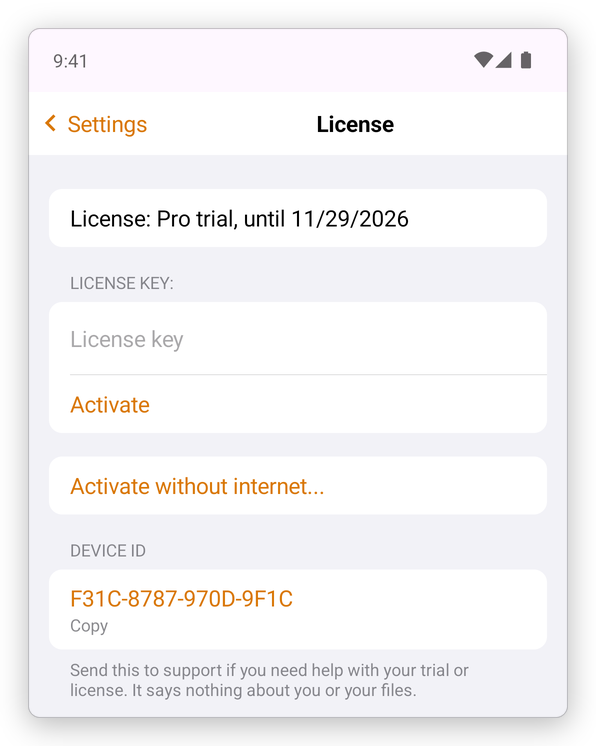
- Tap Settings, then License.
- Type or paste the key in License key.
- Tap Activate.
The app checks the license over the internet now and then. Offline, Pro keeps working for a long time; if the license has not been checked for too long, Pro tools lock until the device connects to the internet once.
- If the key is in use on another Android device, the app says so, and offers Move the License to This Device.
- Activate without internet... activates a device that cannot connect: you get a code to enter on any computer or phone that has internet, and bring back the activation it gives you.
- Device ID is what to send to support if you need help with your trial or license. It says nothing about you or your files. Tap Copy to copy it.
Uninstall
Touch and hold the app's icon, then tap Uninstall (or open Google Play, find the app and tap Uninstall). This removes the app and the documents in its own library. Documents kept in a folder you chose, in Files or a cloud service, stay where they are. Before uninstalling, share or export the documents you want to keep.