The app at a glance
The parts of SelectPdf PDF Editor on Android, from the four tabs at the bottom to a document's top bar, its modes and the More menu.
The app has four tabs at the bottom of the screen:
- Files: your library of documents, in folders. See Open a PDF.
- Recents: the documents you opened lately, with your favourites at the top.
- Tools: the conversions and the page tools, each in one tap: from PDF to Word, Excel, PowerPoint, text and pictures, and back, merging, splitting, making files smaller, and more. See Create a PDF and Export a PDF.
- Settings: your name on comments, the language and theme, where your documents are kept, your digital IDs, and Pro. See Settings.
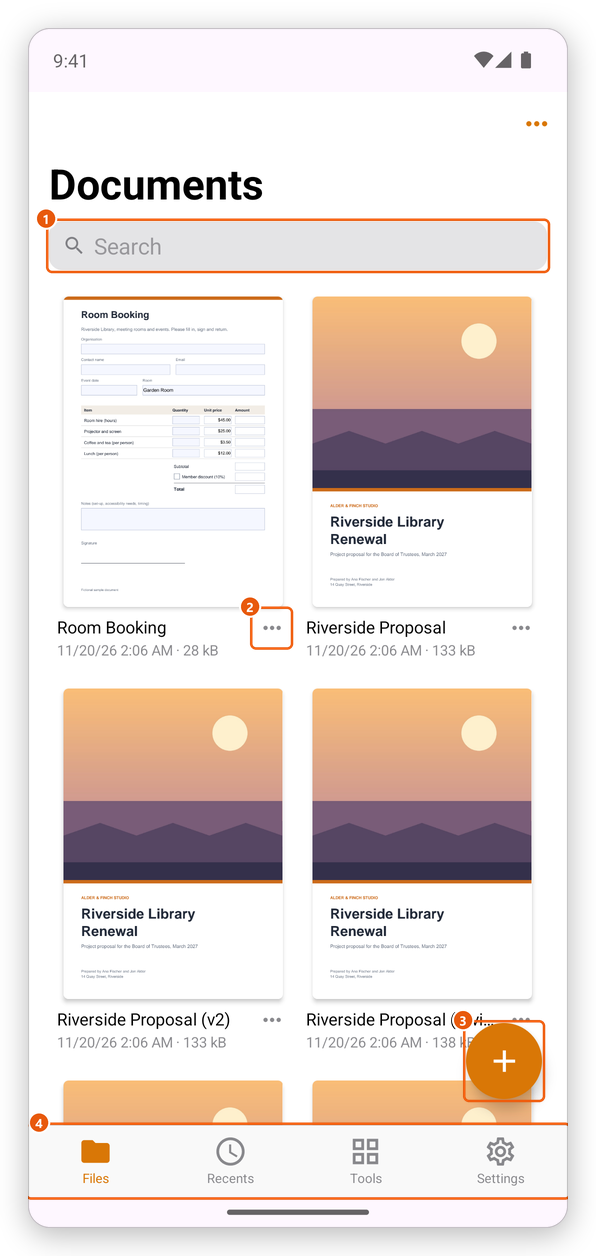
- Search the library by a document's name.
- A document's menu: open, share, add to your favourites, rename, duplicate, move or delete it.
- Add (the + button): open a PDF from your phone or a cloud service, scan, make a PDF, combine PDFs or make a folder.
- The four tabs.
A document's screen
Tap a document to open it. Its screen has three parts.
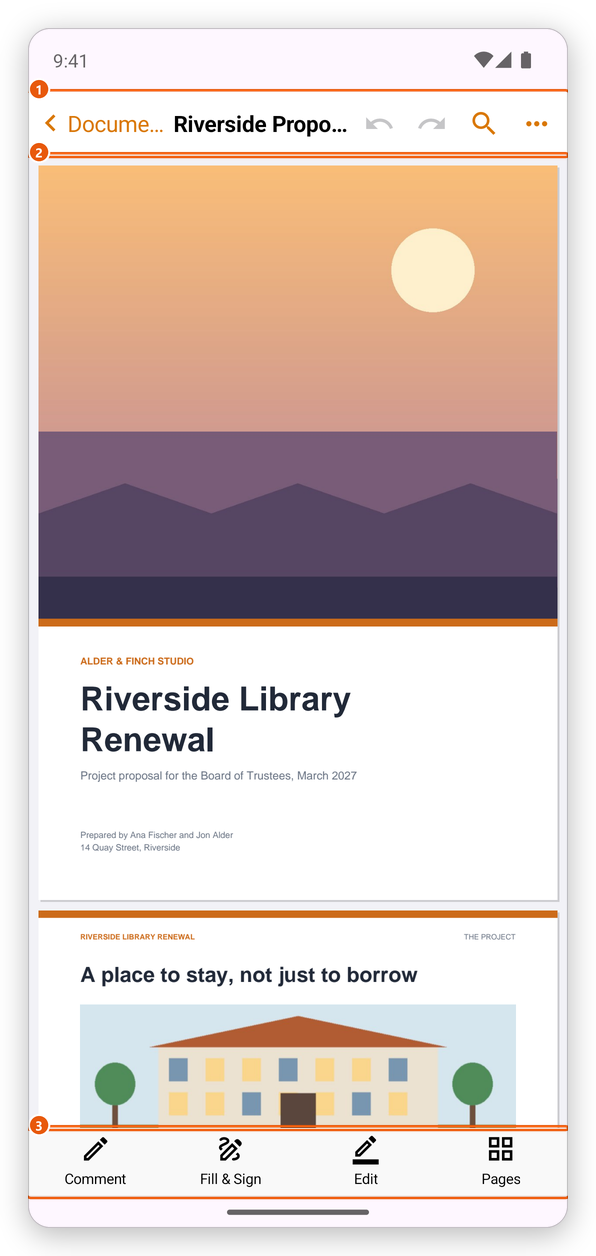
- The top bar. The arrow on the left goes back to the library. Then come the document's name, Undo and Redo, Find (the magnifying glass, see Find text) and More (the three dots), the menu that has everything else.
- The pages. Swipe to scroll, pinch to zoom. What a tap on a page does depends on the mode and the tool you chose.
- The modes. Comment, Fill & Sign, Edit and Pages. Tap one to show its tools above it; tap it again to hide them and just read.
Each mode's tools are in a bar above the modes. When they do not all fit, swipe the bar sideways to see the others.
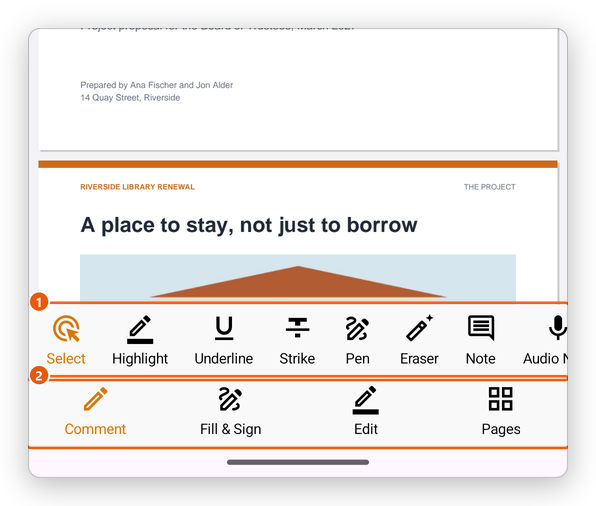
- The tools of the mode chosen, here Comment: Select, Highlight, Underline, Strike, Pen, Eraser, Note and more.
- The modes.
| Mode | What it does | Pages |
|---|---|---|
| Comment | Highlight and mark up text, draw, add notes, voice notes, text boxes, shapes and stamps, list the comments. | Comment |
| Fill & Sign | Type in forms and on any page, tick, sign and add your initials. | Fill forms, Sign |
| Edit | Change text and pictures, add text, images, shapes and links, white out. | Edit a PDF |
| Pages | See all the pages: move, rotate, insert, delete, extract and split them. | Organize pages |
The More menu
More (the three dots at the top right) has everything that is not a mode: sharing and saving, the document's properties, moving around the document, how it is shown, and the tools.
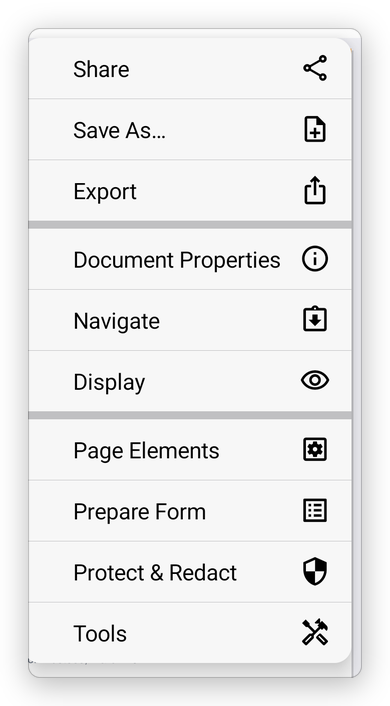
- Share, Save As… and Export: see Save a PDF and Export a PDF.
- Document Properties: see Document properties.
- Navigate: Go to Page, Bookmarks and Attachments.
- Display: Reading Mode, Read Aloud, Page Thumbnails, Layers, One Page at a Time and Night Mode. See View a PDF.
- Page Elements: watermarks, headers and footers, page numbers and backgrounds. See Headers and watermarks.
- Prepare Form: make and change form fields. See Create forms.
- Protect & Redact: passwords, redaction, cleaning up hidden information and signatures. See Protect a PDF.
- Tools: make the file smaller, recognize text, translate, flatten, summarize comments, save as PDF/A, check accessibility and compare.
Tap outside a menu, or use the system's back gesture, to close it.