Fill in a form
Type in the fields of a PDF form, tick its boxes, choose from its lists, let the form work out its totals, fill forms that have no fields with Fill & Sign, and fill your details in one tap with Autofill.
Many PDF forms have fields: boxes you can type in and tick. Others are only a picture of a form, with lines to write on. The app fills both.
Fill in a form's fields
- Open the form. Its fields are tinted, so you can see where to type.
- Tap a field. The page zooms in on it, and the keyboard opens.
- Type. The keyboard's Next key (→|) goes to the next field.
- Tap a check box or a round option button to tick it. Tap a list to choose one of its values.
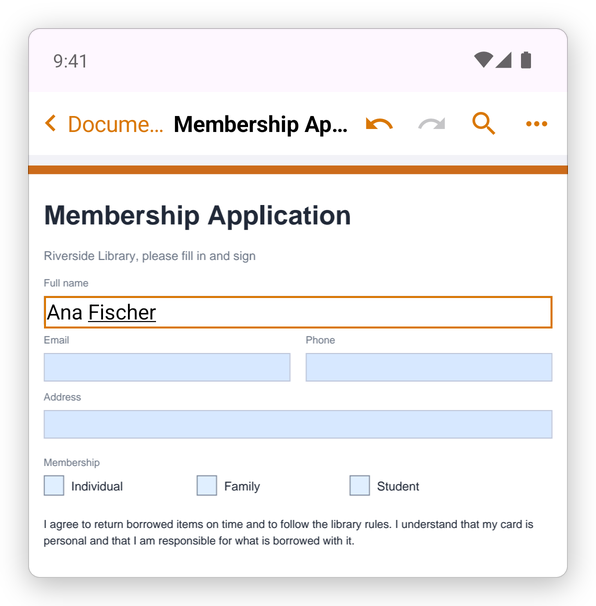
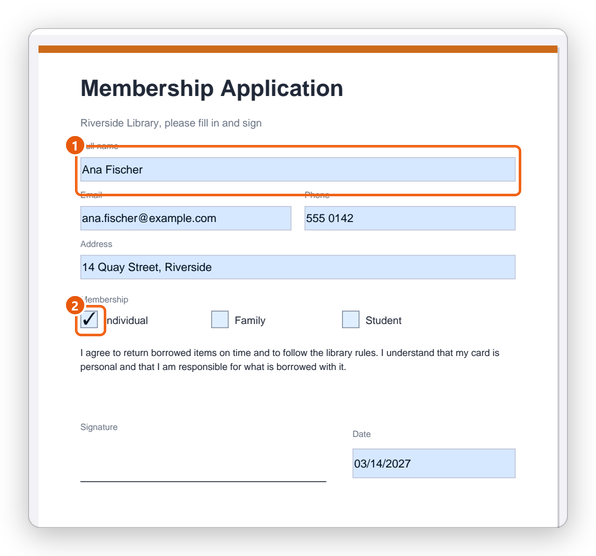
- A field filled in.
- A box ticked.
The app saves the form by itself as you fill it. Undo takes back a filled field.
A list opens a sheet with its values: tap one, or Cancel.
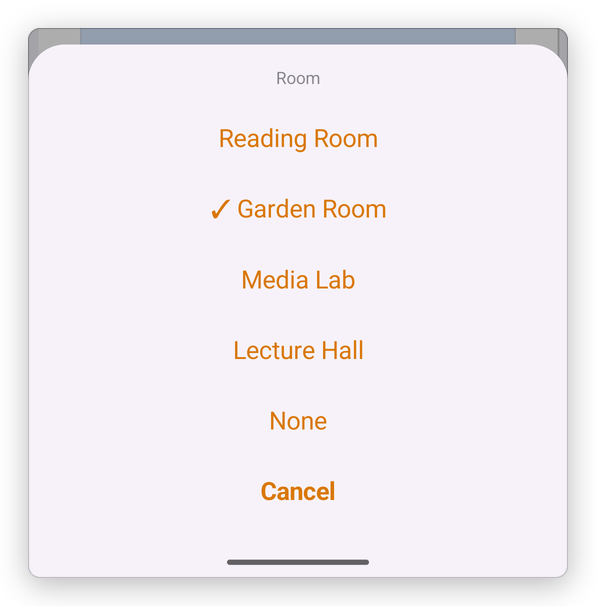
Some fields do more than take text:
- An image field: tap it to choose a picture, for example a photo for a card.
- A signature field: tap it to sign with your handwriting, or with a digital ID. See Sign a PDF and Digital signatures.
- A button: tap it to do what the form says, for example clear the form.
Dynamic forms (XFA), such as many government forms, work the same way: their pages grow as you fill them, and their scripts run.
Forms that calculate and check
Many forms work out values by themselves: an amount from a quantity and a price, a total, a date. As soon as you leave a field, the form calculates again and shows the results in their format, such as $329.40. Calculated fields are usually read-only: the form fills them, not you.
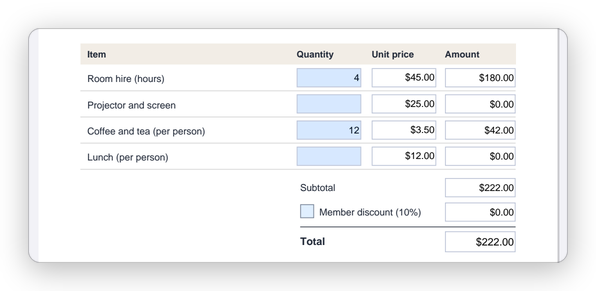
A form can also refuse a value: a quantity out of range, letters in an amount, a date that does not exist. A message says what the field accepts, and the field keeps its value from before.
Some forms fetch lists from the internet. The app does not let a document reach the internet by itself: it asks first. If you trust the document, allow it once or always; the documents you always trust are listed in Settings, under Documents you trust.
Fill a form that has no fields
A form printed to PDF, or scanned, has no fields. Use Fill & Sign to write on it:
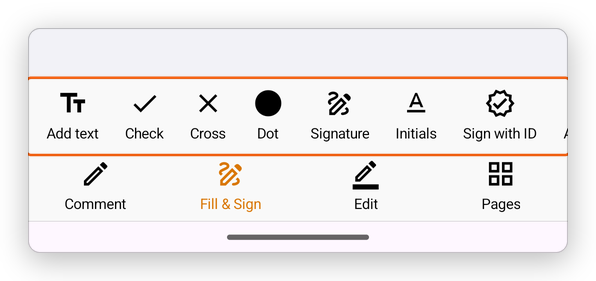
- Tap Fill & Sign, then a tool:
- Add text: tap where the text goes, and type.
- Check, Cross or Dot: tap a box to mark it.
- Signature and Initials: see Sign a PDF.
- Colour changes the colour, and Smaller and Larger the size of what you add.
To move what you added, drag it. To delete it, tap it, then Delete.
Autofill
Autofill fills a form's empty fields that ask for your name, email, phone, address, date of birth, company or job title, from My Details in Settings. The first time, it asks you to fill in My Details. Your details stay on your device.
Check the required fields, reset, export or import
Tap More, then Prepare Form for these:
- Check Required Fields: lists the required fields that are still empty.
- Reset form: empties every field.
- Export data and Import data: save what you typed in the form to a small file (FDF or XFDF), or fill the form from one.
- Flatten form: makes the filled fields part of the page, so they can no longer be changed.