Save a PDF
How the app saves your changes by itself, undo and redo, save a document under a new name, save a copy elsewhere, and share it.
The app saves for you
There is no Save button: the app saves a document by itself, two seconds after each change, and again when you leave it. A document in the library is saved in the library; a document you work on where it is, in Files, Google Drive or another service, is saved back to that file. See Open a PDF.
If a document cannot be saved, for example because its file is no longer there, the app says so and keeps your work, so nothing is lost.
Undo and redo
Undo (the curved arrow at the top) takes back your last change, and you can tap it again to take back the one before. Redo brings back what you undid. The changes can be undone until you leave the document.
Save under a new name
To keep the document as it was and go on with a new one:
- Tap More, then Save As….
- Type the new name, and tap Save.
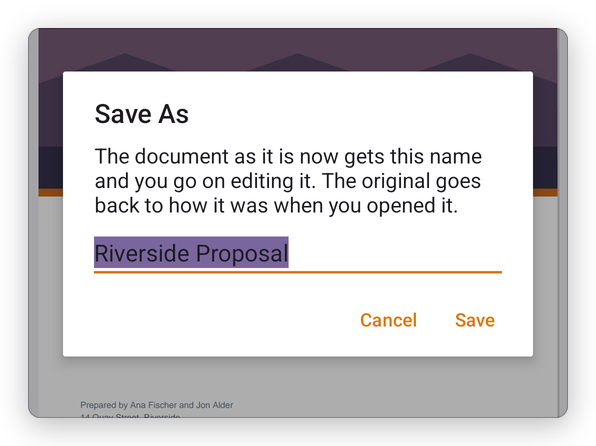
The document as it is now gets the new name, next to the original, and you go on editing it. The original goes back to how it was when you opened it.
Save a copy somewhere else
Tap More, then Export, then Save a Copy to Files, and choose where: a folder on your phone, a memory card, Google Drive or another service.
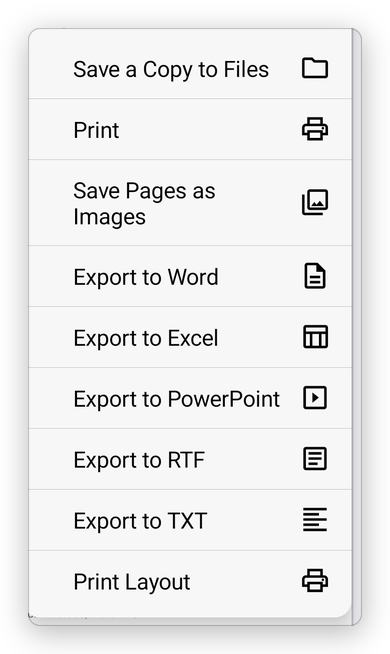
The other entries of Export print the document, save its pages as pictures and convert it to Word, Excel, PowerPoint, RTF or text: see Export a PDF and Print.
Share it
Tap More, then Share, and choose an app: your email, a chat, Google Drive, Nearby Share. What you share has all your changes. See Open from other apps and share.