Compare two versions
Compare a document with another version of it, list what changed page by page, and see each change on both versions.
Comparing documents needs Pro.
When you get a new version of a document, the app finds what changed: text taken out, put in or changed, formatting, pictures, graphics and comments.
- Open the older version.
- Tap More, then Tools, then Compare With….
- Choose the newer version in the list of your library's documents. The ones changed most recently are at the top.
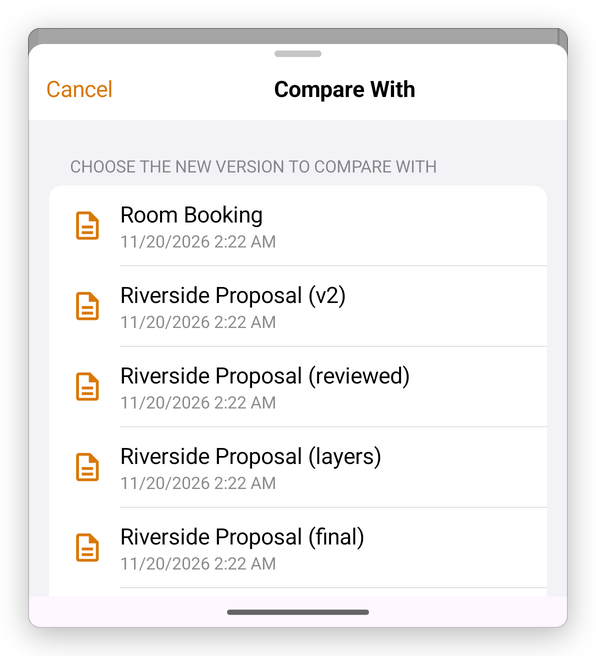
The app compares the two versions, and lists the changes:
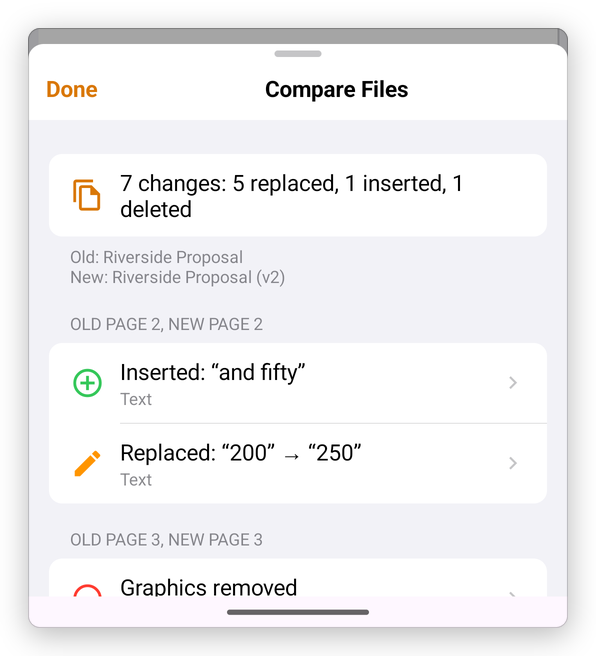
At the top, how many changes there are, of what kind, and which version is the old one and which is the new one. Then the changes, by pair of pages (a page may have moved): each with what happened, such as Inserted: "and fifty" or Replaced: "200" → "250", and what kind of content it is.
Tap a change to see it on both versions: the old page above the new one, every change of those pages marked lightly and this one strongly. The colours say what happened: red for what was taken out, green for what was put in, orange for what changed and blue for what moved. The arrows at the top go to the previous and the next change.
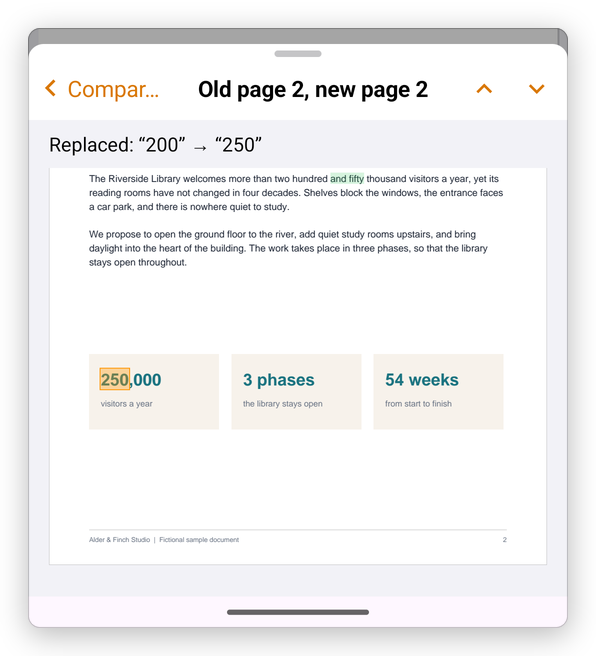
Tap Done to close the comparison. Neither document is changed.