Redact
Remove text, pictures and areas from a document for good: mark them by hand or find them, such as a name, email addresses, phone or card numbers, and apply the redactions.
Redaction needs Pro.
Redacting removes content for good: the text under a redaction is gone from the file, not only hidden, so it cannot be found, copied or recovered. A black box shows where it was.
Tap More, then Protect & Redact, then Redact. The redaction tools show at the bottom:
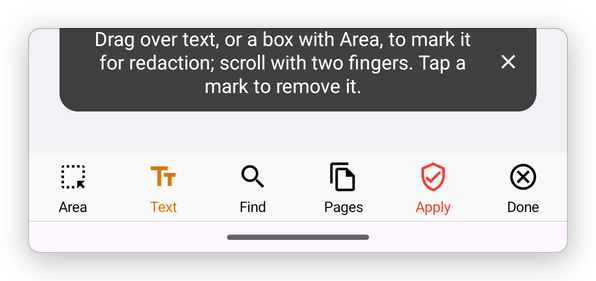
- Area: drag a box over a part of the page, such as a picture or a signature.
- Text: drag over text to mark it.
- Find: find text to redact. See below.
- Pages: mark whole pages.
- Apply: remove what is marked. The number in brackets says how many marks there are.
- Done: close the redaction tools.
Two fingers scroll the page while a tool is chosen. Tap a mark to remove it.
Find what to redact
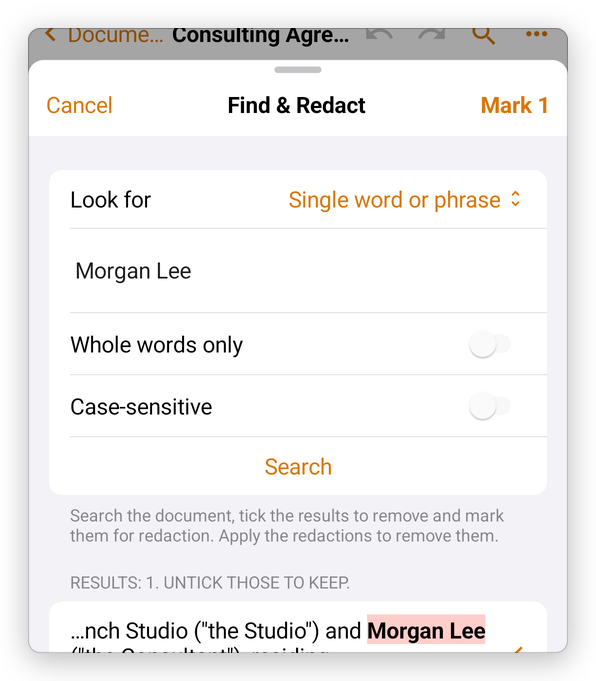
Tap Find.
Under Look for, choose Single word or phrase and type it, or a kind of information: E-mail addresses, Phone numbers, Credit card numbers, Bank account numbers (IBAN), Social security numbers (US) or Dates.
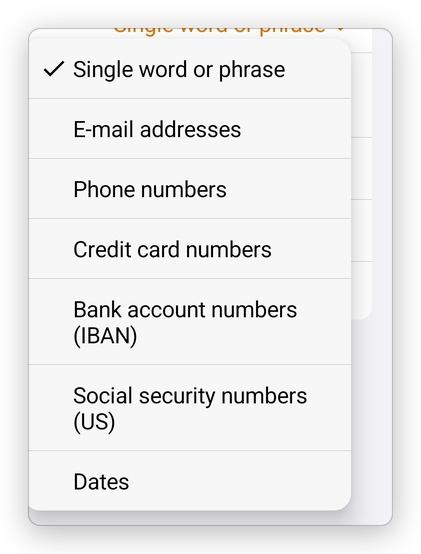
The kinds of information to find Turn on Whole words only or Case-sensitive if you need, and tap Search.
The results are listed with the words around them, all ticked. Untick those to keep, and tap Mark.
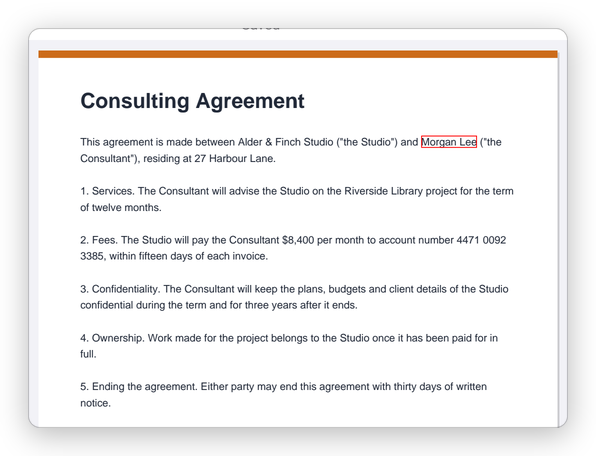
The marks show on the pages, outlined in red:
Apply the redactions
Tap Apply. The app asks first:
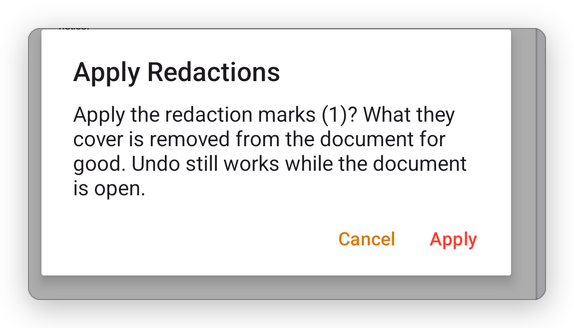
Tap Apply. What the marks cover is removed, and a black box takes its place:
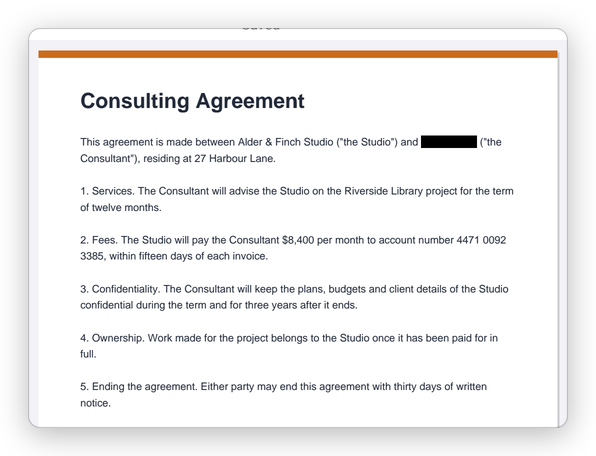
Undo still works while the document is open. Once you leave it, the redactions are final. To keep the original, use Save As… before you apply (see Save a PDF).
To also remove hidden information, such as the author's name in the document's details or comments, see Clean up a document.