Create a PDF
Scan paper with the camera, make PDFs from photos, Word, Excel, PowerPoint, text, Markdown and XPS files, and start an empty PDF.
New documents are added to your library, in the folder you are in, and open at once.
Scan paper
- In Files, tap Add (the + button), then Scan.
- Hold the phone over the page. The scanner finds the page's edges and takes the picture by itself (Auto capture), or when you tap the button (Manual).
- Adjust the corners if needed, retake a page, or go on to the next page.
- When all the pages are taken, save them.
The pages are straightened, cropped to the paper and made into one PDF. On a phone with Google Play services, the scanner is Google's, and the app gets only the pages you scan; on one without, the app's own camera does the same, and Android asks the first time whether the app may use the camera.
To make the scanned text searchable, recognize it: see Recognize text.
From photos
- Tap Add (the + button), then From Photo.
- Choose one or more photos, and tap Add.
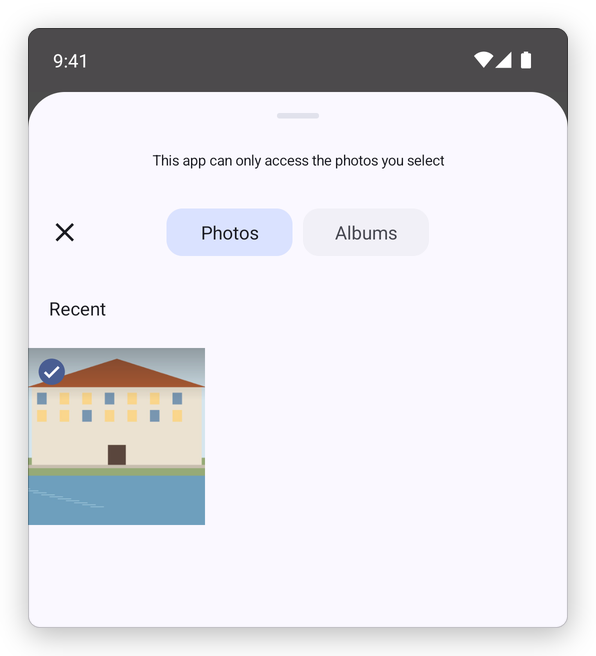
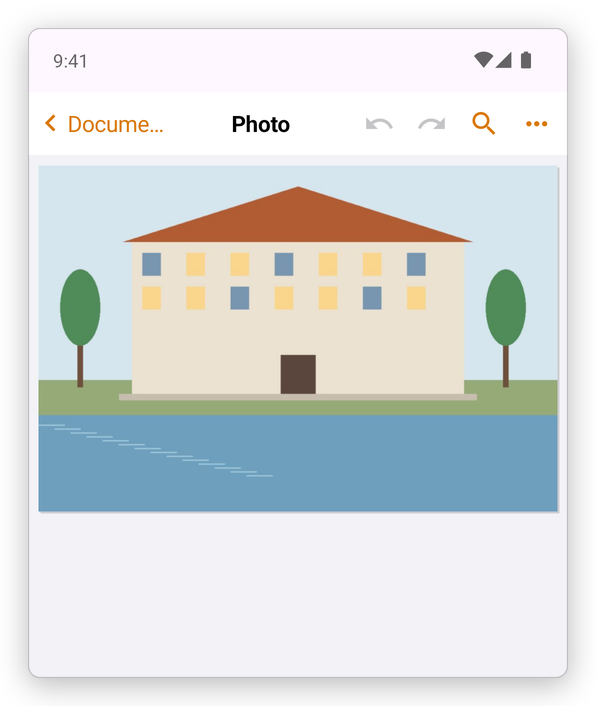
Each photo becomes a page of a new PDF.
From Word, Excel, PowerPoint and other files
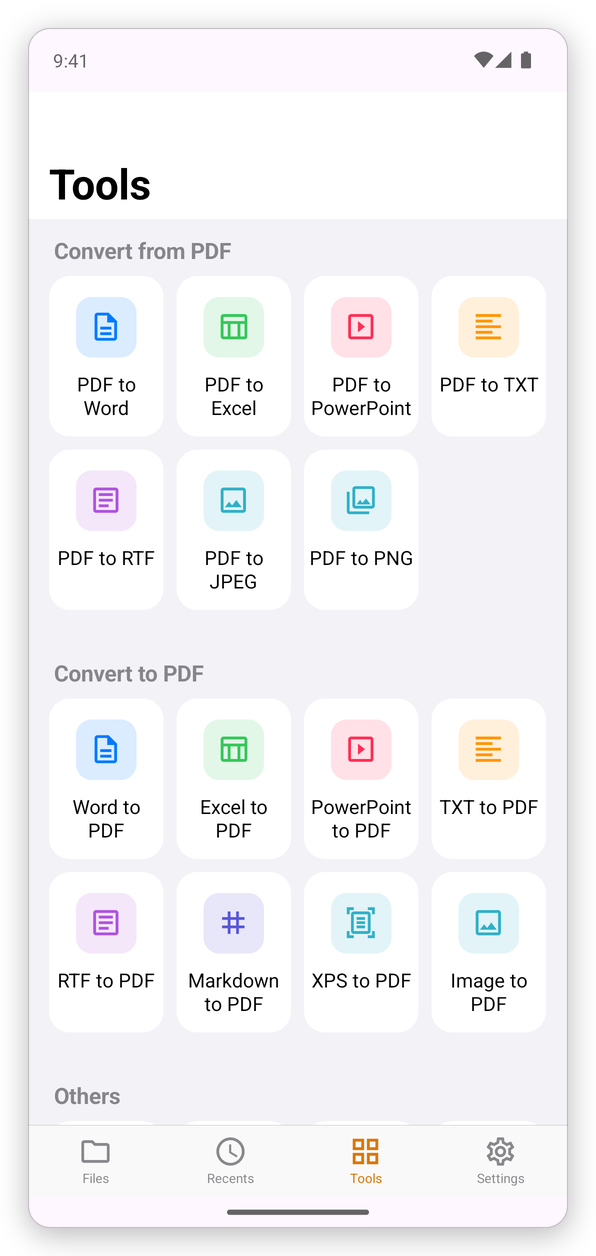
In the Tools tab, under Convert to PDF, tap the kind of file: Word to PDF, Excel to PDF, PowerPoint to PDF, TXT to PDF, RTF to PDF, Markdown to PDF, XPS to PDF or Image to PDF. Choose the file, and the PDF is made on your phone: nothing is uploaded.
You can also share a Word, Excel, PowerPoint, text or picture file from another app to SelectPdf: it is converted the same way. See Open from other apps and share.
An empty PDF
Add (the + button), then Empty PDF, makes a document of one blank page, to write, draw or sign on, or to add pages to.