JavaScript and actions
Add scripts that run when a document opens, set up the actions of the document, its pages and its fields, and how the app runs the scripts of the forms you fill.
Adding and changing scripts and actions needs Pro. The scripts of the forms you fill run for everyone.
PDF forms can carry JavaScript, as in Acrobat: to check a value, work out a total, show a field only when a box is ticked, or greet the reader. The app runs the scripts of the forms you open and fill, and lets you write your own.
Tap More, then Prepare Form, then JavaScript.
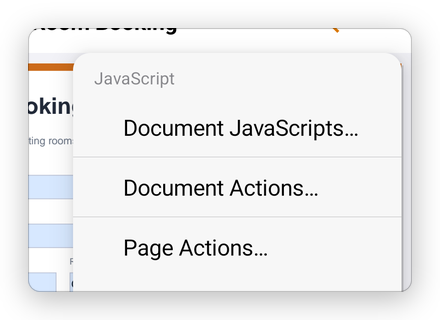
- Document JavaScripts…: scripts that run when the document opens, in name order. Use them for functions that the fields' scripts call.
- Document Actions…: what the document does when it closes, before and after it is saved, and before and after it is printed.
- Page Actions…: what a page does when it is shown and when it is left.
Add a document script
- Tap Document JavaScripts…, then Add….
- Type the script's name, and tap Done.
- Type the script, then tap the arrow at the top left to come back to the list.
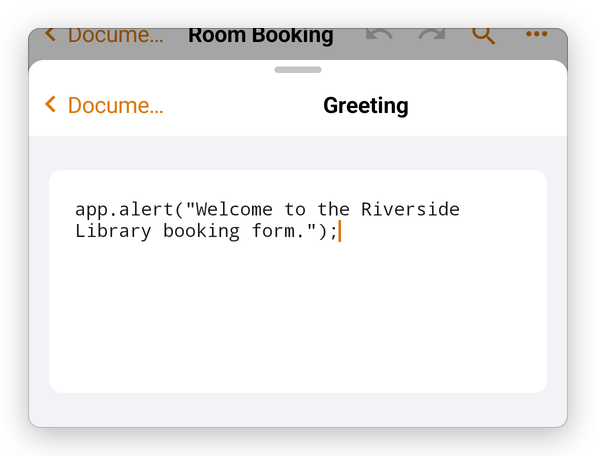
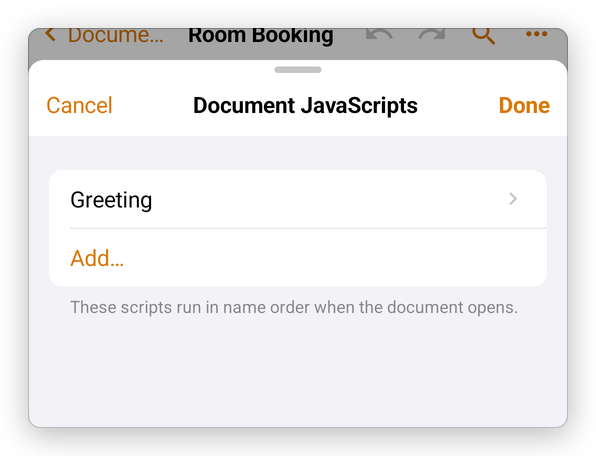
- Tap Done.
The next time the document opens, its scripts run. This one shows a message:
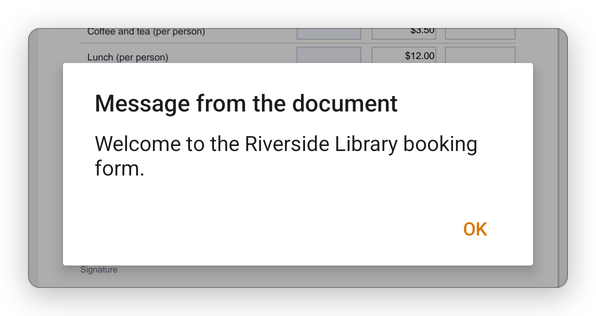
Tap a script in the list to change it, or Delete to remove it.
The actions of a field or a link
The Actions page of a field's properties sets what it does when it is tapped, entered or left: go to a page, open a web address, show or hide fields, reset or submit the form, or run a script. Several actions run in the order of the list. See Form field properties.
How the app runs scripts
The app runs a form's scripts on your phone, with what Acrobat's scripts can do in a form: calculate, format, check values, show messages and ask questions. A document cannot reach the internet by itself: the app asks you first.