Manage comments
List a document's comments page by page, go to one, read the replies, delete comments, summarize them in a new PDF, and flatten them into the pages.
The list of comments
Tap Comment, then Comments (at the end of the bar of tools).
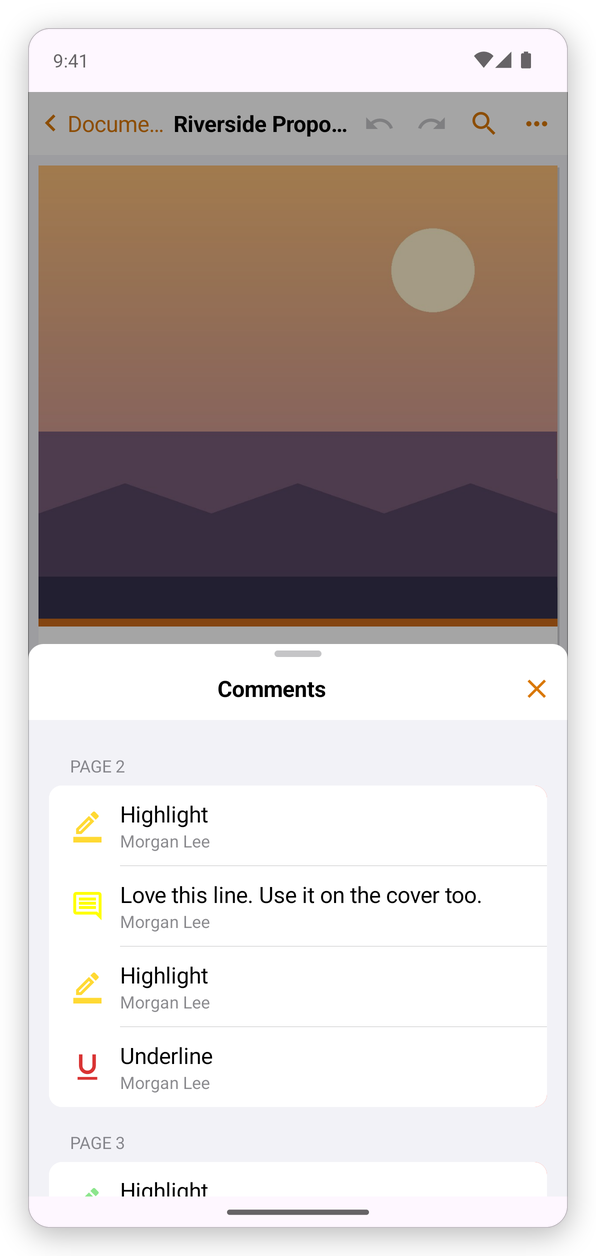
The list shows the comments page by page: what each one is or says, who wrote it, and under it its replies.
- Tap a comment to see it on its page, selected, with its menu: Edit Comment, Reply, Colour, Delete. See Comment on a PDF.
- Touch and hold a comment to delete it.
- The ✕ closes the list.
Summarize the comments
A summary is a new PDF that lists the comments, to read or send to people who will not open the document itself.
- Tap More, then Tools, then Summarize Comments.
- Choose Comments only, or Document and comments on separate pages (each page, followed by its comments).
The summary is added to your library next to the document, and the app offers to share it. The document itself does not change.
Flatten the comments
Flattening makes the comments, and the filled form fields, part of the pages: they can no longer be changed, moved or deleted, and every PDF app shows them, even one that does not show comments.
Tap More, then Tools, then Flatten. Undo takes it back while the document is open. To keep the original with its comments, use Save As… first (see Save a PDF).