Find text
Find a word or a phrase in a document, go from one place to the next, match case or whole words, and select and copy text.
Find in a document
- Tap Find (the magnifying glass at the top).
- Type what you are looking for. The app finds it as you type.
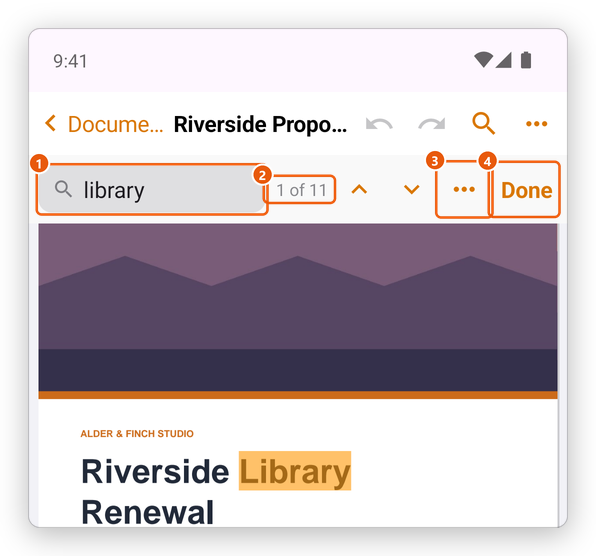
- What you are looking for.
- How many places have it, and which one is shown.
- The options.
- Done closes the find bar.
Every place is marked on the pages, and the one shown is marked more strongly. Tap the up and down arrows to go to the previous and the next place; the pages scroll to it. If there is none, the bar says No results.
The three dots on the find bar have the options:
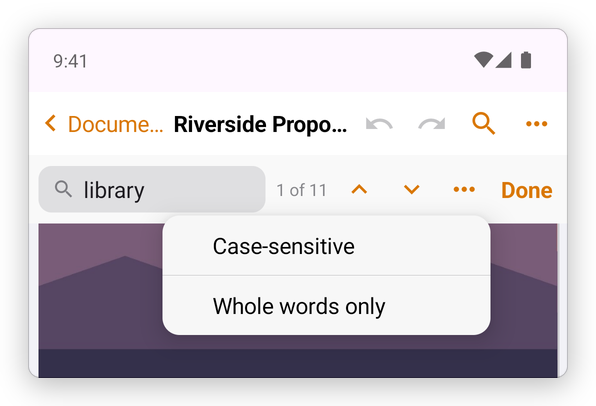
- Case-sensitive: Library does not find library.
- Whole words only: rent does not find current.
Find searches the text the pages have. A scanned page is only a picture: recognize its text first, and then it can be found. See Recognize text.
Select and copy text
Touch and hold a word on a page: it is selected, with a handle at each end. Drag the handles to select more. A menu shows over the selection:
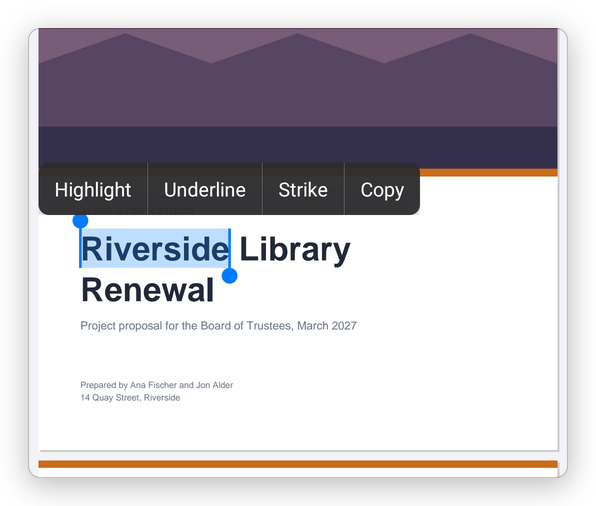
- Copy puts the text on the clipboard, to paste in another app.
- Highlight, Underline and Strike mark the text as a comment. See Comment on a PDF.
Tap elsewhere on the page to clear the selection.