Protect a PDF with a password
Add a password that is needed to open a document, a second password that keeps it from being changed, and change or remove them.
Adding, changing and removing passwords needs Pro. Opening a protected document is free.
Tap More, then Protect & Redact:
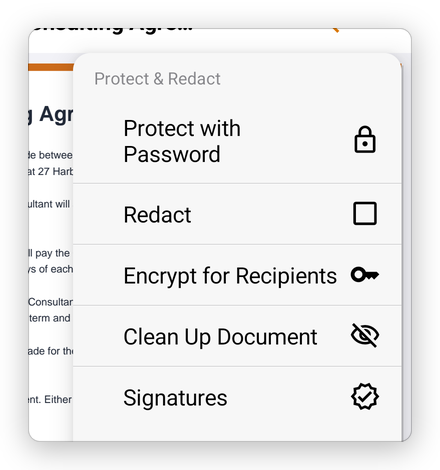
- Protect with Password: see below.
- Redact: remove content for good. See Redact.
- Encrypt for Recipients: only people with certain digital IDs can open the document. See Certificate security.
- Clean Up Document: remove hidden information. See Clean up a document.
- Signatures: see Digital signatures.
Add a password
- Tap More, then Protect & Redact, then Protect with Password.
- Type the password twice, in Password and Confirm password.
- To keep the document from being changed by people who can open it, turn on Also keep it from being changed, and type a second password twice, in Password for changes and Confirm password for changes.
- Tap Protect.
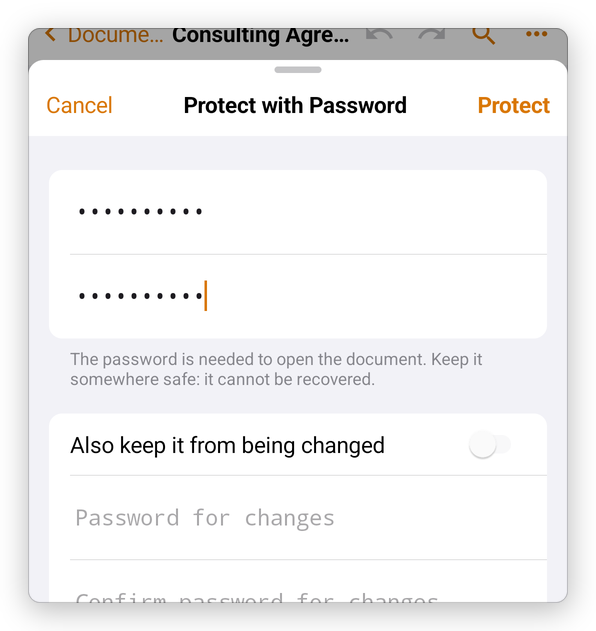
The document is encrypted and saved. From now on it asks for the password when it opens, in this app, in Acrobat and in every PDF app. Keep the password somewhere safe: it cannot be recovered, by you, by us or by anyone.
With a password for changes, the document opens for reading. Without that password it cannot be edited, commented on or filled in, its text and pictures cannot be copied or exported, and its pages cannot be added, removed or turned. Printing it stays allowed.
When you choose Comment, Fill & Sign, Edit or Pages, the app asks for the password for changes (Enter the password for changes to edit this document.). When you copy text, export the document to another format or ask the assistant about it, it asks too (Enter the password for changes to copy from this document.). Type it and tap Unlock: the limits are lifted until you close the document.
Change or remove the password
Open the document with its password, then tap More, then Protect & Redact, then Protect with Password. The app says the document is protected: tap Change Password to type new passwords, or Remove Password to take the protection away. Document Properties shows how a document is protected, under Security (see Document properties).