Open from other apps and share
Open PDFs in SelectPdf from the Files app, Google Drive, email and other apps, share documents, pictures and Office files to it, send your documents to other apps, and use the shortcuts on the app's icon.
You do not have to start in the app's library: any app that shows a PDF can hand it to SelectPdf, and SelectPdf can hand your documents to any app.
Open a PDF from another app
- In the Files app, Google Drive, your email or a chat, tap the PDF.
- If Android asks which app to open it with, tap SelectPdf, then Just once, or Always to make SelectPdf the app that opens PDFs.
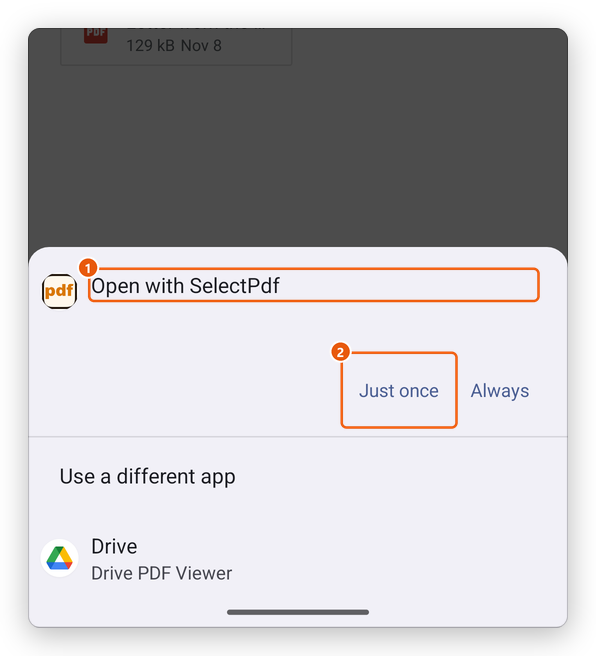
- SelectPdf in the list of apps that open PDFs.
- Just once opens it this time; Always every time.
The document opens in SelectPdf. What happens to your changes depends on where it came from:
- A file in Files, Google Drive or another storage service: the app works on the file where it is, and every save goes back to it. The document is listed in Recents, so you can open it again from there.
- A file given only to read, such as an email attachment or a download from a website: the app adds a copy to your library and opens that. The original stays as it was.
To choose a file to work on where it is, from inside the app, tap Add (the + button) in Files, then Edit in Place from Files.
Share to SelectPdf
From another app's Share button, choose SelectPdf: the app adds what you share to your library and opens it.
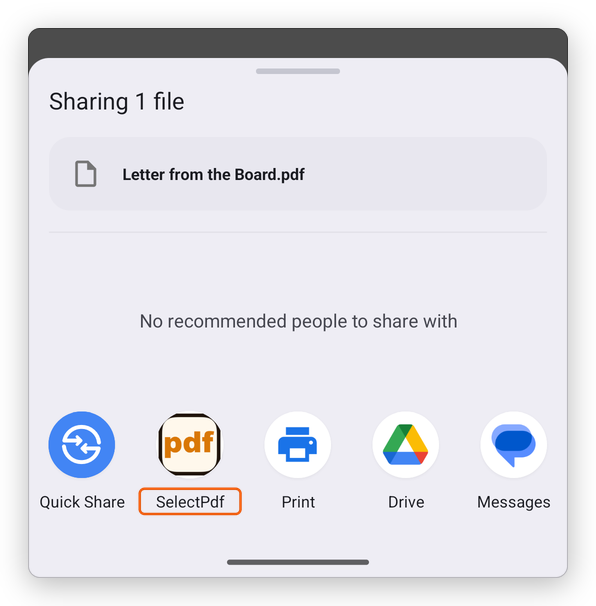
- A PDF is added as it is.
- A picture becomes a one-page PDF.
- A Word, Excel, PowerPoint, RTF, text or XPS document is converted to a PDF.
Share several files at once, and each is added; the app tells you how many.
Send a document to another app
- In the library, tap the three dots next to a document, then Share. To share several, tap the three dots at the top, then Select, tick the documents, and tap Share at the bottom.
- In an open document, tap More, then Share. The document is saved first, so what you send has all your changes.
Android's share sheet opens: choose an app, such as your email, a chat, Google Drive or Nearby Share. To keep a copy somewhere else instead, use More, then Export, then Save a Copy to Files (see Save a PDF).
Shortcuts on the app's icon
Touch and hold the app's icon on your home screen or in your list of apps: the menu offers the document you opened last, scanning a document and combining PDFs, so you can start them in one tap. Drag one to your home screen to keep it there.
You can also ask Google Assistant to scan a document, recognize text, combine PDFs or open your last document with SelectPdf.