Links
Follow the links of a document, and add, change, move and remove links to pages and web addresses.
Follow a link
Tap a link on a page. A link to a page of the document goes there; a link to a web address opens it in your browser.
The app does not let a document open a web address by itself: a link opens one only when you tap it.
Add a link
Adding and changing links is part of editing a PDF, a Pro tool.
- Tap Edit, then Link in the bar of tools. The app says Drag a box for a new link, or tap a link to change it. Two fingers scroll.
- Drag a box over the words or the picture that should be the link.
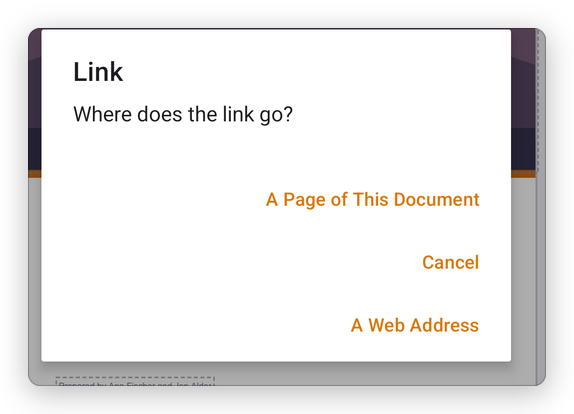
- Choose where the link goes: A Page of This Document (then type the page number), or A Web Address (then type it, for example https://selectpdf.com).
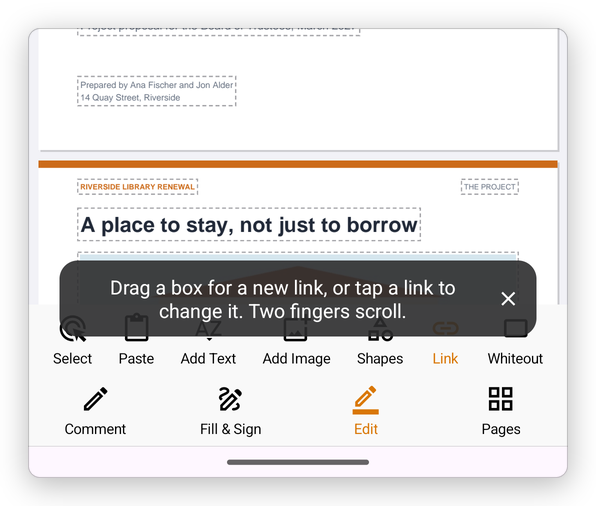
The app says Link added. While the Link tool is chosen, the page shows the boxes of its links.
Change or remove a link
With the Link tool chosen, tap a link. Its box is selected, with a menu:
- Change: choose again where it goes.
- Where it goes now, for example Page 4: tap to follow it.
- Remove link.
Drag the box to move the link, or drag its corners to change its size.
To make a link, a button or a form field do more than go somewhere, such as show or hide a field or run a script, see JavaScript and actions.