Draw and add shapes
Draw by hand, erase, add rectangles, ellipses, lines and arrows, add text boxes, and choose colours, thickness and fill.
All of these are comments: they are in the Comment mode, and they can be moved, changed and deleted like any comment (see Comment on a PDF).
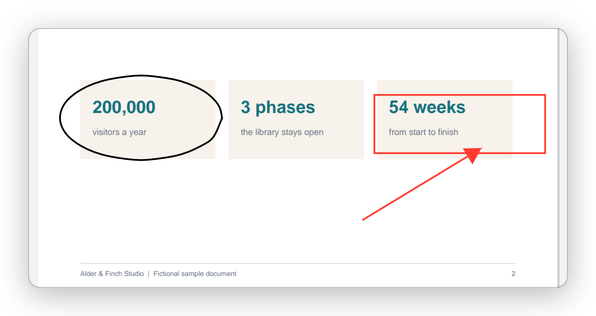
Draw by hand
- Tap Comment, then Pen.
- Draw on the page with your finger or a stylus.
Each stroke is kept as you lift your finger. To scroll while the pen is chosen, use two fingers. With a stylus, turn on Draw with a stylus only in Settings: then a finger always scrolls, and only the stylus draws.
Eraser rubs out the drawings you go over.
Add a shape
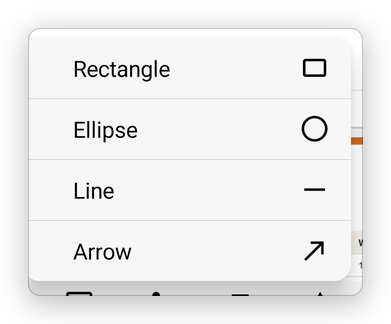
- Tap Comment, then Shapes, and choose Rectangle, Ellipse, Line or Arrow.
- Drag on the page from one corner of the shape to the other (for a line or an arrow, from its start to its end).
Add a text box
A text box is text written on the page, in a box.
- Tap Comment, then Text box, then tap the page where it should be.
- Type the text. Smaller and Larger (A− and A+) change the size of the text.
- Tap Done.
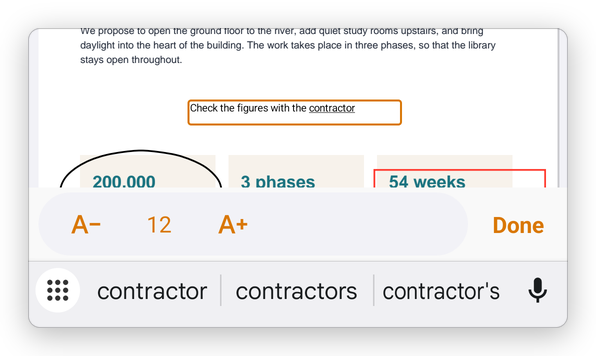
To change the text later, select the text box with Select and tap Edit Comment.
Colours, thickness and fill
Colour sets the colour of the tool you use, or of the comment you selected, and the thickness of its lines: Thin, Medium or Thick. Other colour… opens a picker for any colour.
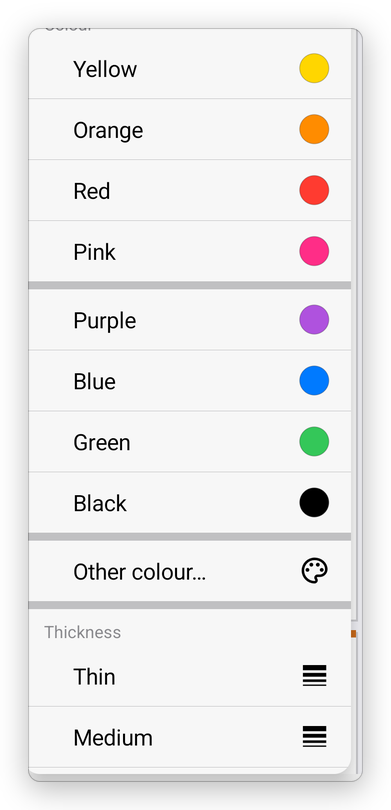
Fill fills a rectangle or an ellipse with a colour, or leaves it empty with No fill. The app remembers your choices for the next time.