Settings
Every setting of the Android app, from your name on comments, the language and the theme to where your documents are kept, your digital IDs, your details for forms, the stylus, trusted certificates and Pro.
Tap Settings at the bottom of the screen. Every change counts at once; there is nothing to save.
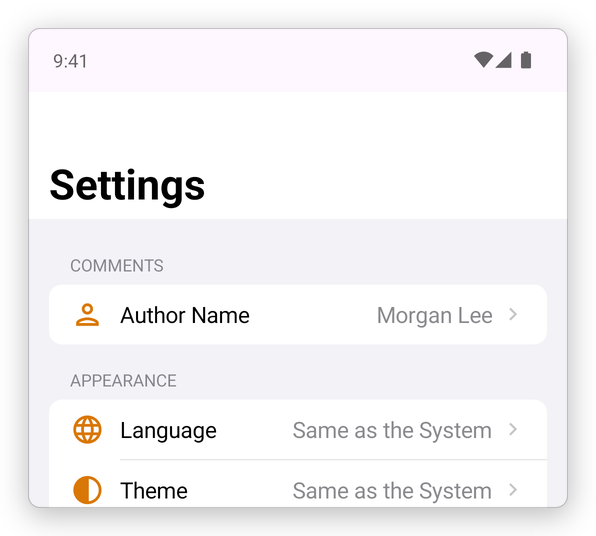
Comments
- Author Name: the name shown on your comments, so others know who wrote them. It starts as your device's name; tap it to type yours.
Appearance
- Language: the language of the app. Same as the System follows your phone's language; or choose one of English, Română, Deutsch, Français, Español, Italiano, Português (Brasil), Nederlands, Polski, 日本語, 简体中文 and 한국어.
- Theme: Light, Dark, or Same as the System. This is the app's look; to read a document in dark colours, use Night Mode (see View a PDF).
Documents
- Documents Location: where your library is kept. On This Device keeps it in the app, on your phone. A Folder in Files… keeps it in a folder you choose: on Google Drive, a memory card, OneDrive, Dropbox or another service whose app is installed, so your documents are in that service too.
- Text Recognition Language: the language of the text that Recognize Text reads. Automatic tells it from the page.
- Digital IDs: the certificates you sign with and open encrypted documents with. See Digital signatures.
My Details
- My Details: your name, email, phone, address, date of birth, company and job title, kept on this device only, protected by the device's keystore. Autofill, in Fill & Sign, puts them in a form for you.
Drawing
- Draw with a stylus only: with a stylus, such as an S Pen. A finger always scrolls; only the stylus draws and highlights.
Trusted certificates
These say whose signatures the app shows as valid. See Digital signatures.
- Also trust the EU Trusted Lists: signatures made with the qualified certificates of the European Union's trust services.
- Also trust major document signing providers (DigiCert, GlobalSign and others).
- Documents you trust: the documents you allowed to use the internet or run their actions. Touch and hold one, then tap Remove: that document asks again the next time it opens.
Pro
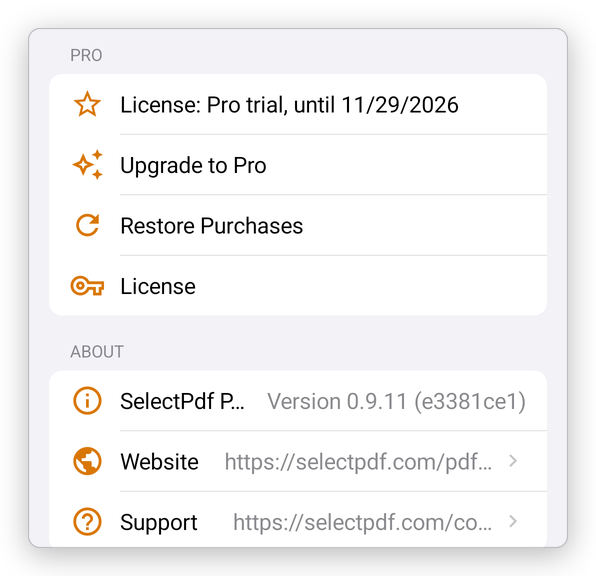
What you have (the trial, a plan, or the free version), and Upgrade to Pro, Restore Purchases, Manage Subscription and License. See Install and buy Pro.
About
The app's version, and Website and Support, which open our website.