Comment on a PDF
Highlight, underline and strike out text, add notes and voice notes, and change, answer or delete a comment.
Comments mark up a document without changing its content: everyone who opens it sees them, in this app, in Acrobat and in most PDF apps, and can answer them. Each one carries your name: set it as Author Name in Settings.
Tap Comment at the bottom of a document to show the comment tools. Swipe the bar of tools sideways to see them all.
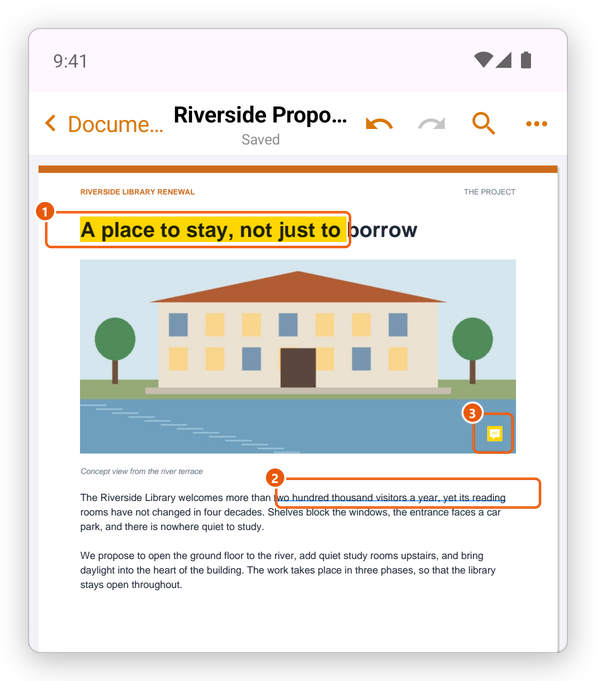
- Highlighted text.
- Underlined text.
- A note.
Highlight, underline and strike out text
- Tap Highlight, Underline or Strike.
- Drag your finger over the text, from its first word to its last.
The text is marked in the tool's colour. To mark more text, drag again: the tool stays chosen until you choose another one, or Select.
You can also start from the text: touch and hold a word, drag the handles over the text you want, and choose Highlight, Underline or Strike in the menu over it. See Find text.
Add a note
- Tap Note, then tap the page where the note should be.
- Type what you want to say, and tap Done.
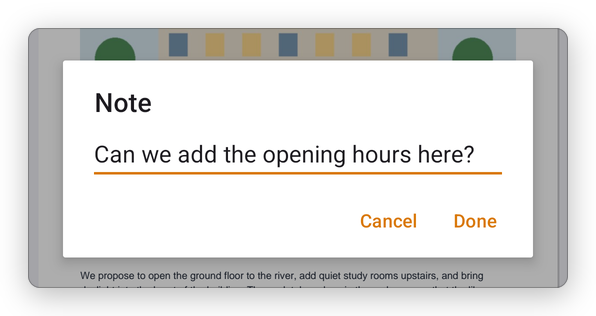
A note shows on the page as a small yellow sign. Tap it, with Select, to read it.
Add a voice note
Voice notes need Pro.
- Tap Audio Note, then tap the page where it should be. The first time, Android asks whether the app may use the microphone: allow it.
- Speak. The app shows how long it has recorded.
- Tap Done to keep it, or Cancel.
The recording is kept in the document, as a speaker on the page. Tap it, then Play, to listen. Acrobat and other PDF apps can play it too. If the microphone is turned off for the app, the app says so: turn it on in Android's Settings, under Apps, SelectPdf, Permissions.
Change, answer or delete a comment
Tap Select, then tap a comment on the page. A menu shows over it:
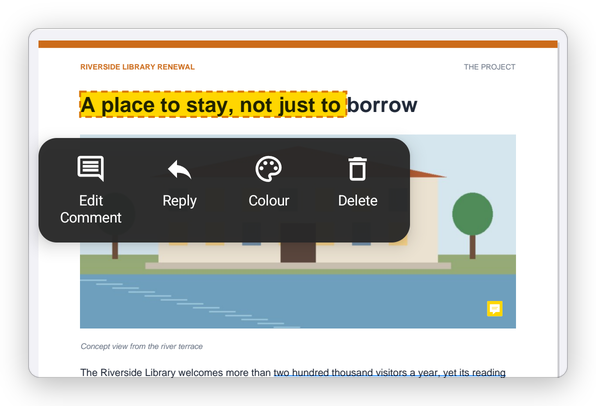
- Edit Comment: type or change the text that goes with the comment.
- Reply: answer it. The reply shows under the comment in the list of comments.
- Colour: choose another colour.
- Position & Size (for a note, a drawing, a shape or a stamp): move it or change its size exactly.
- Delete.
You can also drag a selected note, drawing, shape or stamp to move it. Undo takes back any change.
To see all the comments of a document at once, see Manage comments. For drawings, shapes and text boxes, see Draw and add shapes.