Form field properties
A field's name, tooltip, visibility and read-only or required setting, its look, its options, its format for numbers, dates and the like, and what values it accepts.
Changing form fields needs Pro.
- Tap More, then Prepare Form, then Edit Fields.
- Tap a field, then Properties.
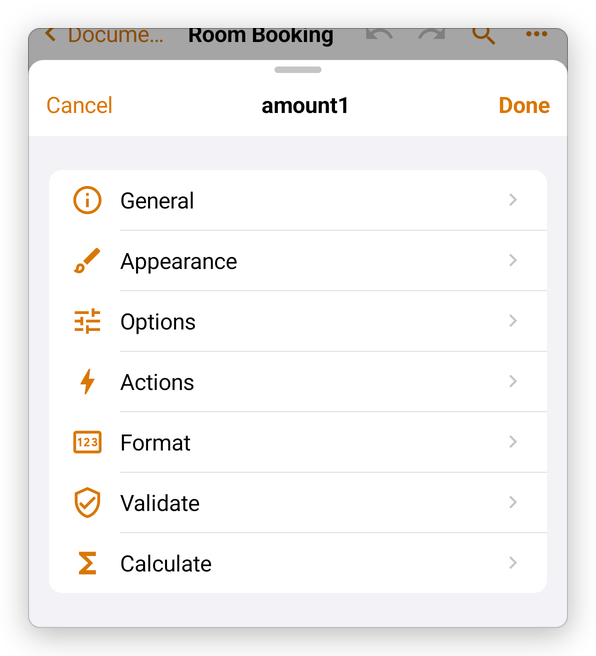
The properties are in pages: tap one to open it, and the arrow at the top left to come back. Done keeps your changes; Cancel leaves the field as it was.
General
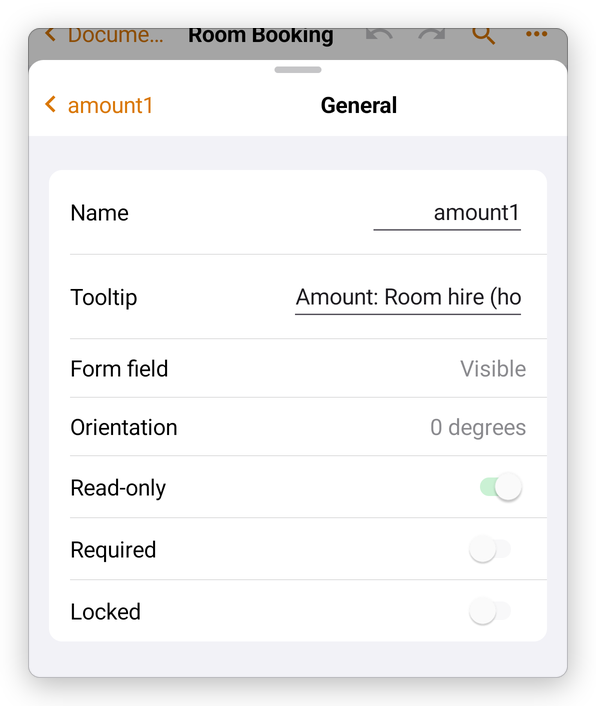
- Name: what scripts and calculations call the field. Each field of a form has its own name.
- Tooltip: what the field asks for, read out by screen readers and shown as a hint.
- Form field: whether the field is visible, hidden, or shown only on screen or only when printed.
- Orientation: turns the field's content by 90, 180 or 270 degrees.
- Read-only: nobody can type in it (a calculated field, for example). Required: it must be filled before the form is sent. Locked: its properties cannot be changed.
Appearance
The field's border colour and thickness, its fill colour, and the font, size and colour of its text.
Options
What a field of that kind does: for a text field its alignment, a default value, several lines, a character limit or a comb of boxes; for a check box its style and its value; for a list its items; for a button its label and icon.
Format
How the value is shown: Format category is None, Number, Percentage, Date, Time, Special (a ZIP code, a phone or social security number, or a mask of your own) or Custom (scripts).
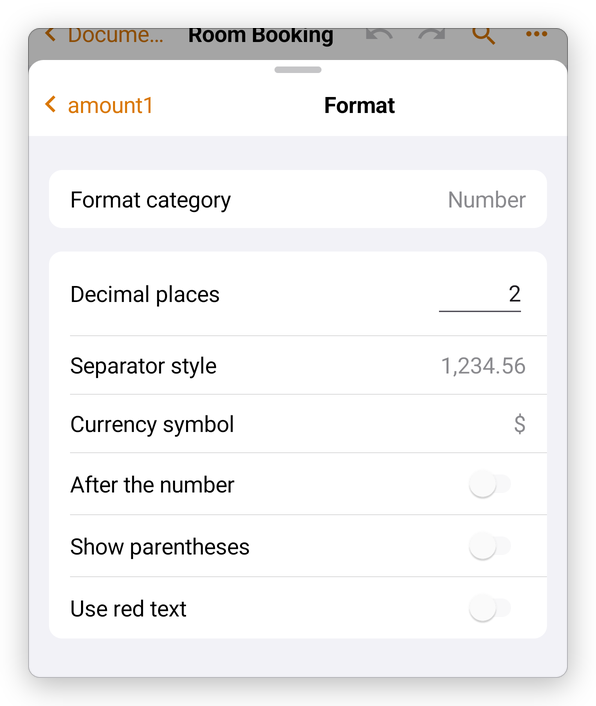
For a number: the decimal places, the separator style (such as 1,234.56), a currency symbol before or after the number, and negative numbers in parentheses or in red.
Validate
What values the field accepts: Field value is not validated, Field value is in range (a minimum and a maximum), or Run custom validation script. A value outside the range is refused with a message, and the field keeps its value from before.
Calculate
See Form calculations.
Actions
What the field does when it is clicked, entered, left and so on: go to a page, open a web address, show or hide fields, reset or submit the form, or run a script. See JavaScript and actions.