Edit a PDF
Change the text and pictures already on a page, add text, images, shapes and links, cover content with whiteout, and copy, move, turn or delete what is on a page.
Editing the content of the pages needs Pro.
Tap Edit at the bottom of a document. The page shows a dotted box around each paragraph, picture and shape it has, and the bar shows the edit tools:
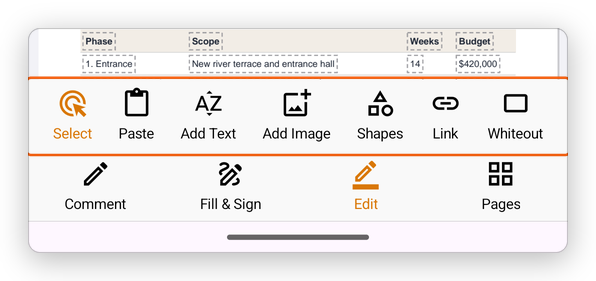
- Select: tap a paragraph, a picture or a shape to select it.
- Paste: put on the page what you copied or cut.
- Add Text, Add Image, Shapes, Link and Whiteout: see below.
Change the text
Tap Edit, then tap a paragraph. It is selected, with a menu:
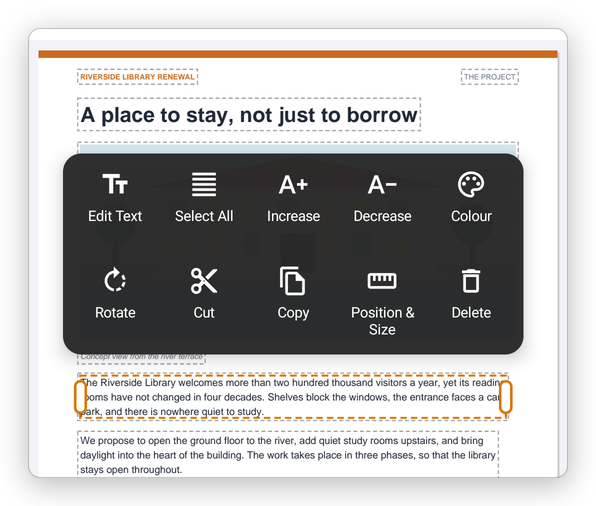
A paragraph selected, with its menu Tap Edit Text. The keyboard opens, with the cursor in the text.
Type, delete, or select words to replace them. The text flows again within the paragraph, in its own font.
Tap Done.
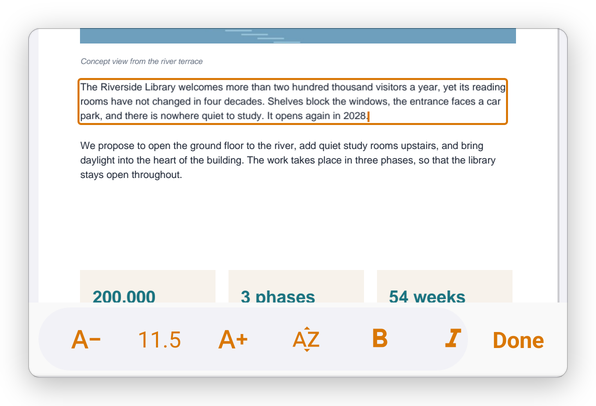
While you type, the bar above the keyboard changes the text you select, or what you type next: A− and A+ its size, the font, Bold and Italic.
The other entries of a paragraph's menu:
- Select All: the whole paragraph, to replace it.
- Increase and Decrease: make the text larger or smaller.
- Colour: the colour of the text.
- Rotate, Cut, Copy, Position & Size and Delete.
Drag a selected paragraph to move it, and drag its side handles to make it wider or narrower.
Pictures and shapes
Tap a picture or a shape to select it. Drag it to move it, and drag its corners to change its size. Its menu can Rotate, Cut, Copy, Delete it or set its Position & Size; a picture can also be cropped.
Add text, images and shapes
- Add Text: tap the page where the text goes, and type. Tap Done when you have finished.
- Add Image: choose a picture in your photos or files; it is placed on the page, where you can move it and change its size.
- Shapes: shapes drawn on the page as content, not as comments.
- Link: see Links.
Whiteout
Whiteout covers a part of the page with white, for example to hide a mistake before you type over it. Drag a box over what to cover.
Whiteout only hides what is under it: the text is still in the file, and can be copied or found. To remove content for good, use Redact.
Every change can be undone with Undo, and the document is saved as for any change.