Combine files
Combine several PDFs of your library into one document, in the order you choose.
- In Files, tap Add (the + button), then Combine PDFs. The Merge PDFs card of the Tools tab does the same.
- Tap the documents in the order they go in. Each one shows its place in the new document; tap it again to take it out.
- Tap Combine.
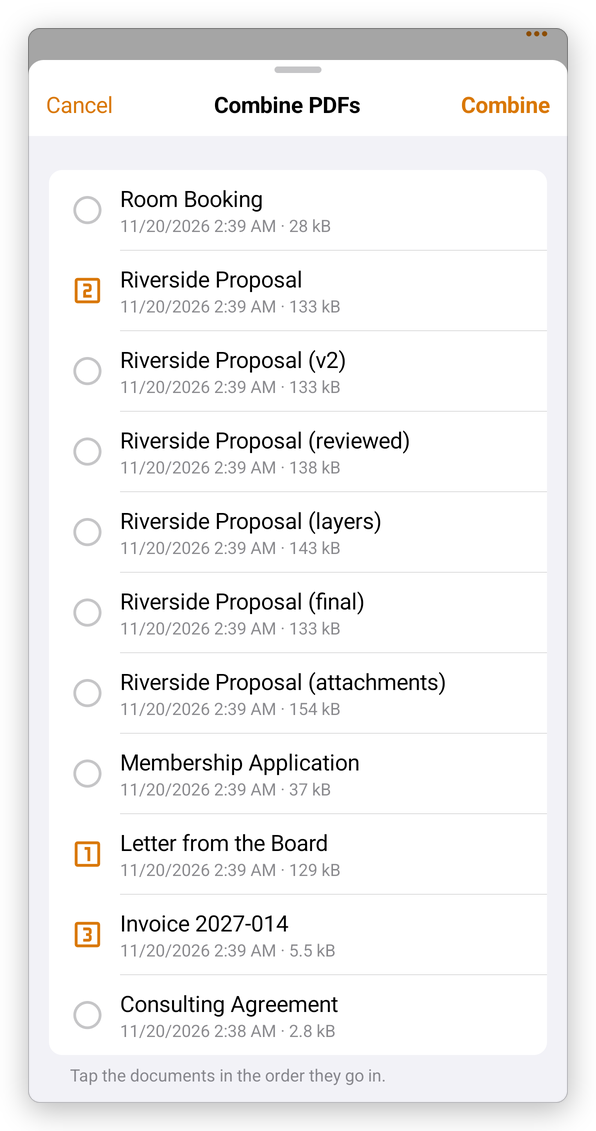
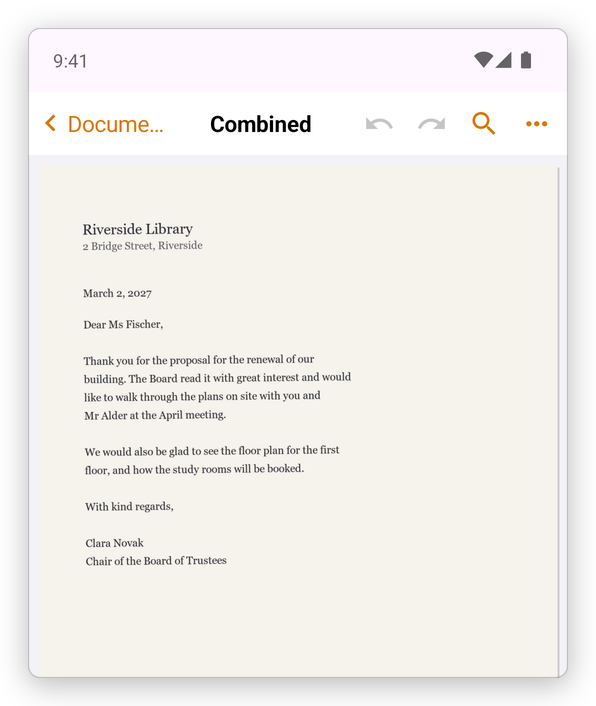
The new document, Combined, with a bookmark for each document it was made from, is added to your library and opens. The documents it was made from do not change. Rename it from its menu in the library (see Open a PDF).
You can also select documents in the library first: tap the three dots at the top, then Select, tick the documents, and tap Combine PDFs at the bottom.
To add the pages of a PDF to a document you are working on, use Insert in the Pages mode instead. See Organize pages.