Export a PDF
Save a PDF as a Word, Excel or PowerPoint file, as pictures, as text, or as a PDF/A copy for archiving.
Exporting saves a copy of the document in another format. The PDF itself does not change.
Choose a format
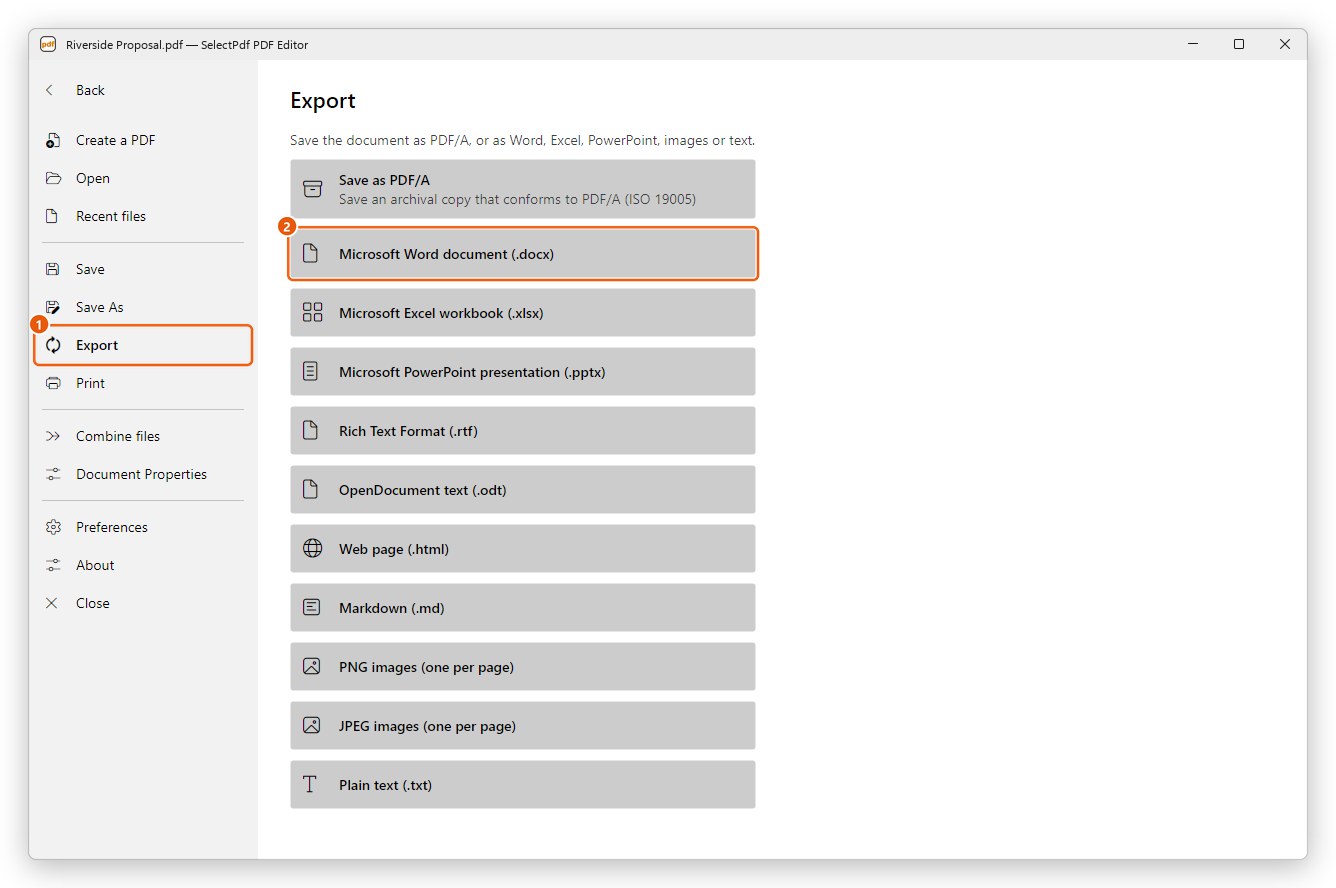
- With the document open, click File, then Export.
- Click the format you want.
- Choose the settings, then click Export.
- Choose where to save the file.
| Format | What you get |
|---|---|
| Microsoft Word document (.docx) | A document you can edit in Word. |
| Microsoft Excel workbook (.xlsx) | The tables of the PDF as worksheets. |
| Microsoft PowerPoint presentation (.pptx) | A slide for each page. |
| Rich Text Format (.rtf), OpenDocument text (.odt) | A document for other word processors. |
| Web page (.html), Markdown (.md) | The text, headings, lists and pictures, without the page layout. |
| PNG images (one per page), JPEG images (one per page) | A picture of each page. |
| Plain text (.txt) | The text only. |
Microsoft Office is not needed to export: the editor writes the files itself.
Exporting to Word, Excel, PowerPoint, RTF, OpenDocument, web page and Markdown needs Pro. Pictures and plain text are free.
Every format: which pages
At the bottom of each format's settings, under Pages, choose All, the Current page, or type the pages you want (for example 1-3, 5). Subset keeps only the even or odd pages of those.
Tick Open the file when done to open the exported file in its app as soon as it is saved.
Word and other documents
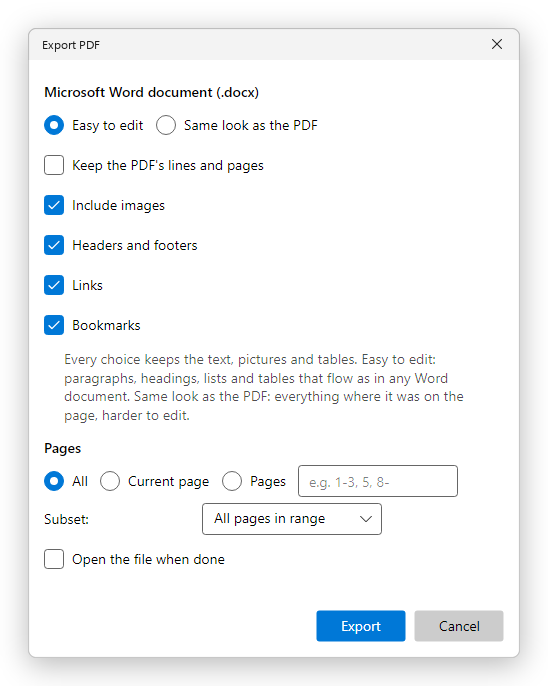
- Easy to edit writes paragraphs, headings, lists and tables that flow, as in any Word document. Choose it when you want to change the text.
- Same look as the PDF puts everything where it was on the page. The document looks like the PDF but is harder to edit.
- Keep the PDF's lines and pages keeps each line and page break of the PDF, instead of letting the text flow.
- Include images, Headers and footers, Links and Bookmarks choose what the document keeps.
RTF and OpenDocument have the same choices. A web page and Markdown have no page layout, so they only offer what to keep.
If some pages are scans with no text, the editor offers to Recognize text first, so that they come out as text instead of pictures. The PDF itself is not changed. See Recognize text.
Excel
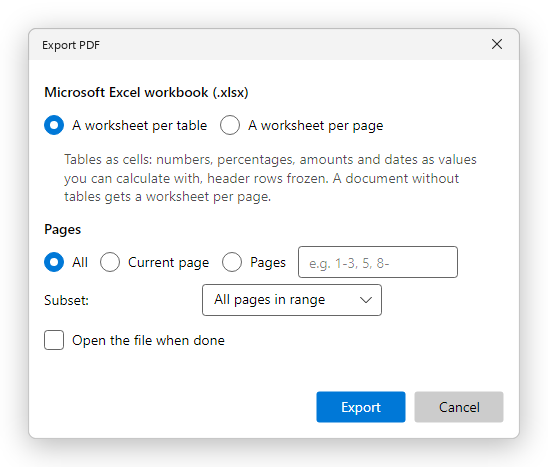
- A worksheet per table puts each table on a worksheet of its own.
- A worksheet per page puts each page on a worksheet.
Numbers, percentages, amounts and dates become values you can calculate with, and the header rows stay in view as you scroll. A document without tables gets a worksheet per page.
PowerPoint
Each page becomes a slide. Every block of text is a text box you can edit, where it was on the page, with the pictures and shapes. Choose whether to keep the images, the headers and footers, and the links.
Pictures and text
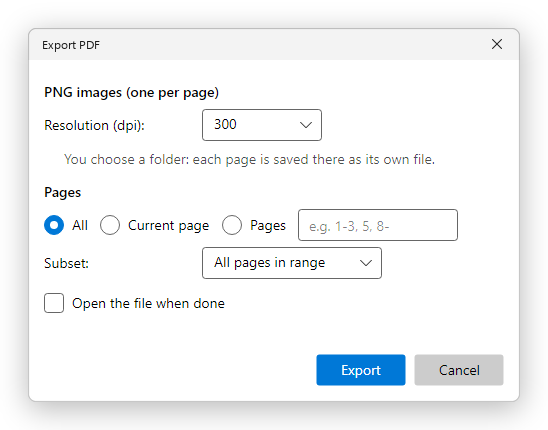
- Resolution (dpi): 300 is good for printing, 96 or 150 for the screen. Higher means sharper, larger files.
- JPEG quality (JPEG only): lower makes smaller files with less detail.
When you export more than one page, you choose a folder, and each page is saved there as a file of its own, numbered by page.
Plain text (.txt) saves the text of the pages, without pictures or layout.
Save as PDF/A
PDF/A is the standard for keeping documents for many years: the fonts are embedded and nothing depends on anything outside the file. Archives and public offices often ask for it.
- Click File, then Export, then Save as PDF/A. The same button is on the Accessibility & Standards tab.
- Choose the level. PDF/A-2b is the usual choice.
- Click Save and choose where to save the copy.
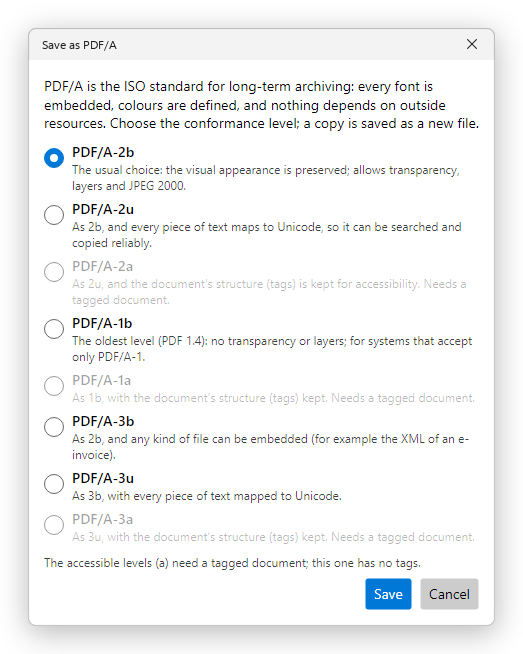
The levels are PDF/A-1b, 2b, 2u, 3b and 3u, and the accessible levels 1a, 2a and 3a. The accessible levels need a tagged document; see Accessibility.
The copy opens in a new tab, and the editor checks it against the level you chose. If something does not comply, the Standards panel opens with the problems.
A signed or password-protected document cannot be saved as PDF/A: converting would break the signatures, and PDF/A does not allow encryption. Convert before you sign, or remove the password first.
Which level to choose, and how to check a document against PDF/A and fix what fails, is explained in PDF standards.
Saving as PDF/A needs Pro. Checking a document against PDF/A is free: see PDF standards.