Electronic invoices (ZUGFeRD, Factur-X, XRechnung)
Make a PDF an electronic invoice by attaching its ZUGFeRD, Factur-X or XRechnung XML, see the data of an e-invoice you receive, and save its XML.
An electronic invoice in the ZUGFeRD or Factur-X format is a PDF that people read as usual, with the same invoice inside it as an XML file that accounting software reads without anyone typing it in. The editor attaches the XML to the PDF the way these standards require, and shows the data of the e-invoices you open.
The formats it knows:
- ZUGFeRD and Factur-X: the German and French names of the same standard, with its profiles (MINIMUM, BASIC WL, BASIC, EN 16931, EXTENDED);
- XRechnung: the German public sector's invoice;
- invoices in the UBL syntax, such as Peppol BIS invoices.
The XML is made by your accounting or invoicing software; the editor does not write it.
Attach an invoice
- Open the PDF of the invoice, for example the one your invoicing software printed.
- Click the Tools tab, then Attach invoice in the Analyze group.
- Choose the invoice's XML file.
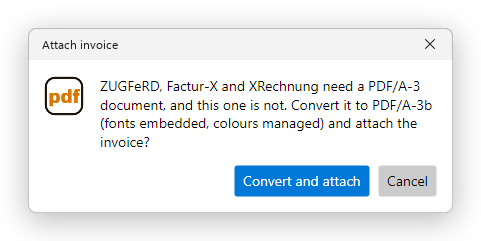
- These standards need a PDF/A-3 document (see PDF standards). If the PDF is not one, the editor asks to convert it to PDF/A-3b, with its fonts embedded and its colours managed. Click Convert and attach.
- Save the document. Use Save As under a new name if you want to keep the PDF as it was.

The XML is embedded under the name its standard requires, and declared in the document's metadata, as the standard requires too. The status bar names the standard and the profile it found in the XML, and the notice above the pages shows the invoice (see below). The XML also appears in the Attachments panel.
Attaching is one step that Undo (Ctrl+Z) takes back, conversion included.
- A file that is not an electronic invoice is refused, and the editor says so.
- A document that carries an invoice already has it replaced by the new one: a document holds one invoice.
- A signed document is refused, as attaching rewrites it and the signatures would no longer be valid: attach the invoice before you sign. A password-protected document is refused too, as PDF/A does not allow encryption: remove its security first.
Attaching an invoice needs Pro. Opening an e-invoice and viewing its data and XML are free.
See the data of an e-invoice
When you open a PDF that carries an electronic invoice, a green notice above the pages says so, with the standard and profile, the invoice number, who issued it to whom, and the amount due.
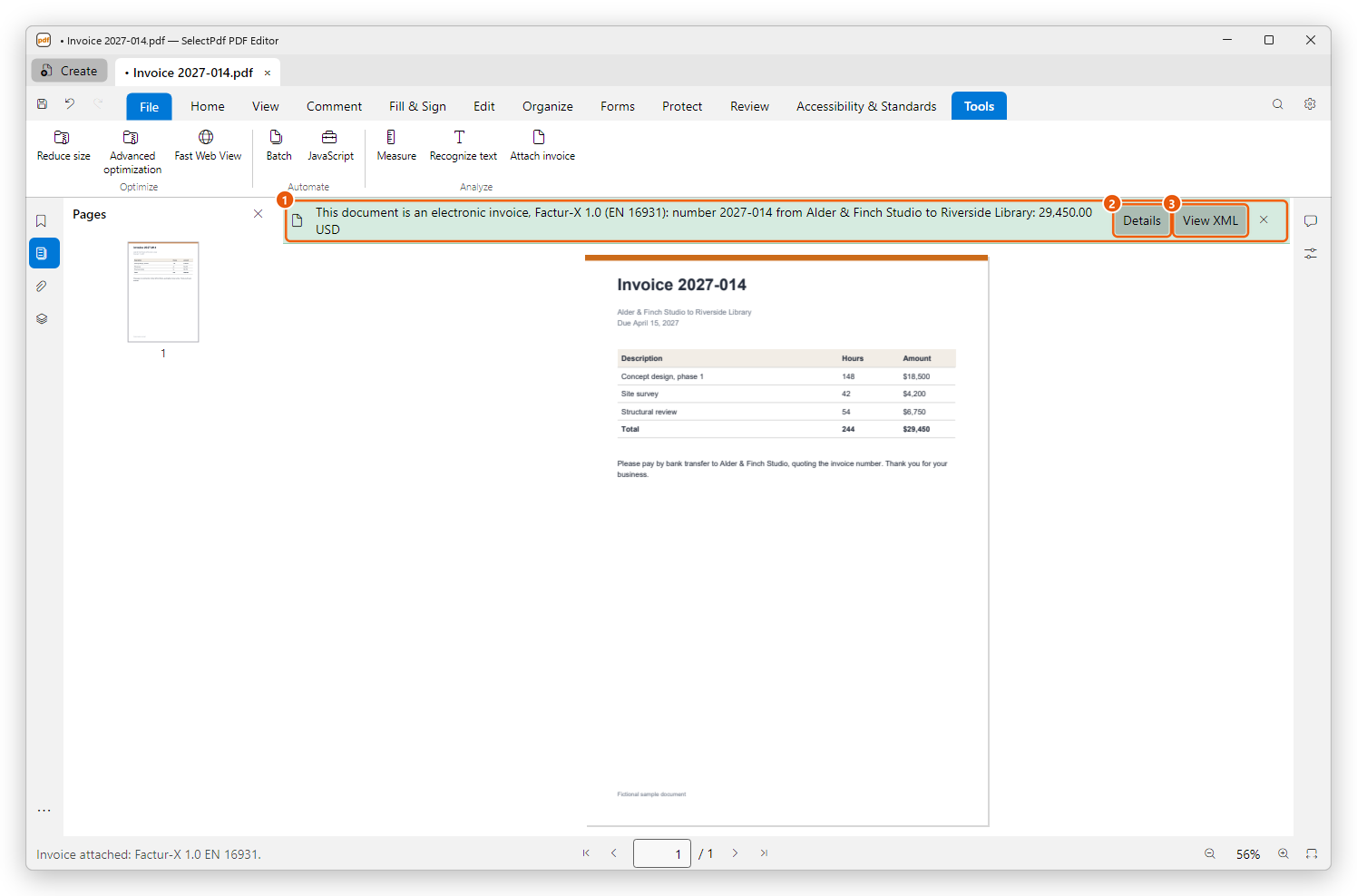
- The notice.
- Details: the invoice's data.
- View XML: the XML itself.
Click ✕ (Hide this notice) to close the notice; it stays closed for that document until you open it again.
Details
Details shows what a person checks before paying an invoice: the standard, the file name of the XML, the invoice number and type, the dates it was issued and is due, the seller and the seller's VAT ID, the buyer and the buyer's reference, the totals in the invoice's currency, and how many lines it has. Only the details the invoice gives are listed.
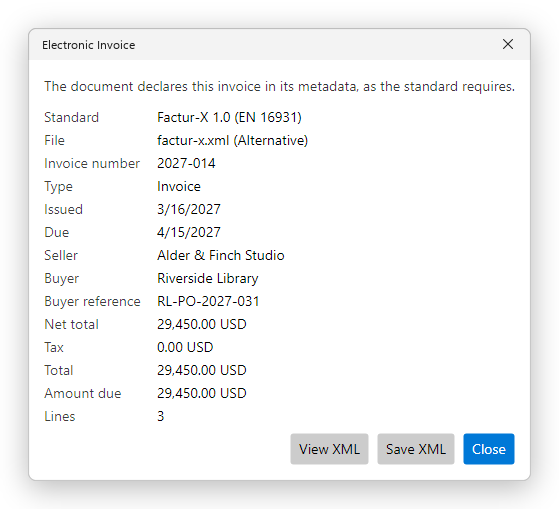
The line at the top says whether the document declares the invoice in its metadata, as the standard requires. If it does not, invoicing software may not find the invoice: attach the XML again with Attach invoice to declare it.
Compare the details with the pages: the PDF and the XML of an e-invoice should say the same. If they do not, ask the sender.
The XML
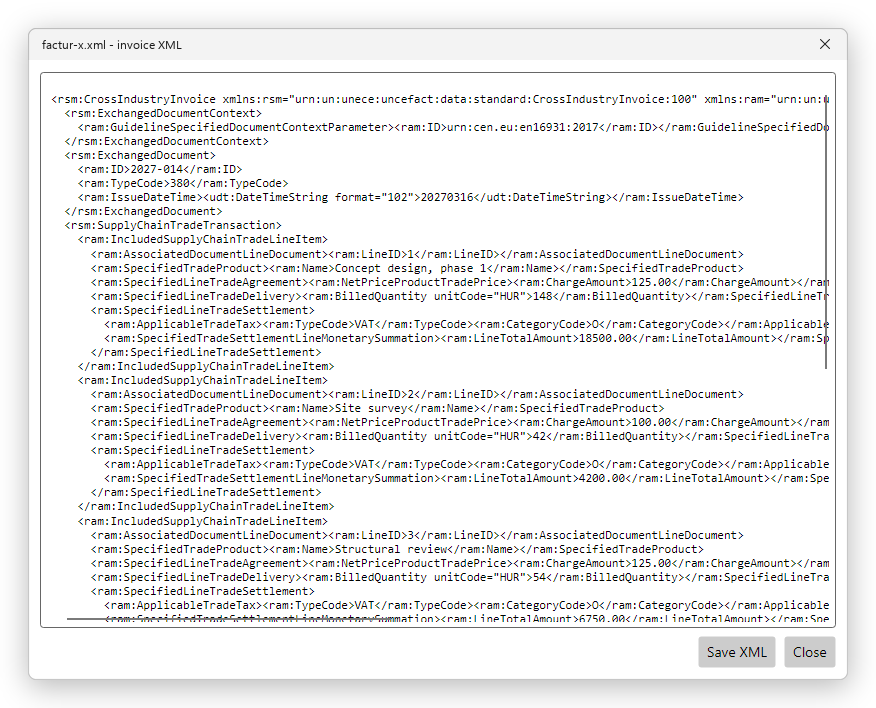
View XML, in the notice or in Details, shows the XML as text, laid out to be read. Save XML saves it as a file, for example to import it into your accounting software.