Recognize text (OCR)
Make scanned pages searchable and selectable with text recognition (OCR), for the whole document or an area of a page.
A scanned page is only a picture: you cannot find, select or copy its words. Recognize text reads the words in the picture (this is called OCR, optical character recognition) and adds them to the page. The page looks the same, but now you can search it, select its text and copy it.
Recognizing text needs Pro.
Recognize the text of a document
- Open the scanned document.
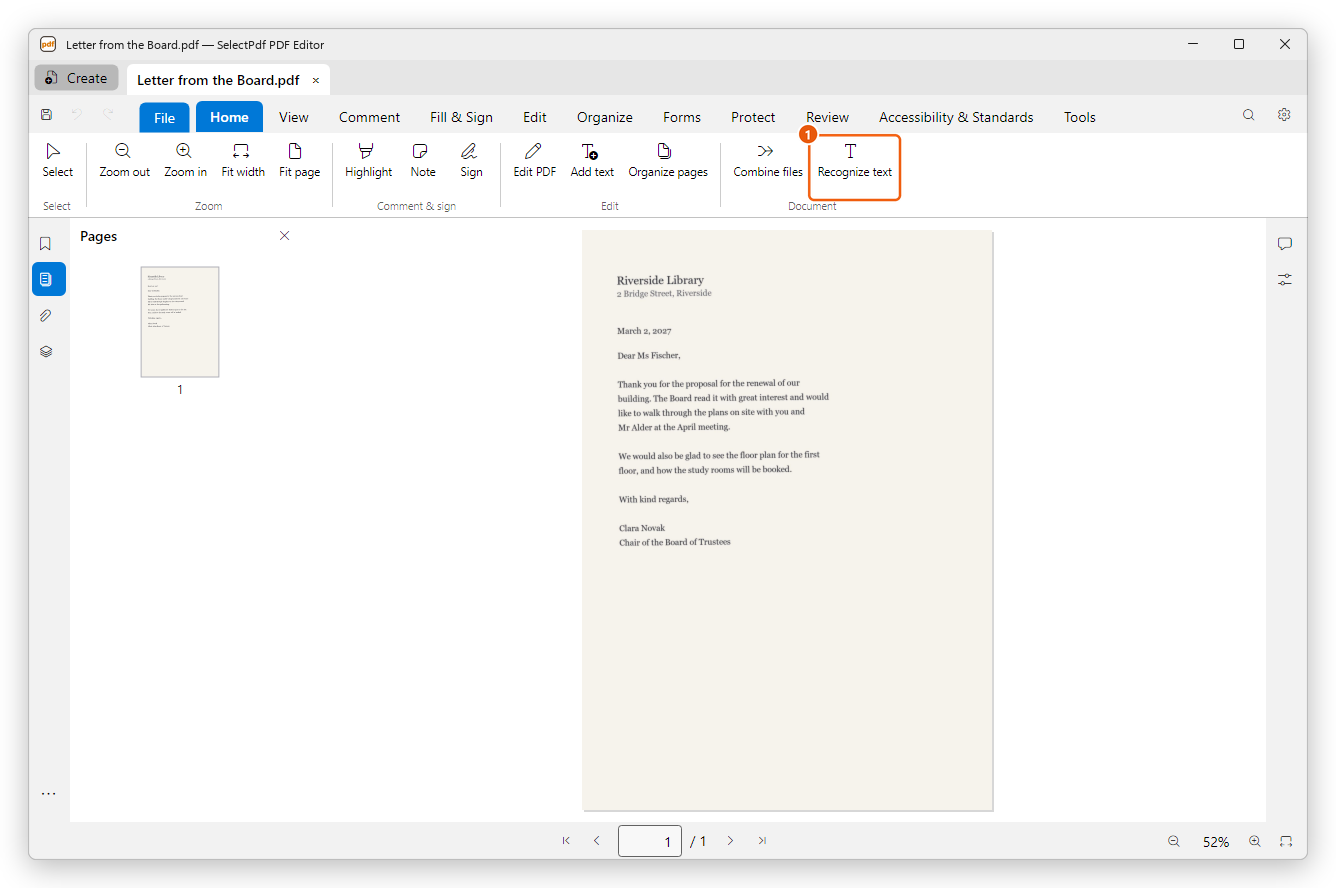
- On the Home tab, click Recognize text, then Recognize text in the menu. The button is also on the Tools tab.
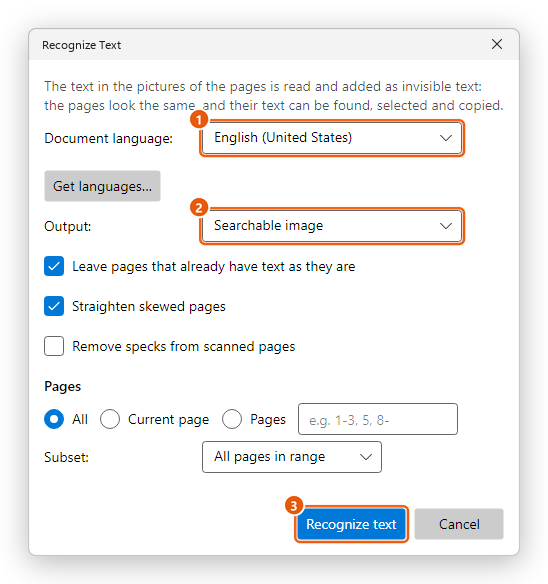
- Choose the Document language: the language the document is written in.
- Choose the Output (see below), and the pages to read.
- Click Recognize text.
When it is done, the status bar says on how many pages text was recognized. Try it: press Ctrl+F and search for a word of the page.
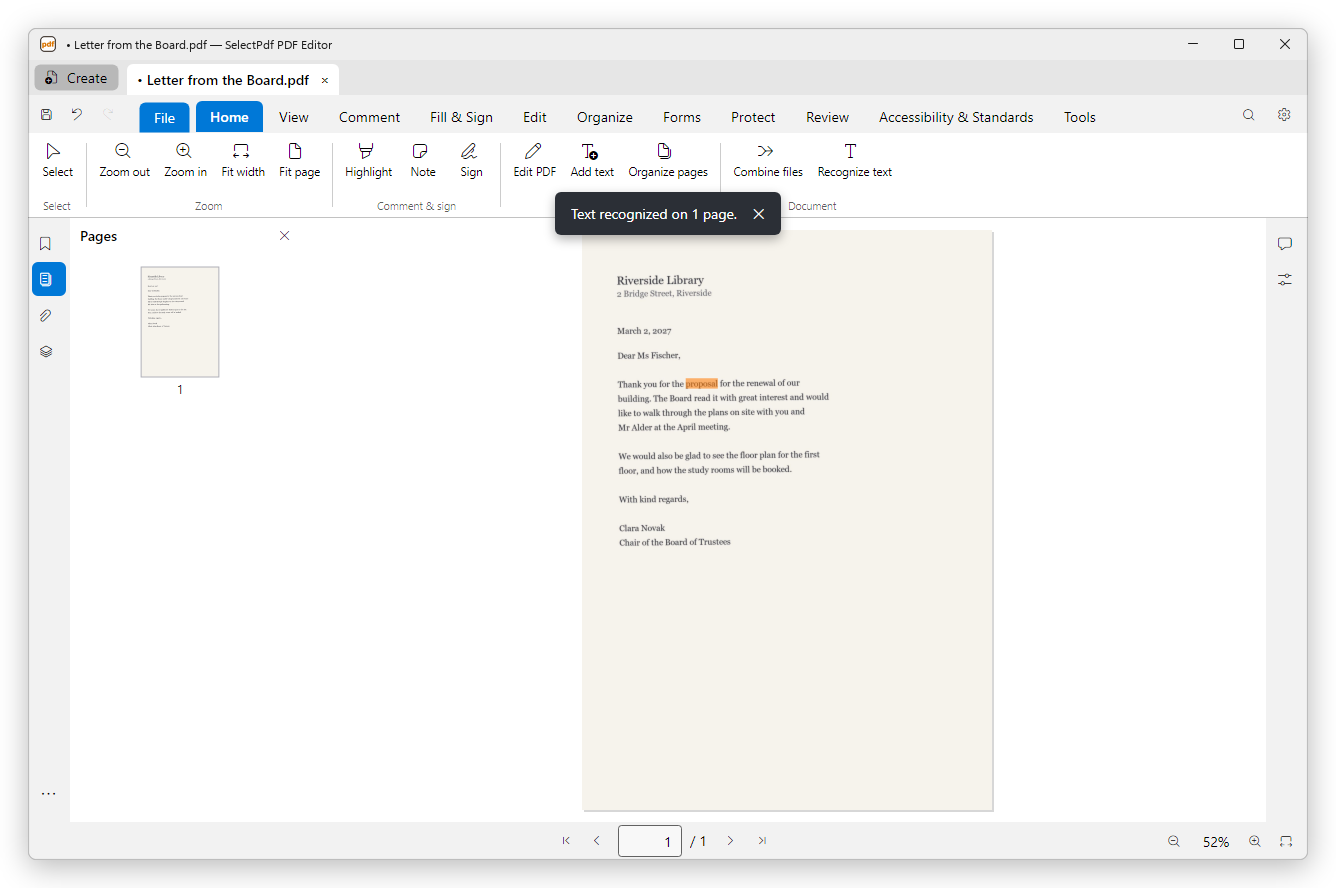
Recognition changes the document like any edit: click Undo to take it back, and save the document to keep it.
The options
- Output: Searchable image keeps the scan as it is and adds the text invisibly over it. Editable text and images replaces the text in the picture with real text, in a matching font and size, so you can change it with Edit PDF; the rest of the picture stays as it was.
- Leave pages that already have text as they are skips pages that have text, so only the scans are read.
- Straighten skewed pages turns pages that were scanned a little crooked (up to 15 degrees) straight.
- Remove specks from scanned pages cleans the small dots a scanner leaves.
- Pages: All, the Current page, or the pages you type.
Pages scanned sideways or upside down are turned upright in any case.
Languages
The languages offered at first are the text recognition languages installed in Windows.
To read another language, click Get languages in the dialog. A list of languages opens: download the ones you need. The text recognition program and each language are downloaded the first time you ask for them, and kept for the next time.
With downloaded languages, the dialog can also offer:
- Also read: a second language, for documents that mix two languages.
- Review the words it was unsure of: before the text is added, the words the recognizer was not sure of are shown, so you can correct them.
If no language is offered at all, add a language in the Windows settings (Time & language > Language), or use Get languages.
Recognize the text in an area
To read only part of a page, for example a table in a scanned report:
- Click Recognize text, then Recognize text in an area.
- Drag a box round the text on the page. Press Esc to cancel.
The text in the box is read in the language you used last.
Other places text is recognized
- When you create a PDF from a scanner, tick Recognize text (OCR) to make the scanned pages searchable at once.
- When you export to Word a document with scanned pages, the editor offers to recognize their text first.
- Compare files reads the text of scanned pages to compare them.