Find text
Find a word or phrase in a PDF with the find box, search one document, all open documents or a whole folder with Advanced search, and replace text with Find and Replace.
Find a word in the document
- Press Ctrl+F, or click the find box at the right of the tab names.
- Type the word or phrase and press Enter.
The editor highlights the text on the pages and goes to the first place it is found, from the current page on. Beside the box you see which result you are on and how many there are, for example "2 of 11".
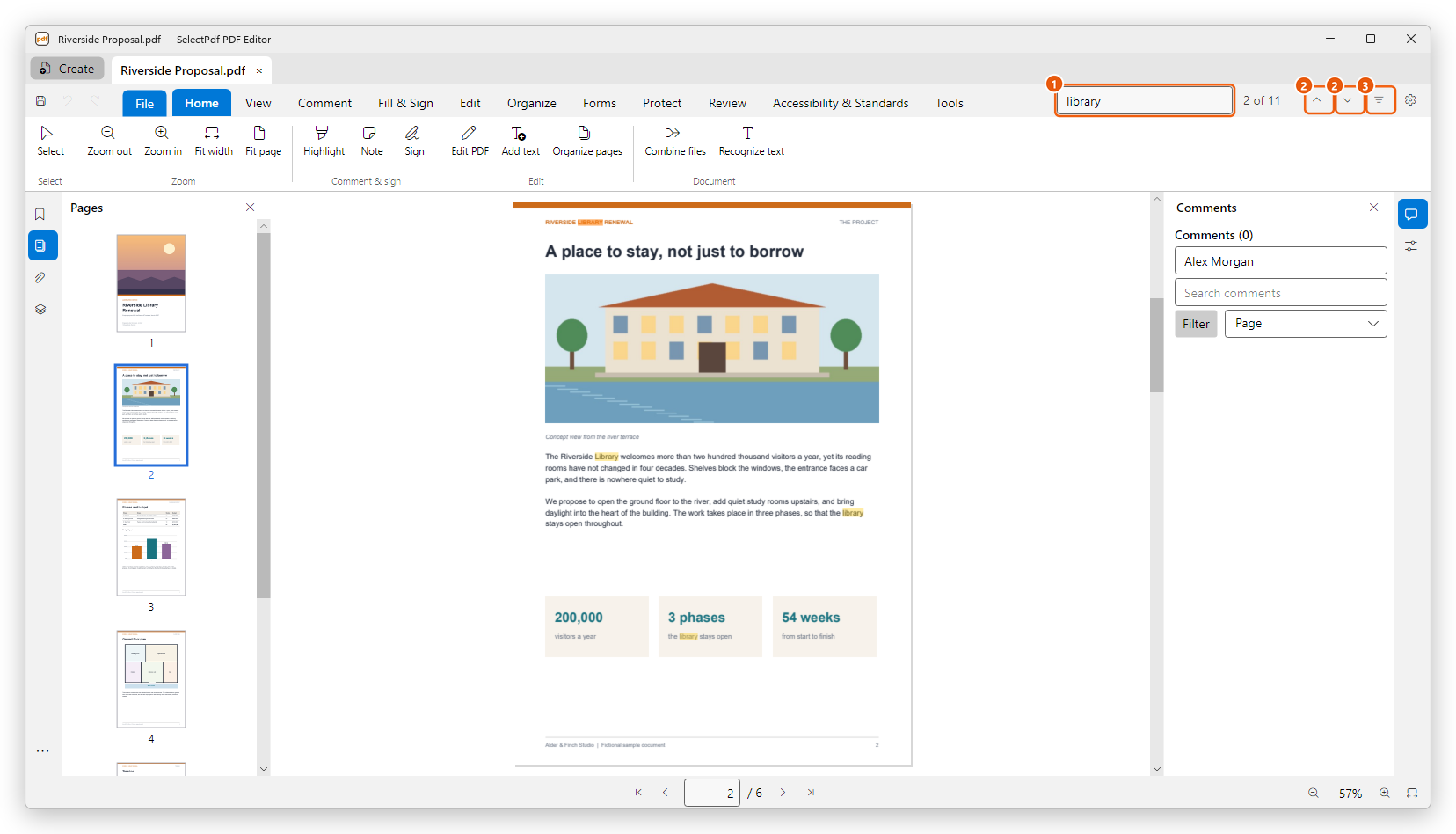
- The find box. Type here.
- Previous result and Next result. Or press Enter or F3 for the next result, and Shift+F3 for the previous one.
- Find options. Find whole words only, match upper and lower case, and open Advanced search.
Press Esc to end the search and clear the highlights.
When the window is narrow, the find box folds into a button with a magnifying glass. Click it, or press Ctrl+F, to open the box.
A scanned page is only a picture of text, so its words cannot be found. Recognize its text first with Recognize text on the Home tab (a Pro tool).
Find options
Click the options button at the right of the find box and choose:
- Whole words only: "art" does not find "party".
- Case-sensitive: "May" does not find "may".
- Ignore diacritics and accents: "resume" also finds "résumé".
The editor remembers these options. When you change one, the search runs again with it.
Search in several documents or a folder
Advanced search looks in more places at once and lists every result with the words around it.
- Click the options button at the right of the find box, then Advanced search (Ctrl+Shift+F). The Search panel opens at the right.
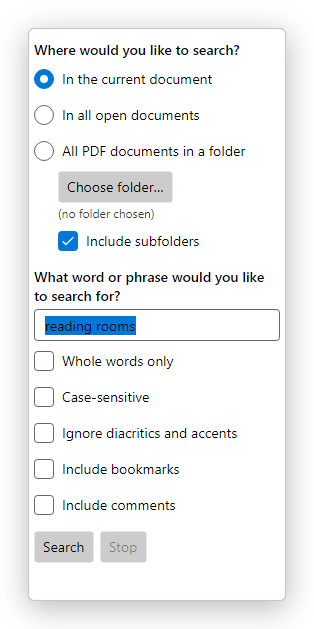
- Under Where would you like to search?, choose In the current document, In all open documents or All PDF documents in a folder. For a folder, click Choose folder…, and select Include subfolders to search the folders inside it too.
- Type the word or phrase.
- Choose the options you want. Besides the find options, Include bookmarks and Include comments search the bookmarks' titles and the text of comments too.
- Click Search.
The results are grouped by document, each with its page and the text around the word. Click a result to go to it: a document from a folder opens in a new tab.
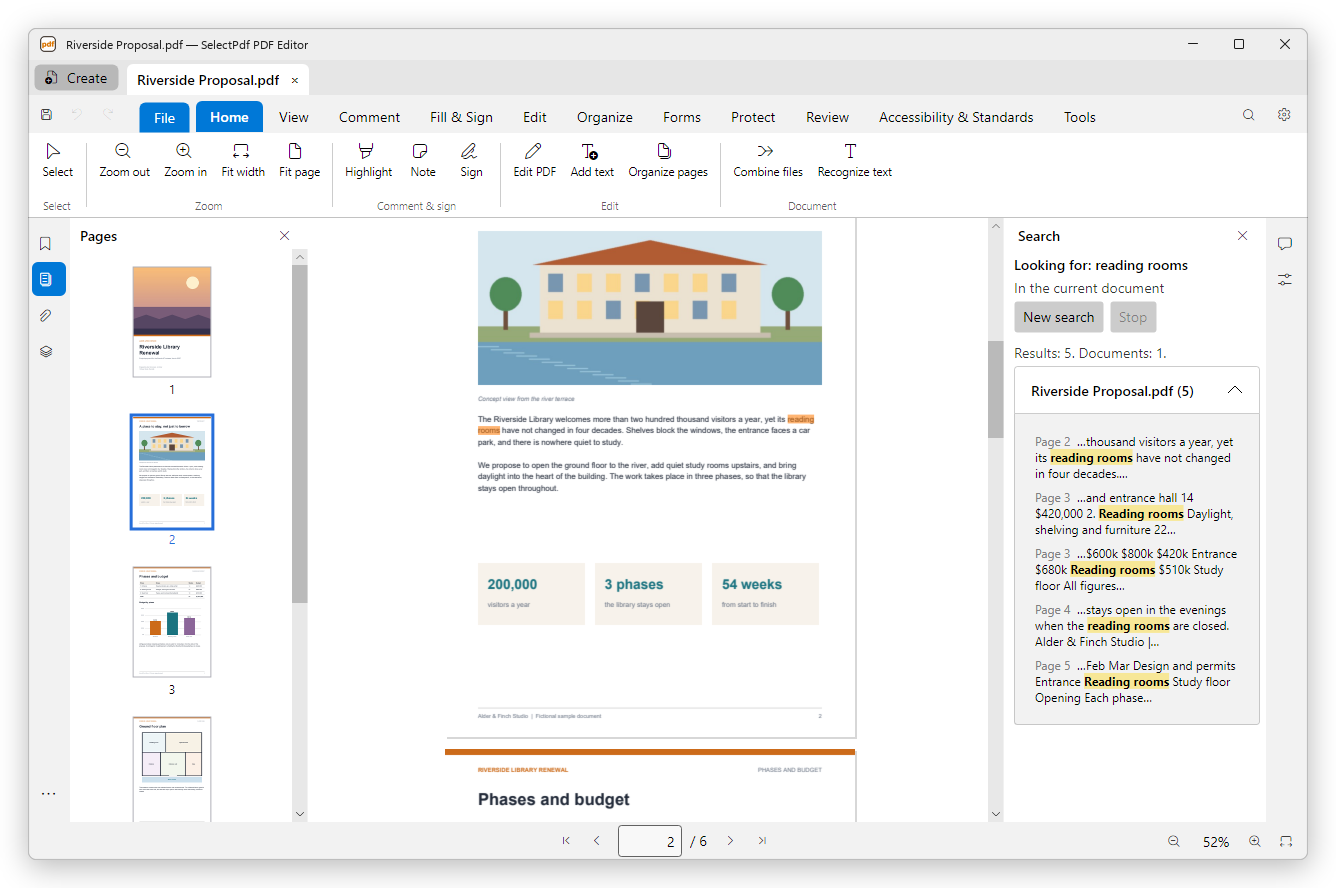
A long search through a folder can be stopped with Stop. If some documents could not be searched, because they are protected with a password or damaged, the panel names them. Click New search to search for something else.
Find and replace text
Find and Replace changes text on the pages themselves, keeping its font, size and colour as far as the document's font allows.
- Click the Edit tab, then Find and Replace, or press Ctrl+H. The editor switches to editing the page content.
- In Find what, type the text to change; in Replace with, the new text.
- Click Find Next to go to the next place, then Replace to change it, or Replace All to change every one.
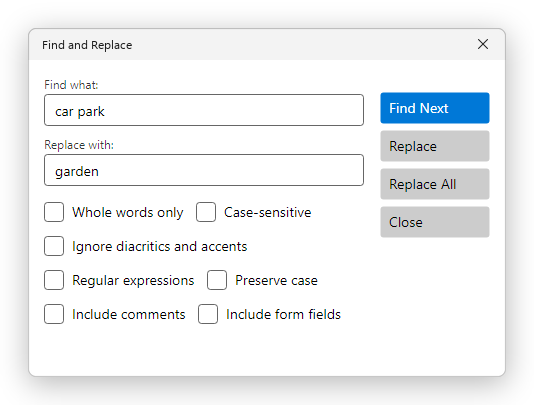
Regular expressions lets you search with patterns, and Preserve case keeps the replaced word's capitals ("Car" becomes "Garden"). Include comments and Include form fields replace the text in comments and in filled-in form fields too.
If the document's font lacks a letter of the new text, the editor uses another font for it and tells you so. Replacing text in a signed document makes its signatures invalid; Replace All warns you about it first.
Finding text is free. Find and Replace changes the content of the pages, so it needs Pro.