Manage comments
Find, sort and filter comments in the Comments panel, reply to them, set their status and check them off, set your name as the author, make a summary of the comments, export and import them, and flatten them into the pages.
When several people review a document, the comments add up. The Comments panel lists them all, with their replies and status, and is where you answer them, track what has been done, and find the ones you need.
The Comments panel
The panel opens when you click the Comment tab. To open or close it at any time, click the Comments icon on the right side of the window.
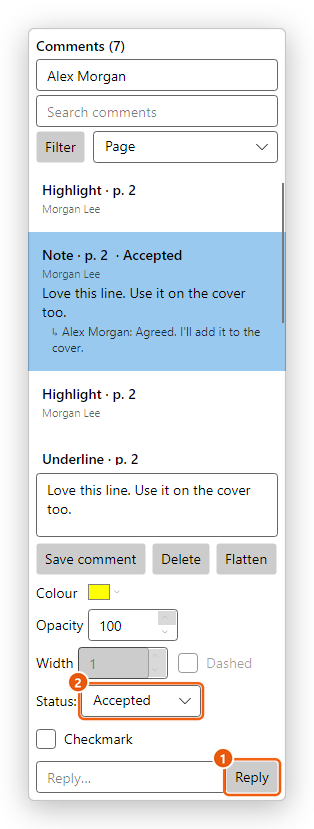
- Reply: type your answer in the box beside it and click Reply.
- Status: the review status of the selected comment.
From the top, the panel has:
- its title, with how many comments are listed: Comments (7), or Comments (3 of 7) while a search or a filter hides some;
- the name your comments carry (see Your name as the author);
- Search comments, Filter and the order of the list;
- the list: each comment's kind and page, its author and date, its text, and its replies under it (↳ name: reply);
- under the list, the selected comment: its text, its look, its status and the reply box.
Click a comment in the list to go to its page and select it there. Clicking a comment on the page selects it in the list too.
The list shows every kind of comment, including drawings and shapes, stamps, measurements and redaction marks that are not yet applied (Redact).
Reply to a comment
- Select the comment in the Comments panel.
- Type your answer in the box at the bottom (Reply…).
- Click Reply.
The reply shows under the comment in the list, with your name. Replies are saved in the PDF with the comment, so other PDF readers show the conversation too. Deleting a comment deletes its replies.
Set a status or check a comment off
- Status: says what has been decided about the comment: Accepted, Rejected, Cancelled or Completed (None takes the status away). The status shows after the comment's title in the list (Note · p. 2 · Accepted).
- Checkmark is a mark for yourself, for example once you have dealt with a comment. A checked comment has ✔ before its title.
Both are saved in the PDF with your name, the way Acrobat saves them, and you can filter the list by them.
Find comments
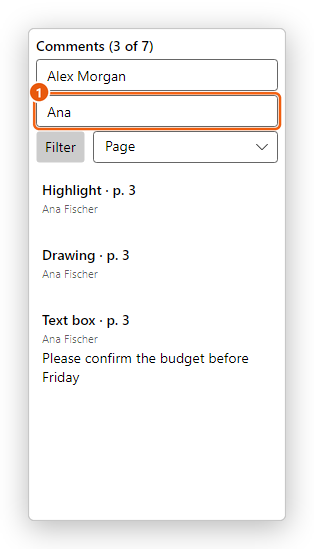
- Search comments: here, every comment by Ana Fischer.
- Search: type in Search comments. The list keeps only the comments whose text, author or replies contain what you typed. Clear the box to see all of them again.
- Sort: choose the order in the list next to Filter: by Page (and from the top of the page down), Author, Date or Type.
- Filter: click Filter and choose what to show:
- Type: tick or untick each kind of comment in the document (Highlight, Note, Text box...).
- Author: tick or untick each reviewer.
- Status: tick or untick None, Accepted, Rejected, Cancelled and Completed.
- Checked state: All, Checked or Unchecked.
- Show all comments clears the filter and the search.
The title of the panel says how many comments are listed out of how many there are, as long as a search or a filter is on.
Point at a comment on the page to read its author and text in a tip. If you would rather not see these tips, turn off Show a comment's text when the pointer is over it in Preferences > Commenting.
Your name as the author
Each comment, reply and status carries the name of its author. Yours is the name in the box at the top of the Comments panel: type your name there and press Tab (or click elsewhere). It is the same name as Name in Preferences > Identity, and the editor keeps it for next time.
- When the box is empty, your comments carry your Windows log-in name.
- In Preferences > Commenting, the option to always use the log-in name as the author (it shows your log-in name) makes every comment carry your log-in name, whatever the name in Identity.
The name applies to the comments you add from then on. To change the author of a comment already made, select it, open the Properties panel and change its Author.
Summarize comments
A summary is a new PDF that lists the comments: handy to read them all in one place, to file them, or to send them to someone who reads on paper.
- On the Comment tab, click Summarize comments (in the Manage group).
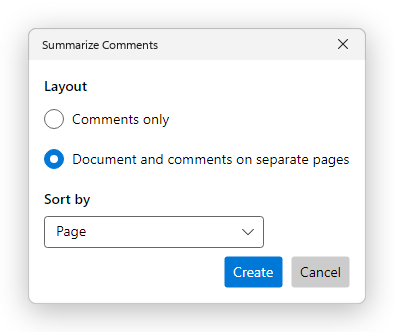
- Choose the Layout:
- Comments only: the list of comments, page after page of the document;
- Document and comments on separate pages: each page of the document, followed by a page with its comments.
- Choose the order in Sort by: Page, Author, Date or Type.
- Click Create.
The summary opens in a new tab, named Comments on and the document's name. Each comment shows its kind, its author and its date, in the comment's colour, then its text and its status. The summary is not saved yet: save it with Save (Ctrl+S) if you want to keep it, or print it.
To print a summary straight away, open Print (Ctrl+P) and click Summarize comments in the Print dialog: you choose the same options, and the summary is printed with the dialog's settings instead of the pages. In the Print dialog, Comments & forms: also chooses whether the comments are printed on the pages. See Print.
Export and import comments
Comments can travel without the document, in an XFDF file: a small file that holds only the comments, their replies and their status, and says which pages they go on.
- Export comments saves all the document's comments in an XFDF file. Choose where to save it; the file is named after the document. Send it to someone who has the same document.
- Import comments adds the comments of an XFDF file to the open document. Use it to collect the comments of several reviewers into one copy: import each reviewer's file in turn.
Both buttons are in the Manage group of the Comment tab. The comments of an XFDF file go onto the pages with the same numbers, so import them into the same version of the document they were made on. Undo (Ctrl+Z) takes back an import.
Export comments and Import comments need Pro. Everything else on this page is free.
Flatten comments
Flattening makes comments part of the page content. They stay visible, and print as they look, but they can no longer be selected, changed, replied to or deleted as comments, and they leave the Comments panel. Do this when a review is over and you send the final document, so that nobody can change or hide the comments.
- All comments: click Flatten all in the Manage group, then Flatten in the Flatten Comments dialog.
- One comment: select it in the Comments panel and click Flatten under the list.
Undo (Ctrl+Z) takes back flattening, until you close the document. Redaction marks are not flattened from the Comments panel: apply them instead (see Redact).
Delete comments
- One comment: select it, on the page or in the Comments panel, and press Delete, or click Delete in the panel. Its replies are deleted with it. A comment marked Locked in the Properties panel is not deleted: Delete is not available for it until you clear Locked.
- All comments: on the Protect tab, click Remove hidden information, tick Comments and markup and remove them. See Remove hidden information.
Save the document (Ctrl+S) to keep the changes.