Install and update
What the PDF Editor needs, how to install it without administrator rights, the 14-day Pro trial, entering a license key, updates, and uninstalling.
What you need
- A 64-bit PC with Windows 10 or Windows 11.
- An internet connection to download the editor, to start the Pro trial or activate a license, and for updates. Reading, editing and saving your documents work without one.
Some parts that only a few people use, such as the web page converter, more fonts and text recognition languages, are not in the installer: the editor downloads each one the first time you use the feature that needs it.
Install the editor
- Download the installer from selectpdf.com. Its name starts with SelectPdf-PDF-Editor-Windows-x64-Setup, followed by the version number.
- Open the downloaded file.
- Choose the language of the setup, read the license agreement and accept it.
- Choose the folder, or keep the one offered: a folder of your own Windows account, under AppData\Local\Programs.
- Choose whether to create a desktop shortcut, and whether to open Windows' settings to make the editor your PDF app.
- Click Install, then Finish. With Launch SelectPdf PDF Editor selected on the last page, the editor starts.
The editor installs for your Windows account only, so you do not need administrator rights, and it updates itself without asking for them either. The editor starts in the language you chose for the setup; you can change it later in Preferences.
Windows does not let a program make itself the app that opens PDF files: you confirm it in Windows' Default apps settings. If you skipped this when installing, the editor offers it when it starts, with Make default, Not now and Don't ask again, and Make default is also on the General page of Preferences.
The 14-day Pro trial
The first time the editor starts on a computer connected to the internet, it starts a free 14-day trial of Pro: every tool works, with nothing to sign up for and no email address to give. If the computer is offline then, the editor works as the free version and starts the trial the next time it can.
The trial is once per computer: installing the editor again does not start a new one. When it ends, the editor keeps working as the free version, and your documents stay as they are. Tools that need Pro say so when you use them, with Get Pro to buy a license.
Enter a license key
When you buy a license, you get a license key.
- Click File, then License.
- Type or paste the key in License key.
- Click Activate.
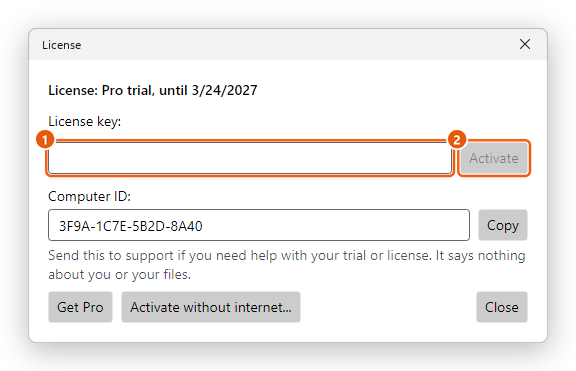
The window shows what the computer has now, for example "Pro, yearly subscription, paid until" a date. The editor checks the license over the internet once a day. Offline, Pro keeps working for a long time; if the license has not been checked for too long, Pro tools lock until the computer connects to the internet once.
- Get Pro opens the page where you buy a license.
- Activate without internet... activates a computer that cannot connect: you get a code to enter on any computer or phone that has internet, and bring back the activation file it gives you.
- Computer ID is what to send to support if you need help with your trial or license. It says nothing about you or your files.
Move a license to another computer
A license is for one Windows computer at a time. The same license key also works on one Mac at the same time, counted separately.
- On the old computer, click File, then License, then Deactivate this computer. Then activate the key on the new computer.
- If the old computer is gone, activate the key on the new one: the editor says the key is in use on the other computer, and offers Move the license to this computer.
Updates
The editor checks for a new version a minute after it starts, and then once a day. When there is one, it asks before downloading it, and asks again when it is ready to install: Restart and update closes the editor (asking first about any unsaved changes), installs the new version and starts it again. Choose Later, and the editor asks again the next day.
To check at once, click File, then About, then Check for updates. To stop the daily check, clear Check for updates automatically on the General page of Preferences.
Uninstall
- Open Windows' Settings, then Apps, then Installed apps (in Windows 10, Apps & features).
- Find SelectPdf PDF Editor, click the three dots beside it (in Windows 10, click its name), then Uninstall.
This removes the editor and the parts it downloaded later. Your settings stay, in case you install it again. Your PDF files are never touched.