Protect a PDF with a password
Require a password to open a PDF, restrict printing, copying and editing with a permissions password, and remove the security of a document.
A PDF can have two kinds of password:
- a password to open it: without it, nobody can open the document;
- a permissions password: the document opens freely, but printing, copying or changing it is limited, and only this password lifts the limits.
You can use either of them, or both. The tools are on the Protect tab, in the Security group.

- Password: add or change the passwords and permissions.
- Remove security: take the passwords and restrictions off.
Adding, changing and removing passwords and permissions needs Pro. Opening a protected document is free.
Require a password to open
- Open the document, click the Protect tab, then Password.
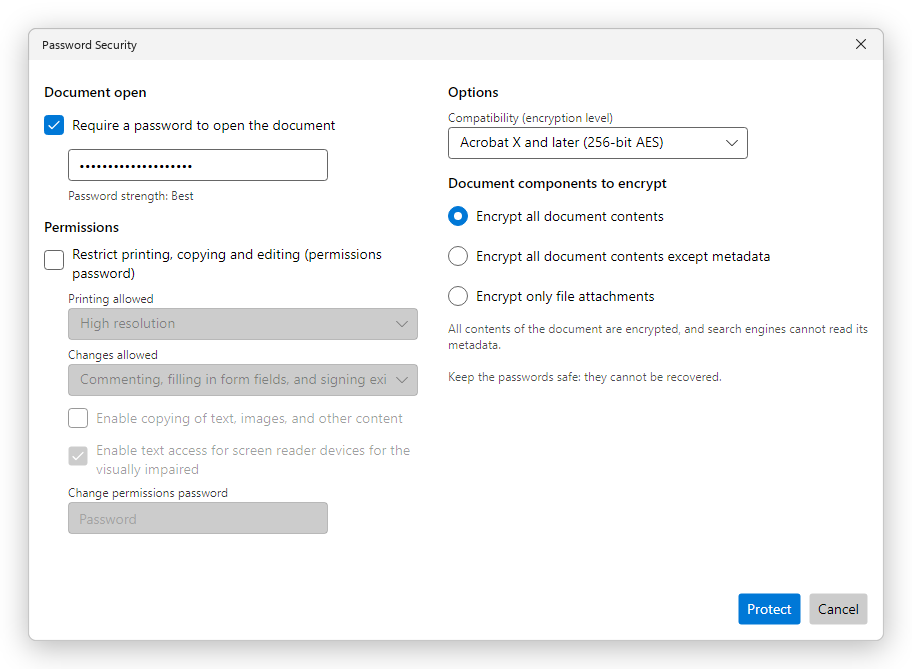
- In the Password Security dialog, tick Require a password to open the document.
- Type the password. Below it, the editor shows how strong it is, from Weak to Best: a long password with capital and small letters, numbers and symbols is the strongest.
- Click Protect, and type the password again to confirm it.
- Save the document (Ctrl+S). The password is needed from the next time the file is opened.
Keep a note of your passwords. A forgotten password cannot be recovered, by the editor or by anyone else: a document whose password to open is lost cannot be opened again.
Restrict printing, copying and editing
- In the Password Security dialog, tick Restrict printing, copying and editing (permissions password).
- Under Printing allowed, choose None, Low resolution (150 dpi) or High resolution.
- Under Changes allowed, choose what readers may change, from None to Any except extracting pages.
- Tick Enable copying of text, images, and other content to let readers copy from the document. Leave Enable text access for screen reader devices for the visually impaired ticked, so that people who use a screen reader can still read it.
- Type the permissions password under Change permissions password. It must be different from the password to open.
- Click Protect, type the permissions password again, and save the document.
When you open a restricted document in the editor and try to change it, the editor asks for the permissions password first.
Restrictions ask PDF apps not to print, copy or change the document, and the apps that follow the PDF standard respect them, but some apps ignore them. To keep a document from being read, require a password to open it.
Encryption options
The right side of the dialog sets how the document is encrypted. The defaults suit almost every document.
- Compatibility (encryption level): Acrobat X and later (256-bit AES) is the strongest. Choose an older level only for readers that cannot open newer files.
- Document components to encrypt: Encrypt all document contents; or Encrypt all document contents except metadata, so that search engines can still read the title, author and keywords; or Encrypt only file attachments, which leaves the document free to open but asks for the password when an attached file is opened.
Change or remove the security
- To change a password or the permissions, click Password again and choose the new settings.
- To remove all the passwords and restrictions, click Remove security, then save the document. If the document has a permissions password, the editor asks for it first.
More ways to protect a document
- Encrypt with certificate lets only the people you choose open the document, each with their own digital ID and their own permissions, instead of with a password. See Encrypt with a certificate.
- Security policies keeps password and certificate settings you use often, to apply them in one click. See Security policies.
- To make sure a document does not hide anything you did not mean to share, see Remove hidden information and sanitize. To remove text and pictures for good, redact them.
- To sign a document with a certificate, see Digital signatures.