Combine files
Combine several PDFs, pictures and Office documents into one new PDF, put the files and their pages in order, and choose which pages to keep.
Combine files makes one new PDF from several files: PDFs, pictures, Word, Excel and PowerPoint documents, XPS documents and text files. The files you add do not change. Combining files is free.
Start
Click Combine files on the Home tab, or click Create at the left of the document tabs and choose Combine files. On the welcome page, click the Combine files card.
A Combine files tab opens beside your documents. If a document was open, it is already in the list, as the first file.
Add the files
Click Add files and choose:
- Add files… to pick files,
- Add folder… to add every file of a folder (and of its subfolders) that can be combined,
- Add open files to add the documents open in the editor.
You can also drag files from Windows Explorer onto the page.
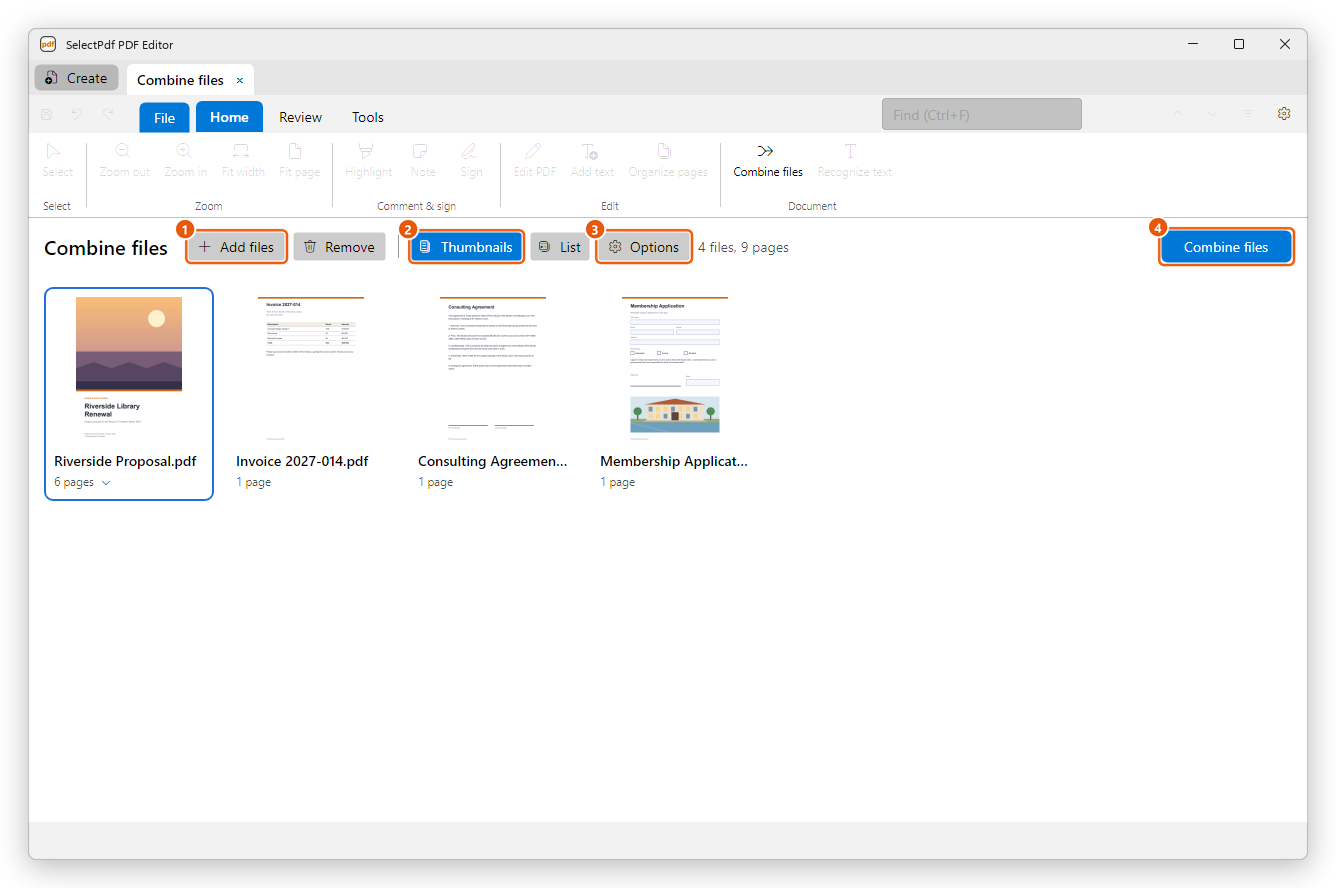
- Add files: add more files.
- Thumbnails and List: the two ways to see the files.
- Options: tick Add a bookmark for each file to give the new PDF a bookmark at the start of each file.
- Combine files: make the new PDF.
Next to the buttons, the editor shows how many files and pages the new PDF will have.
A file protected with a password asks for it when you add it. When you add Word documents, the editor first shows the Create PDF from Word settings, as when you create a PDF from one.
Put the files in order
In the Thumbnails view, drag a file to its place in the row. To take a file out, click it and click Remove, or press Delete.
Choose the pages
Under a file of several pages, click its page count (for example 6 pages) to show its pages. Then:
- drag a page to put it elsewhere in the file,
- select a page and click Remove (or press Delete) to leave it out of the new PDF.
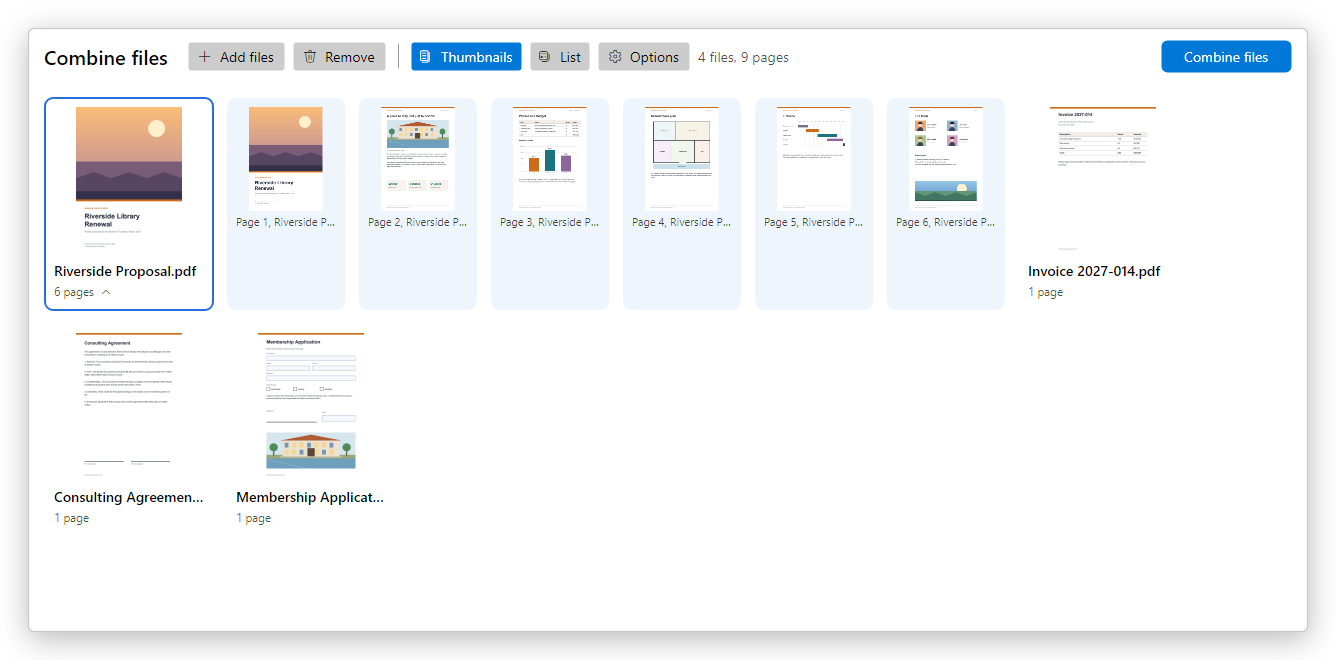
Click the page count again to fold the pages back into the file.
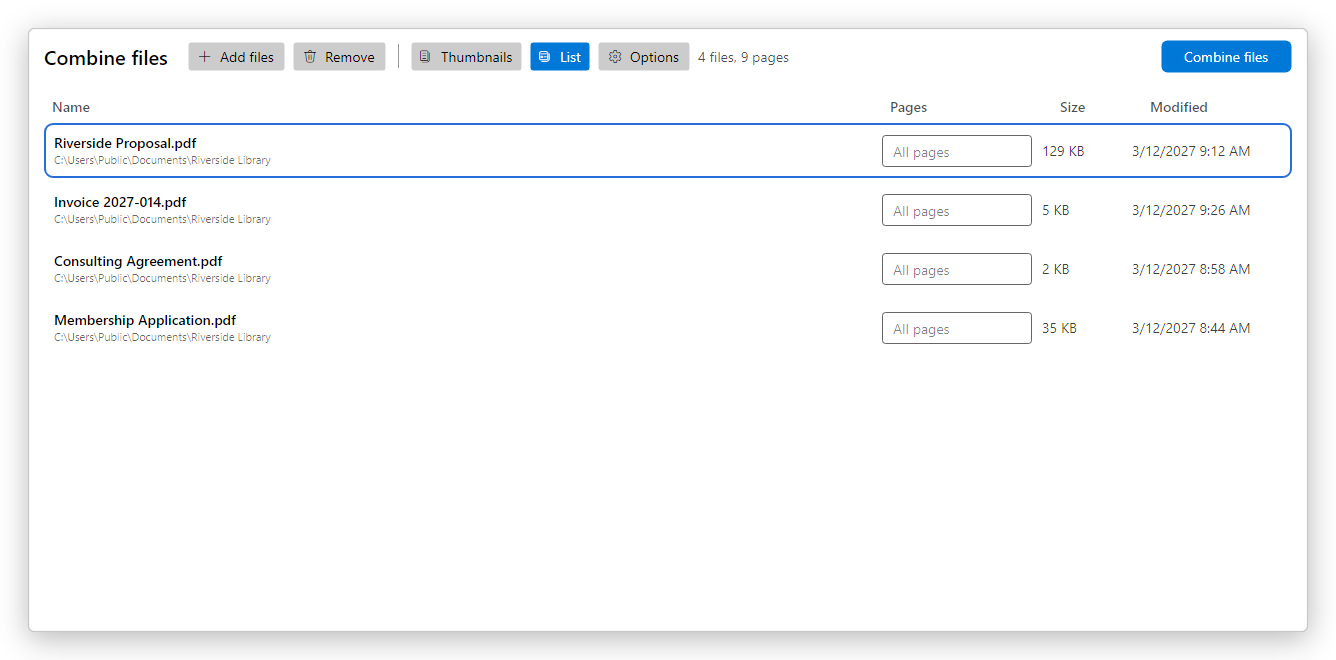
In the List view, each file has a Pages box. Leave it empty to keep all the pages, or type the pages to keep, such as 1-3, 5, 8-. The list also shows each file's folder, size and date.
Make the PDF
Click Combine files. The editor makes the new document and opens it in a tab of its own, named Combined1. It is not saved yet: click Save (Ctrl+S) and choose its name and folder.
While a large set of files is being combined, Stop cancels it.
To add the pages of one file to a document that is already open, you do not need to combine: use Insert in Organize pages.