Make a PDF smaller
Reduce the size of a PDF in one click, or choose exactly what is reduced with the PDF Optimizer.
Large PDFs are slow to send and to open. The editor makes them smaller in two ways:
- Reduce size: one click, with settings that suit most documents. Free.
- Advanced optimization: the PDF Optimizer, where you choose what is reduced and by how much. Pro.
Both are on the Tools tab, in the Optimize group.

Reduce size
- Open the document.
- On the Tools tab, click Reduce size.
- Look at the result in the status bar, then save the document to keep it.

The status bar shows the size before and after, how many pictures were recompressed and how many fonts were reduced to the characters used. What it does:
- Pictures shown at more than 225 ppi are downsampled to 150 ppi, and pictures are recompressed when that makes them smaller.
- Embedded fonts are reduced to the characters the document uses.
- Page thumbnails, alternate pictures and other programs' private data are removed, as are links and bookmarks that lead nowhere.
- The file's structure is compressed, and the file is saved for fast web view.
The text stays text, and the comments, form fields, bookmarks and tags stay as they were.
If you don't like the result, click Undo: the document is as it was.
To keep the original, save the smaller document with File > Save As under a new name.
A signed document cannot be made smaller: rewriting it would break the signatures. Reduce its size before it is signed.
The PDF Optimizer
The PDF Optimizer lets you choose what is reduced, panel by panel.
- On the Tools tab, click Advanced optimization.
- Choose the settings. Standard is what Reduce size uses; change it from there.
- Click OK, then save the document to keep the result.
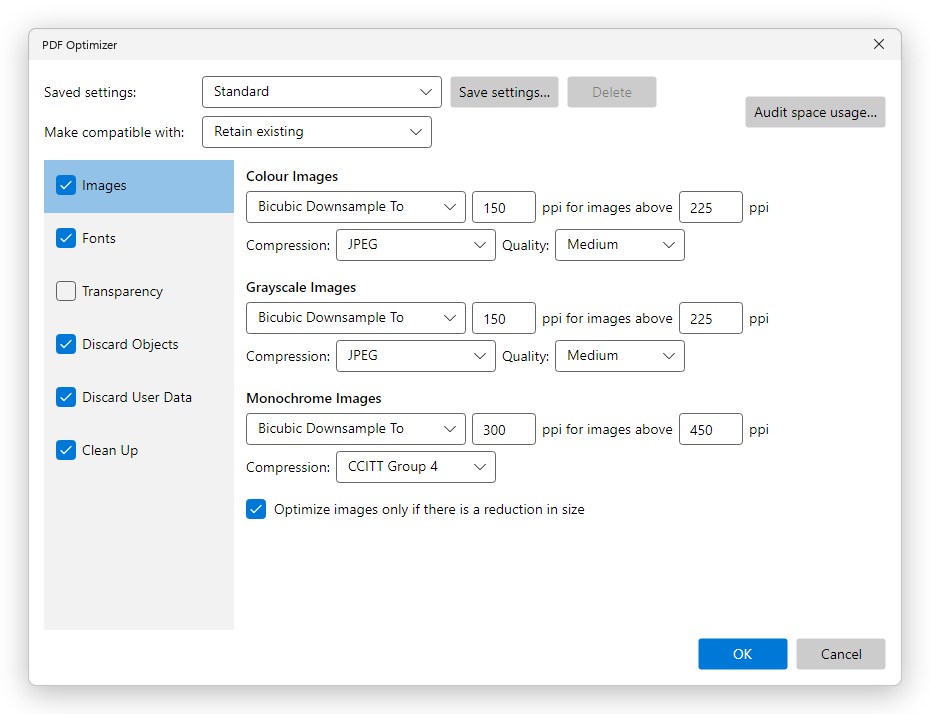
Tick or clear a panel on the left to use it or leave that part of the file as it is:
- Images: the resolution pictures are downsampled to, their compression and quality, separately for colour, grayscale and black-and-white pictures.
- Fonts: embedded fonts to remove from the file. A font that is not embedded is shown with a similar font of the reader's computer, so the text may look different.
- Transparency: flattens transparent objects into pictures, for older printers and programs.
- Discard Objects: removes form actions, JavaScript, page thumbnails, tags, bookmarks and other things the document may not need.
- Discard User Data: removes comments, attachments, the document information and metadata, hidden layers and other data.
- Clean Up: compresses the file's structure, removes invalid links and bookmarks, and can Optimize the PDF for fast web view.
Make compatible with chooses the oldest Acrobat version that must open the file; what that version cannot read is not used. Audit space usage shows how much of the file each kind of content takes, so you know what is worth reducing. Save settings keeps your choices under a name, to use again from Saved settings.
If the document is signed, the PDF Optimizer asks first: optimizing removes its signatures.
The PDF Optimizer needs Pro. Reduce size is free.
Fast Web View
Fast Web View, on the same tab, rearranges the file so that a web browser can show the first page while the rest is still downloading. It does not make the file smaller. It is free.