Print a PDF, choose the pages, fit them to the paper, print several pages on a sheet, a poster or a booklet, and choose whether comments and form fields print.
Print a document
- Click File, then Print, or press Ctrl+P. You can also right-click a page and choose Print….
- Choose the Printer and the number of Copies.
- Choose the pages to print (see below).
- Click Print.
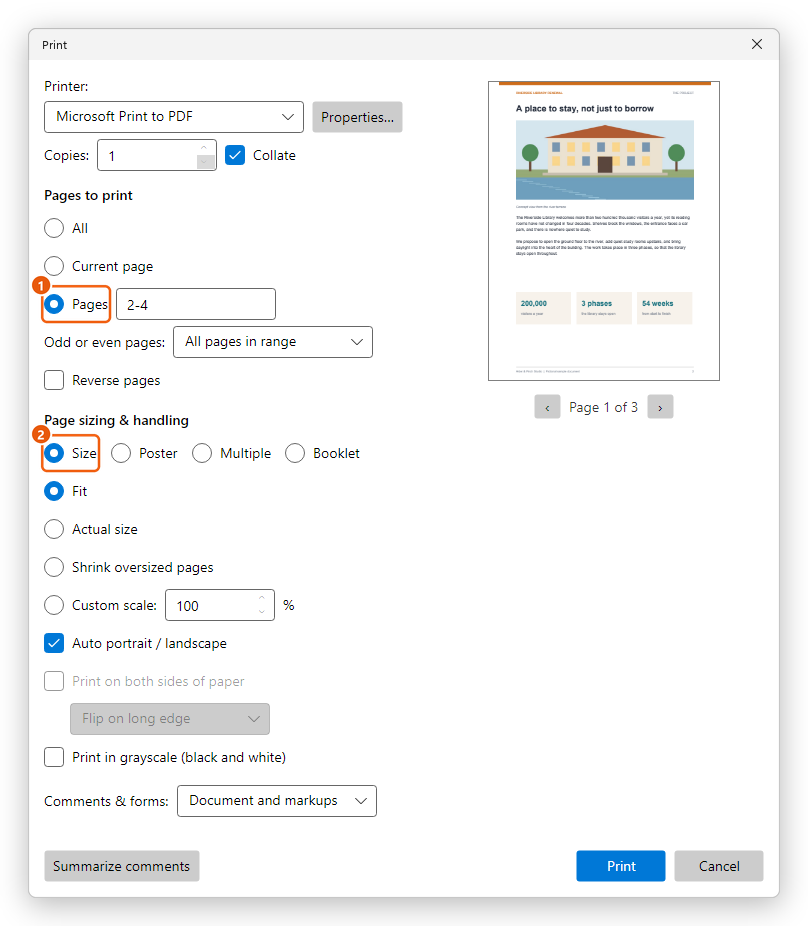
The preview at the right shows each page as it will come out on the paper; use the arrows below it to see the other pages. While the pages print, the status bar at the bottom of the window shows the progress.
The pages print as they are now in the editor, with any changes you have not saved yet.
A document can carry its own print settings, set in Document Properties (print presets): the dialog then starts with them, its number of Copies:, its Pages, Actual size when the document asks for no page scaling, and Print on both sides of paper flipped on the edge it names, when the printer can. You can change them before printing.
Some documents do not allow printing; their author set this with a password. The editor respects it and tells you so.
Choose the pages
Under Pages to print:
- All: the whole document.
- Current page: only the page you are on.
- Pages: the pages you type, for example
2-4for pages 2 to 4, or1-3, 5, 8-for pages 1 to 3, page 5, and page 8 to the end.
Then, if you need to:
- Odd or even pages: Odd pages only or Even pages only, for example to print on both sides of the paper by hand: the odd pages first, then the paper turned over and the even pages.
- Reverse pages: print from the last page to the first.
Fit the pages to the paper
Under Page sizing & handling, Size prints one page on each sheet:
- Fit: each page made as big as the paper allows, or as small as it needs.
- Actual size: the page's own size, even if part of it does not fit.
- Shrink oversized pages: pages bigger than the paper are made smaller; the others print at their size.
- Custom scale: the size in percent of the page's own.
Auto portrait / landscape turns wide pages to fit the paper.
Several pages on a sheet, posters and booklets
Choose one of the other ways under Page sizing & handling:
- Multiple: several pages on each sheet. Choose the Pages per sheet (2, 4, 6, 9 or 16), their Page order, and whether to Print page border around each.
- Poster: a page enlarged over several sheets, which you then put together. Tile scale sets how much it is enlarged, and Overlap (mm) how much the sheets overlap, so that they can be glued.
- Booklet: the pages arranged so that the printed sheets, folded in the middle, read as a book. Choose which Binding edge, and in the Booklet subset whether to print both sides of the sheets or only the front or the back sides.
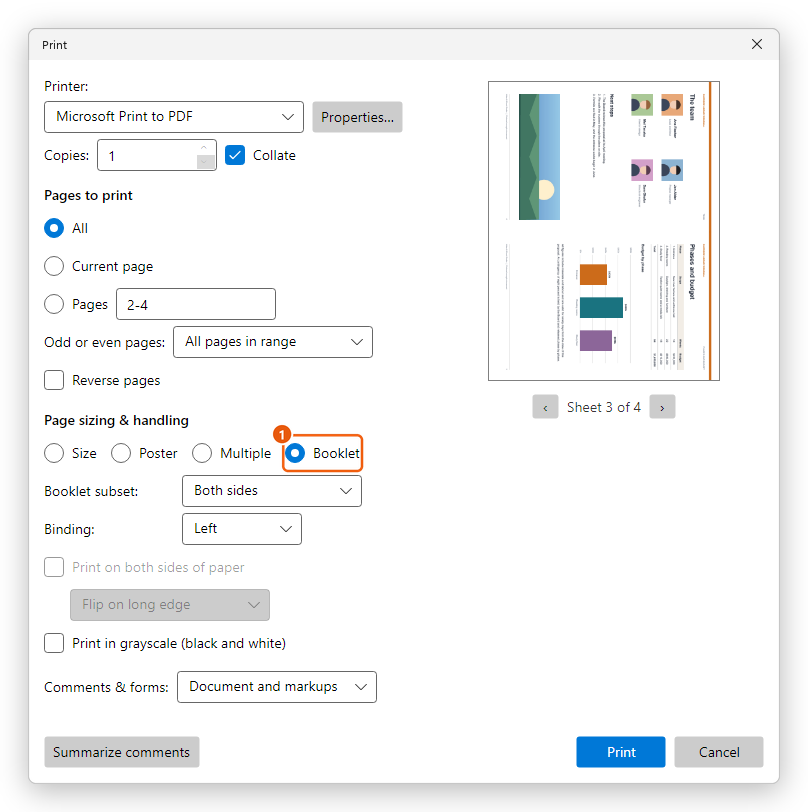
With these choices, the preview shows each sheet as it will print.
For a booklet, a printer that prints on both sides does all the work: the editor selects Print on both sides of paper and Flip on short edge for you. Without one, print the Front side only, put the sheets back in the printer turned over, and print the Back side only.
More options
- Properties… opens the printer's own settings, such as the paper tray or the print quality.
- Collate: with several copies, each copy is printed whole before the next.
- Print on both sides of paper, flipped on the long or the short edge, when the printer can.
- Print in grayscale (black and white): no colour, for example to save colour ink.
- Comments & forms: Document and markups prints the pages with their comments and form fields as they show; Document prints the pages and their form fields, without the comments; Form fields only prints only what was filled into the form, for example on a pre-printed paper form.
Print a summary of the comments
Summarize comments prints a list of the document's comments instead of the pages: the type of each comment, who wrote it and when, and its text.
- In the Print dialog, choose the printer and options, then click Summarize comments.
- Under Layout, choose Comments only, or Document and comments on separate pages to print each page followed by its comments.
- Under Sort by, choose Page, Author, Date or Type.
- Click Create. The summary prints with the printer and options you chose.