Open a PDF
Open PDF files from the welcome page, the File view, File Explorer or the recent files, open password-protected and certificate-encrypted files, and work with several documents in tabs.
Open a file
- On the welcome page, click Open a PDF. If a document is already open, click File, then Open, or press Ctrl+O.
- Choose the file and click Open. To open several files at once, select them all.
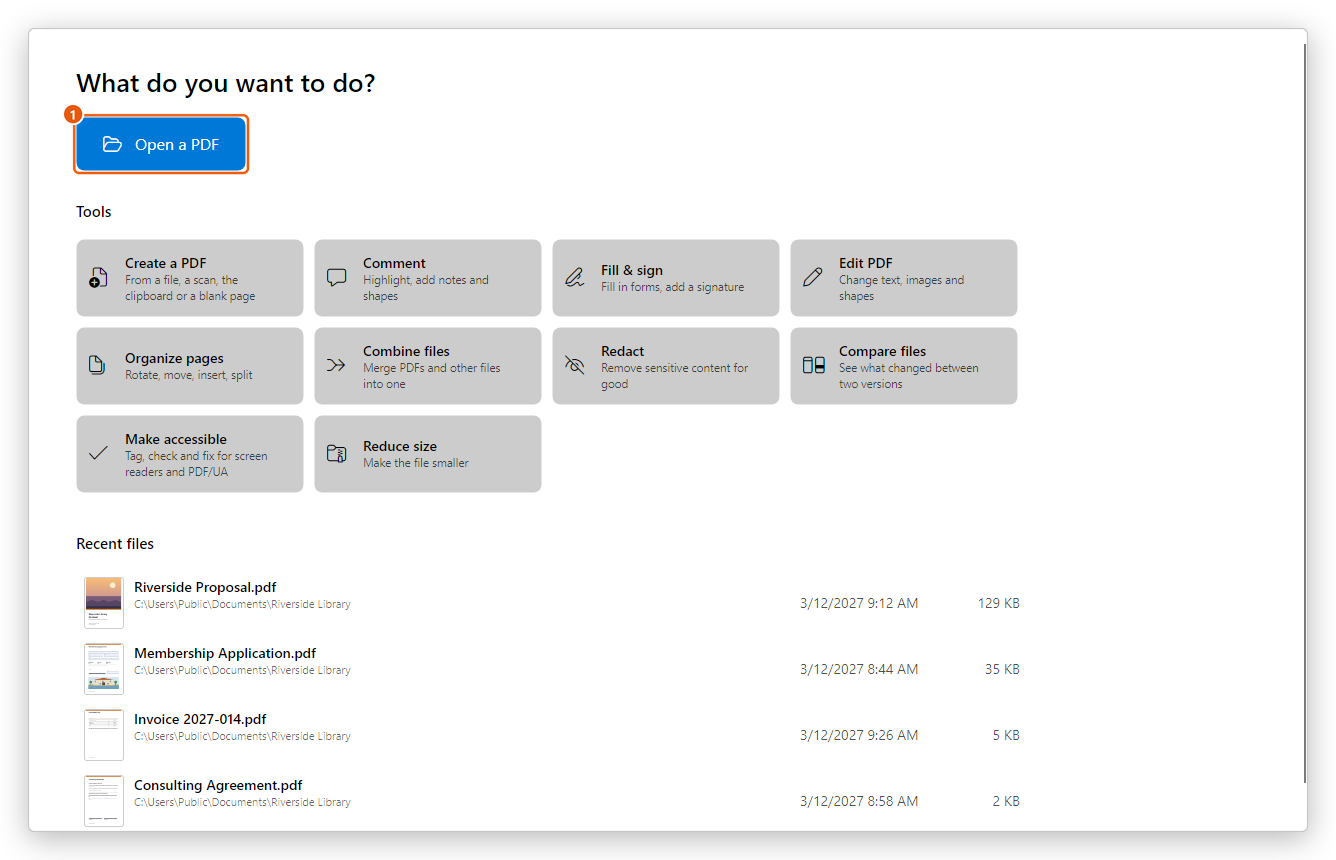
The Open dialog shows All supported files at first. Besides PDFs, you can open Word, Excel and PowerPoint documents, XPS documents, pictures and text files: the editor turns them into a PDF, which opens as a new document that is not saved yet. See Create a PDF.
You can also drag PDF files from File Explorer onto the editor's window, double-click a PDF in File Explorer if the editor is your PDF app, or use the editor's commands on File Explorer's right-click menu and on the taskbar. See The editor and Windows.
Open a recent file
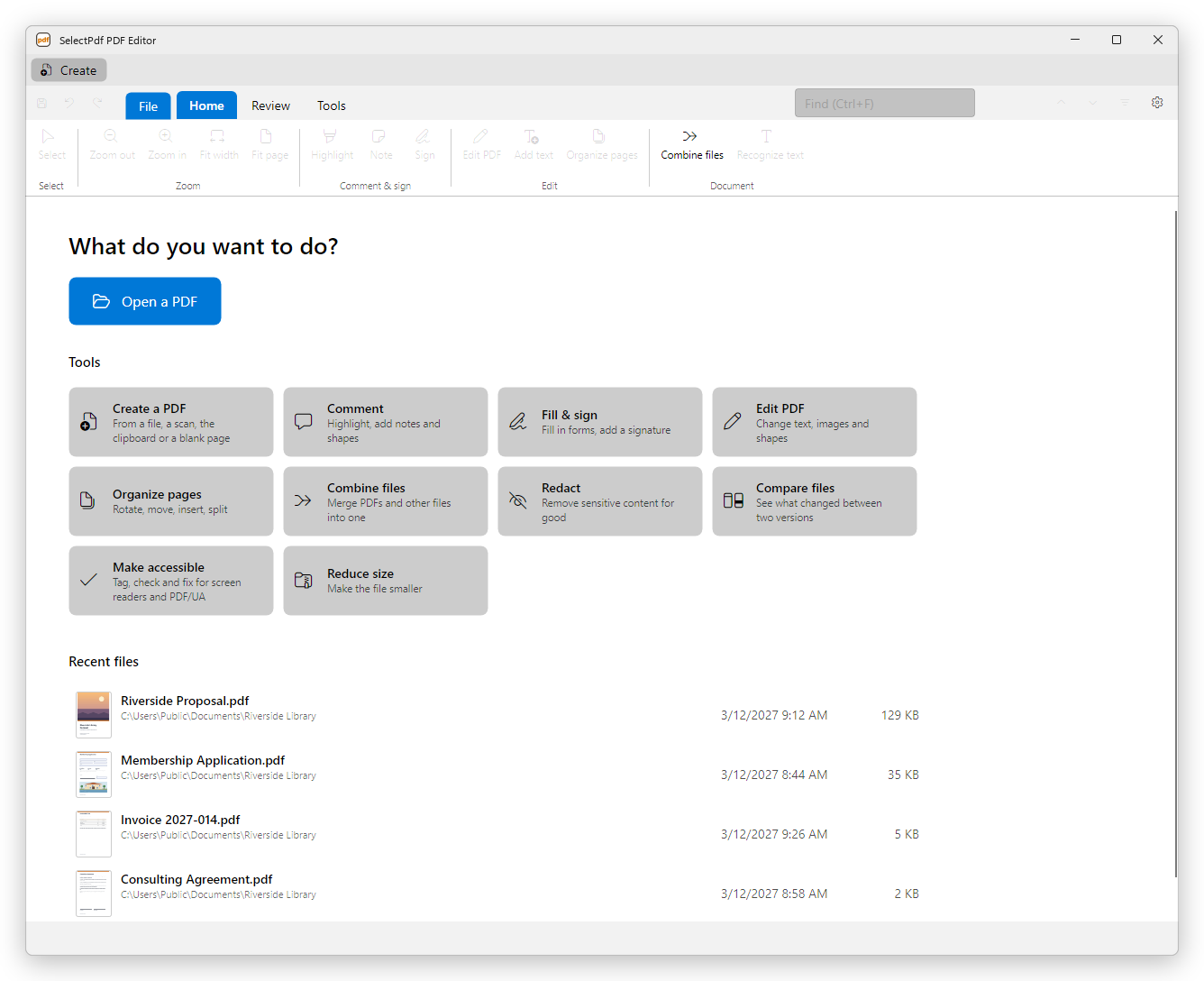
The welcome page lists the files you opened lately, with a picture of their first page. Click one to open it again.
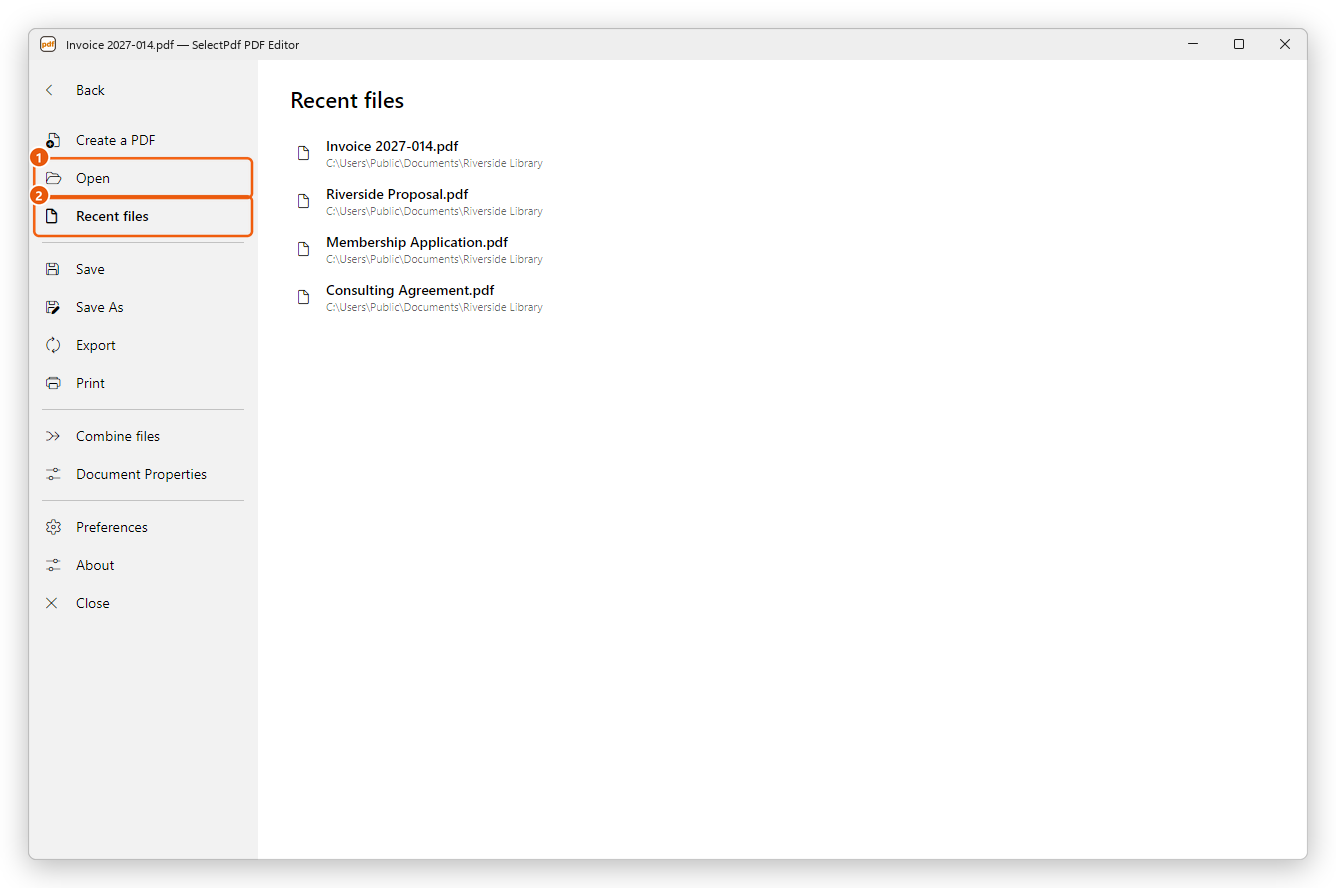
When a document is open, click File, then Recent files. A recent file opens on the page where you left it.
To choose how many files the list keeps, or to clear it, see Documents in Preferences.
Open a password-protected file
A PDF can be protected with a password that is needed to open it. When you open one, the editor asks for it:
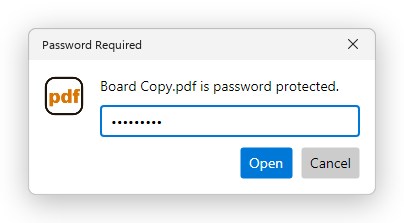
- Type the password. Passwords are case-sensitive: River is not river.
- Click Open.
If the password is wrong, the editor says so and asks again. Click Cancel to give up. Without the password the file cannot be opened: nobody, the editor included, can recover a forgotten password.
A document can also be protected from changes with a second password, the permissions password. Such a document opens without a password, but when you try to change it, the editor asks for the permissions password (Enter the password for changes to edit this document.): type it and click Unlock. Filling in a form's fields does not need it when the document allows form filling. To see what a document allows, open Document properties and click Security. To protect your own documents, see Protect a PDF with a password.
Open a file encrypted for certain people
A PDF can be encrypted for certain recipients, with their digital IDs, instead of a password. Only someone who has the digital ID of one of the recipients can open it. When you open one, the Open with a Digital ID dialog says who it was encrypted for:
- If one of your digital IDs is among the recipients, it is already chosen: type its password (or the PIN of your card or token) and click Open.
- Otherwise, choose Another digital ID file (.pfx, .p12), click Browse to pick the file of a recipient's digital ID, type its password and click Open.
If the digital ID is not one of the recipients, the editor says This digital ID is not one of the document's recipients. See Certificate security and, for your digital IDs, Digital signatures.
When a file does not open
The editor says why:
- This is not a PDF file, or the file is damaged. The file is not a PDF (some files have a .pdf name without being one), or it was cut short or damaged, for example by a download that did not finish. Download it or copy it again, or ask the sender for a new copy.
- The file could not be read. It may have been moved, or you may not have access to it. The file is no longer where it was, for example a recent file that was moved or deleted, or a file on a network drive that is not connected.
- This document is protected with a security method that is not supported. The file is encrypted in a way the editor cannot open.
Work with several documents
Each document opens in its own tab, above the ribbon. Click a tab to switch to it, or press Ctrl+Tab for the next one, and click the × on a tab to close that document (Ctrl+W). Opening a file that is already open brings its tab to the front.

If a document has changes you have not saved, a dot shows before its name on the tab, and closing it asks whether to save them. See Save a PDF.