Save a PDF
Save your changes, save a copy under another name, see which documents have unsaved changes, undo and redo, and what saving does to a signed document.
The changes you make to a document, such as comments, filled fields, edited text or moved pages, are kept in the editor until you save. The file on your disk changes only when you save it.
Save your changes
Do one of these:
- Press Ctrl+S.
- Click Save at the left of the ribbon's tabs.
- Click File, then Save.
The page bar says Saved when the file is written. A document that was never saved, for example one made with Combine Files or Create a PDF, asks first where to save it and under which name, as Save As does.
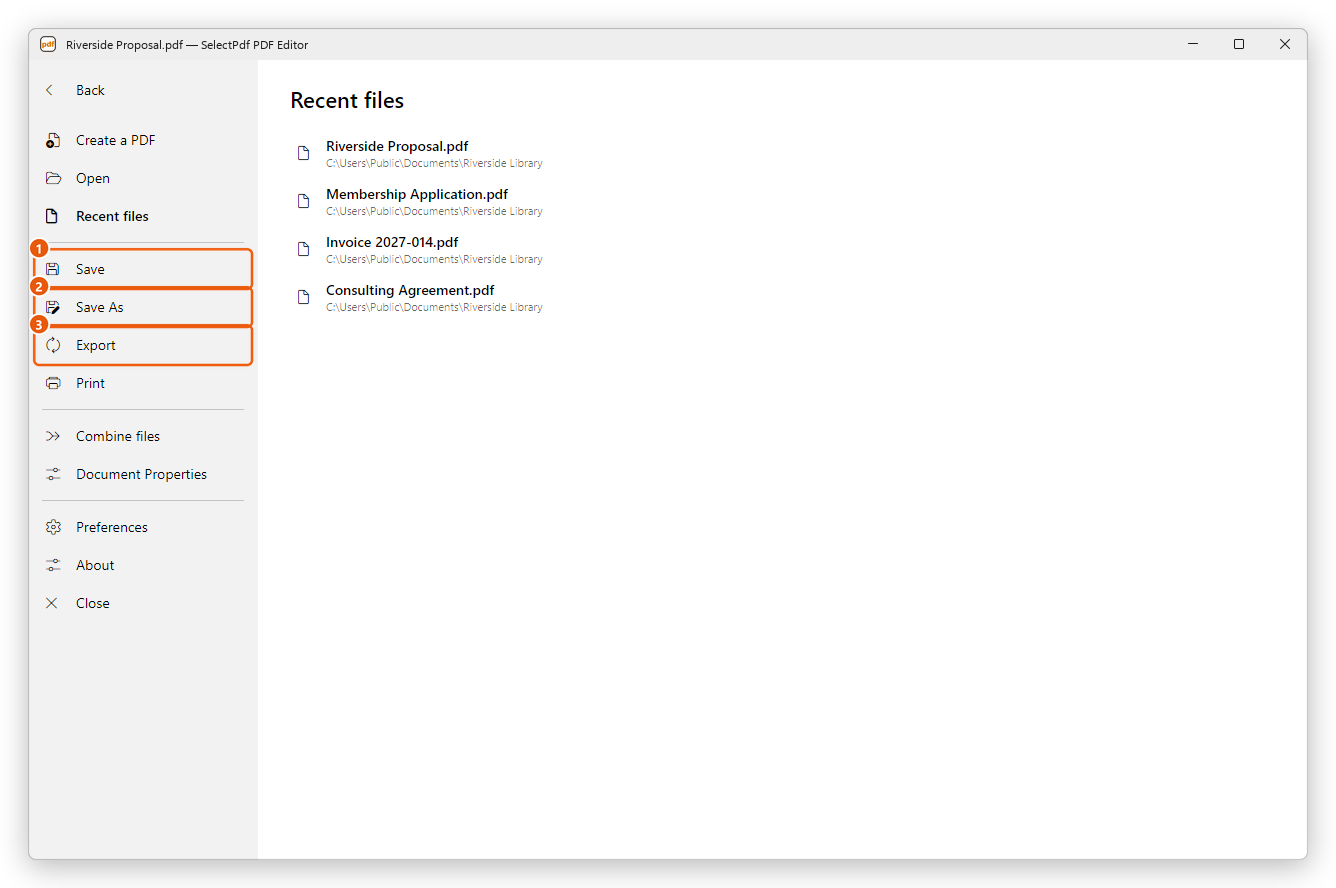
- Save writes the changes into the file.
- Save As saves the document under another name or in another folder.
- Export saves it as another kind of file, such as a Word document or pictures. See Export a PDF.
Save a copy under another name
- Press Ctrl+Shift+S, or click File, then Save As.
- Choose the folder, type the name and click Save.
The document in the editor is now the new file: the next Save writes into it, and the original file stays as it was when you last saved it.
On the Documents page of Preferences, Save As optimizes for Fast Web View makes Save As arrange the file so that a web browser can show its first page before the whole file has downloaded. To do it once, use Fast Web View on the Tools tab: see Reduce the file size.
Unsaved changes
A document with changes you have not saved has a dot before its name, on its tab and in the window's title.
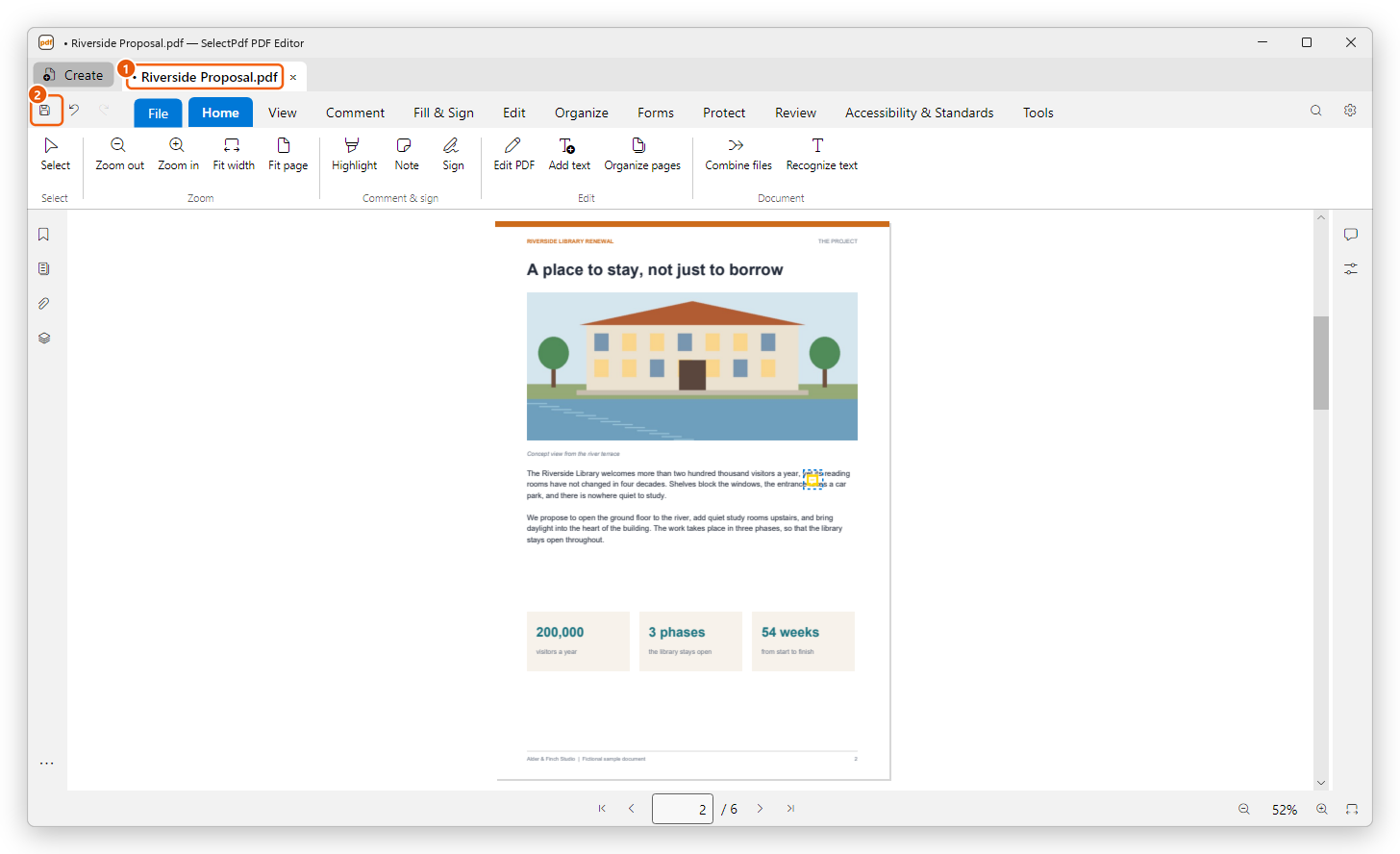
- The dot on the tab: this document has unsaved changes.
- Save.
When you close a document with unsaved changes (the × on its tab, or Ctrl+W), the editor asks what to do:
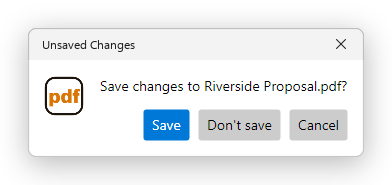
- Save saves the changes, then closes the document.
- Don't save closes it and leaves the file as it was when you last saved it.
- Cancel leaves the document open.
Closing the editor's window asks the same for each document with unsaved changes, one after the other. Cancel on any of them keeps the editor open. An update that restarts the editor asks too.
The editor does not save on its own, and it keeps no copy of your work to recover after a crash. Save often when you work on something long.
Undo and redo
- Undo (Ctrl+Z), at the left of the tabs, takes back the last change. Point at it to see which change it will take back.
- Redo (Ctrl+Y) does it again.
Each document keeps its own changes, from the moment it was opened until it is closed, and you can go back through all of them. Saving does not end this: after saving, you can still undo changes made before; the document then has unsaved changes again, and the dot comes back.
Some tools change many things in one step, such as recognizing the text of scanned pages, applying redactions or flattening a form: one Undo takes all of it back.
How saving keeps your file safe
The editor writes the new file under a temporary name beside the old one, checks that it opens with all its pages, and only then puts it in place of the old file. If anything goes wrong, for example the disk is full or the file is open in another program that does not let it be written, the editor says Save failed with the reason, the old file stays as it was, and your changes are still in the editor: save under another name with Save As.
When the document records the date it was made or changed, saving sets its date of change to now (a signed document keeps its dates). You see it in Modified in Document properties.
Saving a signed document
A document with a digital signature keeps its signatures when you save it. The editor does not rewrite such a file: it adds your changes after the signed part, as an update. Each signature still covers exactly what was signed, and the Signatures panel lists what changed after each one, for example comments added or fields filled. See Digital signatures.
Some tools have to rewrite the whole file, and that would break the signatures: they warn you first, or do not run on a signed document. Among them are Reduce the file size, converting to PDF/A, password protection and replacing text. Use them before signing.
When you sign a document, the signature is added at once, but it is kept only when you save: the editor says Signed. Save the document to keep the signature.