Search commands and keyboard shortcuts
Find any tool by typing its name with Ctrl+K, use the quick access buttons, and work faster with the editor's keyboard shortcuts.
The editor has more than a hundred commands, spread over the ribbon's tabs. You do not have to remember where each one is: type what you want to do, and run it from the list.
Search commands
- Press Ctrl+K. A box opens at the top right of the window.
- Type a word of what you want to do, for example rotate, watermark or password.
- The list shows the commands that match. Click one, or select it with Up and Down and press Enter.
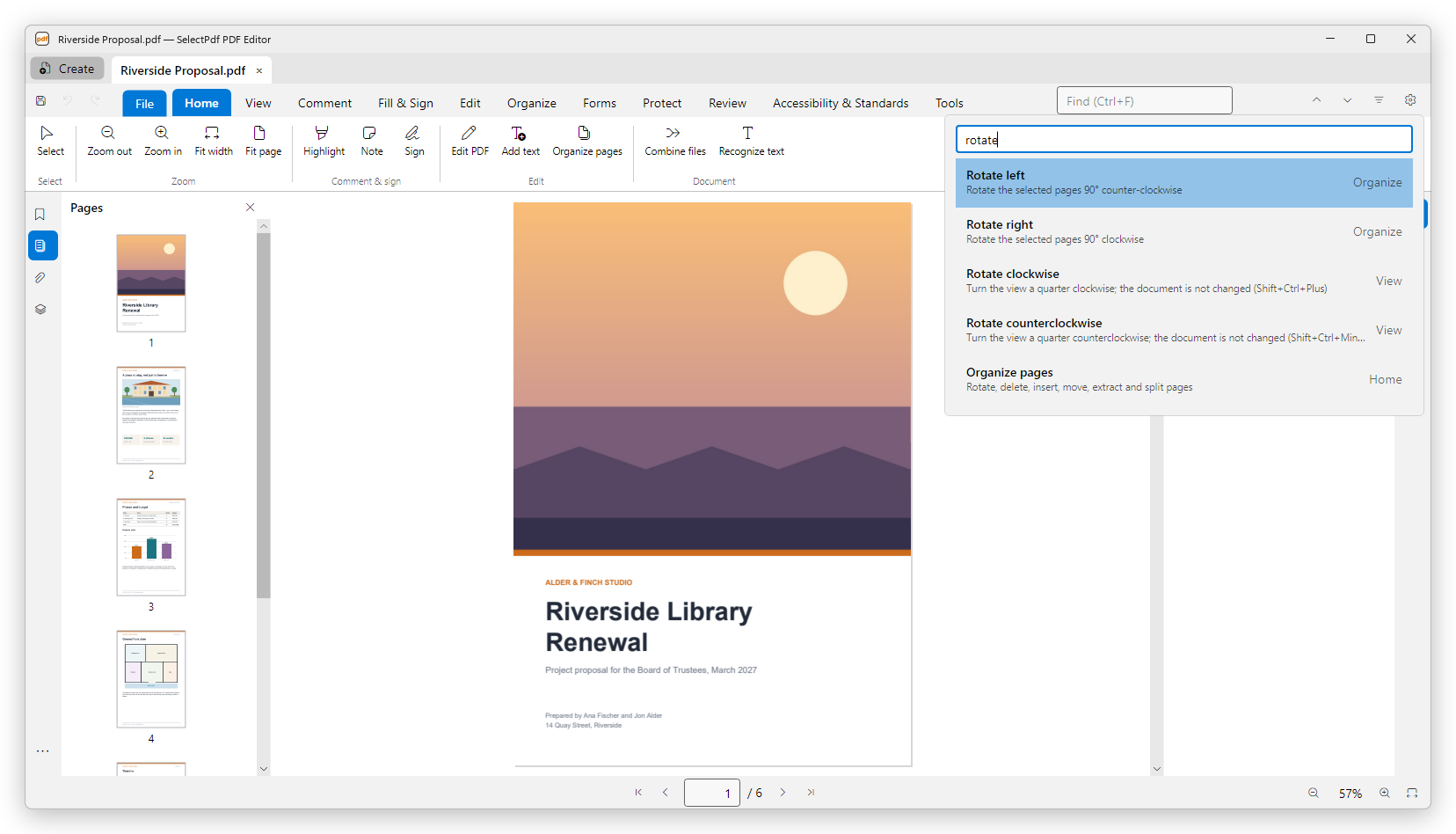
Each command shows its name, what it does, and at the right the tab of the ribbon where you find it next time. Running a command opens its tab first, so you see where it lives: a tool that stays on, such as Highlight, shows as selected there, and a button with a menu opens its menu.
You can also open the search from the find box: type a question mark (?) first, then the words. Press Esc to close the list without running anything.
The search looks in the names and in the descriptions, and every word you type must be found. Case and accents do not matter. Names that start with what you typed come first.
What the list contains
The list has the commands that the window offers at that moment: the buttons of every tab, and also Open, Save, Save As, Print, Undo, Redo, Preferences, Document Properties, Check for updates, the formats of Export, and Page numbers and Bates numbering from the Edit tab's menus. A command that cannot be used now is not listed: without an open document, for example, the list has only what works without one. If nothing matches, the list says No command matches.
Quick access and the ribbon's shortcuts
At the left of the tabs are three buttons that are always there: Save, Undo and Redo. Point at a button of the ribbon to see its name, what it does and, if it has one, its keyboard shortcut. Point at Undo to see what it will undo.
At the right of the tabs are the find box (see Find text) and Preferences. When the window is narrow, the find box folds into a button.
Keyboard shortcuts
The shortcuts below work in the editor's main window. Where a shortcut is also used by the tool you are working with, the tool's meaning wins: for example, while you edit text, Ctrl+U underlines it instead of showing the grid.
Files and documents
| Shortcut | What it does |
|---|---|
| Ctrl+O | Open a file. |
| Ctrl+S | Save. See Save a PDF. |
| Ctrl+Shift+S | Save a copy under another name (Save As). |
| Ctrl+P | Print. See Print. |
| Ctrl+W or Ctrl+F4 | Close the document (or the tool page, such as Combine Files) in front. |
| Ctrl+Tab | Go to the next document tab; with Shift, to the previous one. |
| Ctrl+D | Document Properties. See Document properties. |
| Ctrl+, | Preferences. See Preferences. |
| Ctrl+K | Search commands. |
| Ctrl+Z | Undo. |
| Ctrl+Y or Ctrl+Shift+Z | Redo. |
Find
| Shortcut | What it does |
|---|---|
| Ctrl+F | Go to the find box. |
| Enter or F3 | Next result. |
| Shift+Enter or Shift+F3 | Previous result. |
| Ctrl+Shift+F | Advanced Search, in the documents or in a folder. |
| Ctrl+H | Find and Replace in the page text. |
| Esc | Clear the results of a search. |
See Find text.
Move and zoom
| Shortcut | What it does |
|---|---|
| Ctrl++ and Ctrl+- | Zoom in and out. |
| Ctrl+0 | Fit width. |
| Left and Right | Previous and next page (in a two-page view, the previous and next pair). |
| Up and Down | Scroll. Showing one page at a time, past the top or the bottom of a page they turn the page. |
| Page Up and Page Down | Previous and next page, showing one page at a time. |
| Ctrl+Home and Ctrl+End | First and last page. |
| Alt+Left and Alt+Right | Previous view and Next view. |
| Shift+Ctrl++ and Shift+Ctrl+- | Turn the view clockwise and counterclockwise. |
| Ctrl+4 | Reflow. |
| F11 | Full screen; Esc or F11 again to leave it. |
The arrow keys move through the document unless a box, a list or a selected object has them. See View a PDF.
Layout aids and tools
| Shortcut | What it does |
|---|---|
| Ctrl+R | Show or hide the Rulers. |
| Ctrl+U | Show or hide the Grid. |
| Shift+Ctrl+U | Turn Snap to grid on or off. |
| F7 | Check Spelling. See Check spelling. |
| Esc | Go back to the Select tool; leave Organize pages, the File view or full screen. |
Text and pictures on the page
| Shortcut | What it does |
|---|---|
| Ctrl+A | Select all the text of the document (with the Select tool). |
| Ctrl+C | Copy the selected text. |
| Esc | Clear the selection. |
Comments
| Shortcut | What it does |
|---|---|
| Enter | Open the selected comment's text to change it. |
| Delete | Delete the selected comment. |
| Ctrl+Enter | Save the comment you are writing; Esc closes it without saving. |
| Shift while drawing | A square, a circle, or a line at 45 degrees. |
| Enter or a double-click | Finish a polygon, a polyline or a measurement path; Esc cancels it. |
See Comment on a PDF and Drawing and shapes.
Edit PDF
In Edit PDF, with an object selected (Ctrl+V and Ctrl+A work without one):
| Shortcut | What it does |
|---|---|
| Ctrl+C, Ctrl+X, Ctrl+V | Copy, cut and paste. |
| Ctrl+D | Duplicate. |
| Delete | Delete. |
| Arrow keys | Move by one point; with Shift, by ten. |
| Ctrl+] and Ctrl+[ | Bring forward and send backward. |
| Ctrl+Shift+] and Ctrl+Shift+[ | Bring to front and send to back. |
| Ctrl+A | Select all the objects of the page. |
| Esc | Clear the selection. |
While you type in a paragraph:
| Shortcut | What it does |
|---|---|
| Ctrl+B, Ctrl+I, Ctrl+U | Bold, italic, underline. |
| Ctrl+Shift+= and Ctrl+= | Superscript and subscript. |
| Ctrl+L, Ctrl+E, Ctrl+R, Ctrl+J | Align left, center, align right, justify. |
| Ctrl+Z | Undo your typing. |
| Enter | A new line. |
| Ctrl+Enter | Finish; Esc cancels. |
See Edit text and images.
Forms, pages and bookmarks
| Where | Shortcut | What it does |
|---|---|---|
| Filling a form | Tab and Shift+Tab | Next and previous field. |
| Filling a form | Esc | Cancel what you typed in the field. |
| Prepare form | Delete | Delete the selected field. |
| Prepare form | Arrow keys | Move the selected field by one point; with Shift, by ten. |
| Prepare form | Enter | The field's properties. |
| Organize pages | Ctrl+A | Select all the pages. |
| Organize pages | Delete | Delete the selected pages. |
| Organize pages | Enter | Open the page in the document. |
| Bookmarks panel | F2 | Rename the selected bookmark. |
| Bookmarks panel | Delete | Delete the selected bookmark. |
See Fill in forms, Create forms, Organize pages and Bookmarks.