Redact sensitive information
Mark text, areas or whole pages for redaction, find names, numbers and patterns to redact, and apply the redactions to remove the content for good.
Redacting removes text and pictures from a PDF for good: the words are taken out of the file, not just covered, so nobody can copy, search or uncover them. A black box shows where they were.
Redacting is done in two steps. First you mark what to remove: the marks can still be checked, changed and taken off. Then you apply the redactions, and what the marks cover is removed.
Redaction needs Pro.
Mark text and areas
- Open the document and click the Protect tab.
- Click Redact. The Redact mode starts, with Mark text chosen.
- Select the text to remove, as you would to copy it. When you let go of the mouse button, the text is marked with a red frame.
- To remove a picture, a drawing or part of a page, click Mark area and drag a box over it.
- Mark everything you want to remove, then apply the redactions.
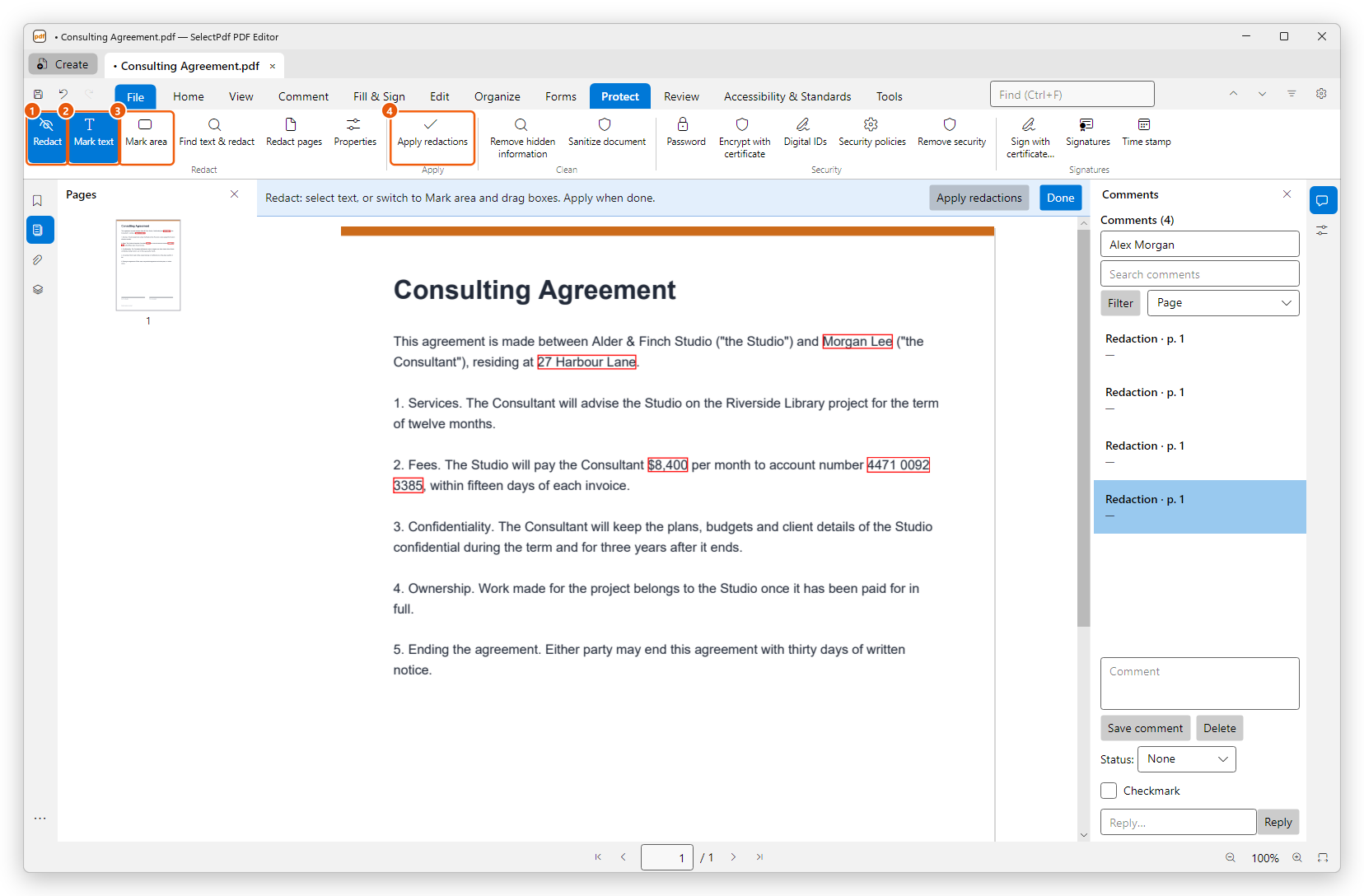
- Redact is on while the mode is on.
- Mark text: select text to mark it.
- Mark area: drag boxes over anything on the page.
- Apply redactions: remove what the marks cover.
The marks are listed in the Comments panel as Redaction. To take a mark off, select it in that list and click Delete.
Find text and redact
To redact a name or a number wherever it is in the document:
- On the Protect tab, click Find text & redact. The Find text and redact panel opens.
- Choose what to look for:
- Single word or phrase, typed in the box;
- Multiple words or phrases, one on each line;
- Patterns: Phone numbers, E-mail addresses, Credit card numbers, Social security numbers (US), Dates, Bank account numbers (IBAN), or a Regular expression of your own.
- Click Search. The results are listed with the words around them.
- Untick the results you want to keep, and click Mark checked results for redaction.
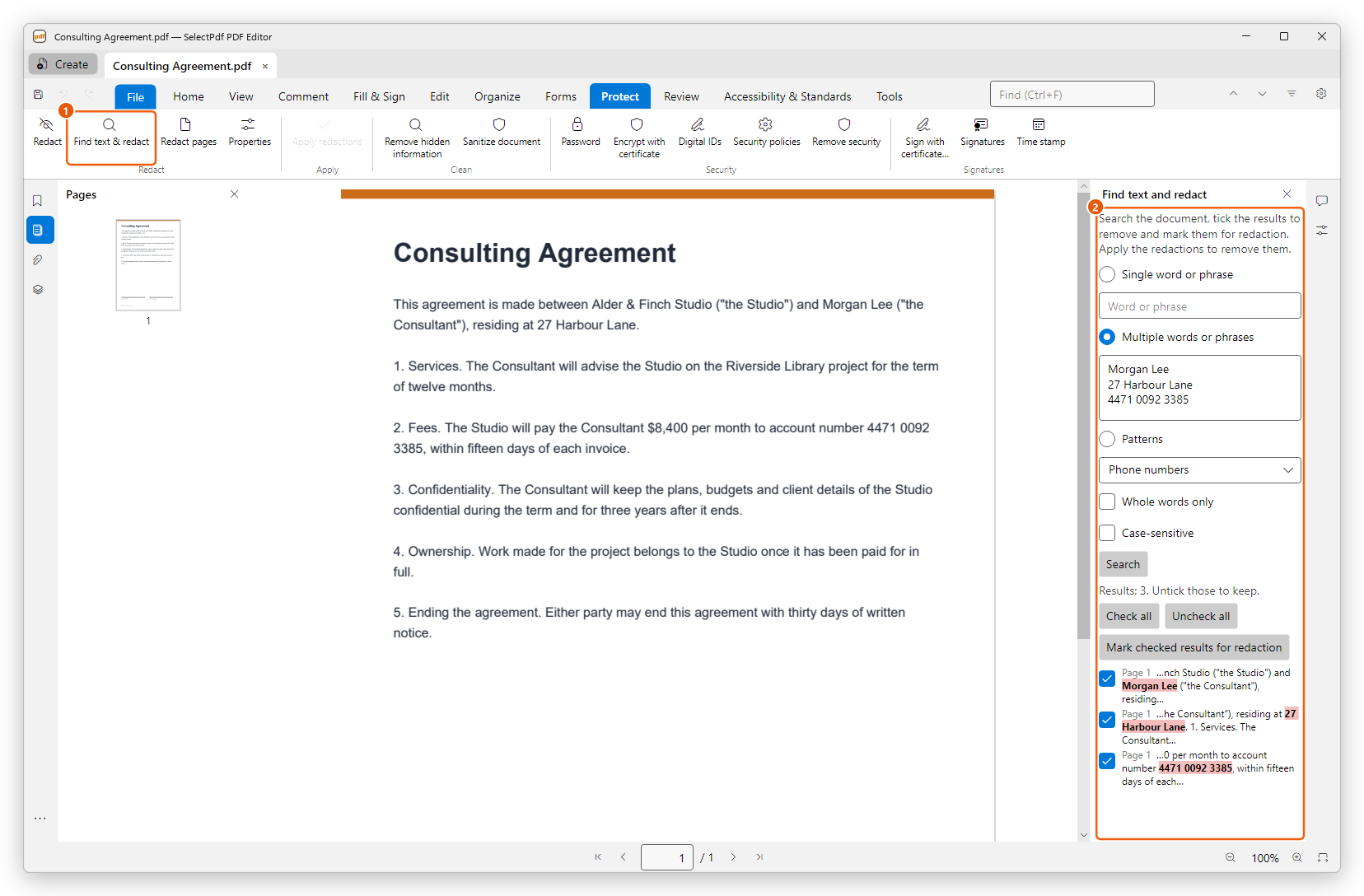
Whole words only and Case-sensitive narrow the search.
Redact whole pages
Click Redact pages, choose Current page, a range of Pages, or the odd or even pages, and click Mark. Applying the redactions removes everything on those pages; the pages themselves stay, empty.
Choose how redactions look
Click Properties in the Redact group to open Redaction Properties. There you choose the Fill colour of the boxes left after applying (black by default), and the look of the marks before. Tick Use overlay text to write a text in the boxes, such as Redacted, or a Redaction code from the code sets, as legal and public-records work often needs.
Apply the redactions
- Check the marks: everything they cover will be removed.
- Click Apply redactions, on the ribbon or on the blue bar of the Redact mode.
- The editor says how many marks there are. Click Apply.
- Save the document with Save As under a new name, so you keep the original as it was.
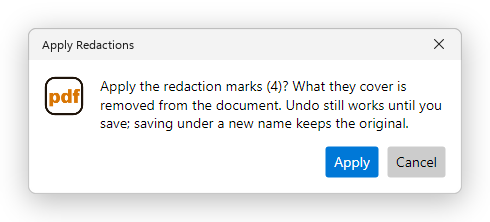
What the marks covered is gone from the document:
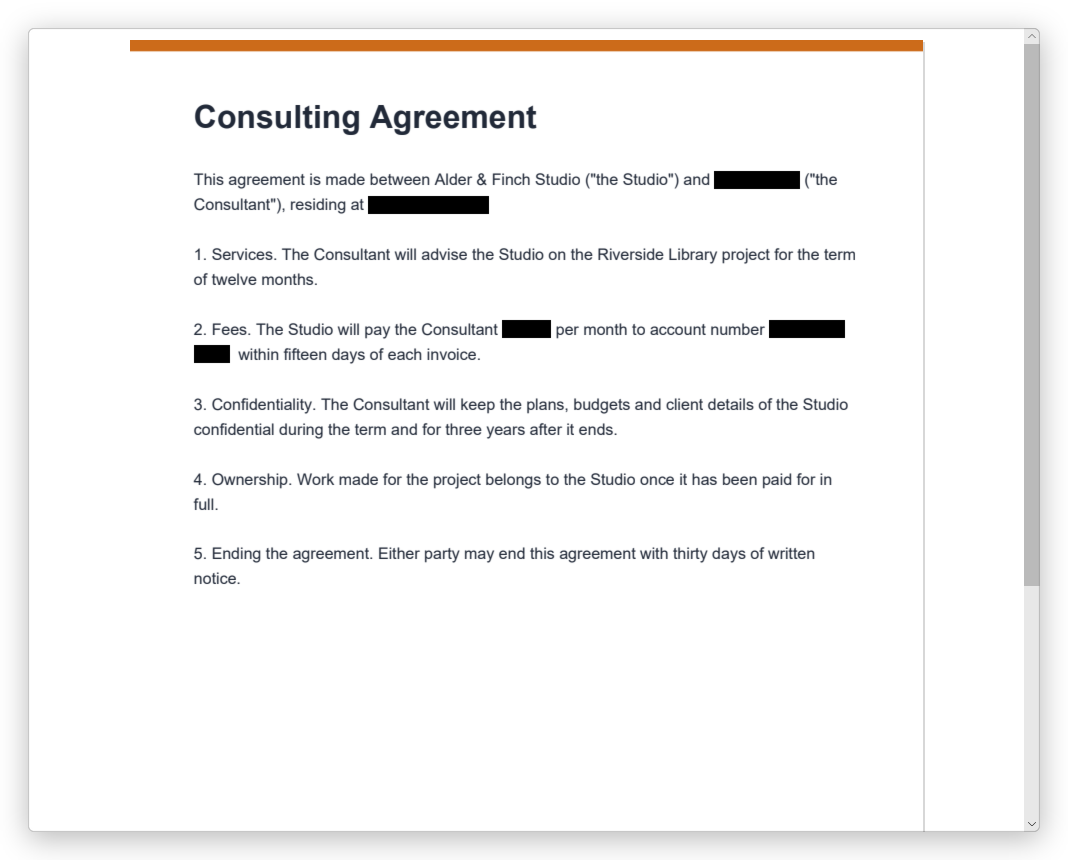
Until you save, Undo (Ctrl+Z) brings the content back. Once the redacted document is saved, the content cannot be recovered from that file.
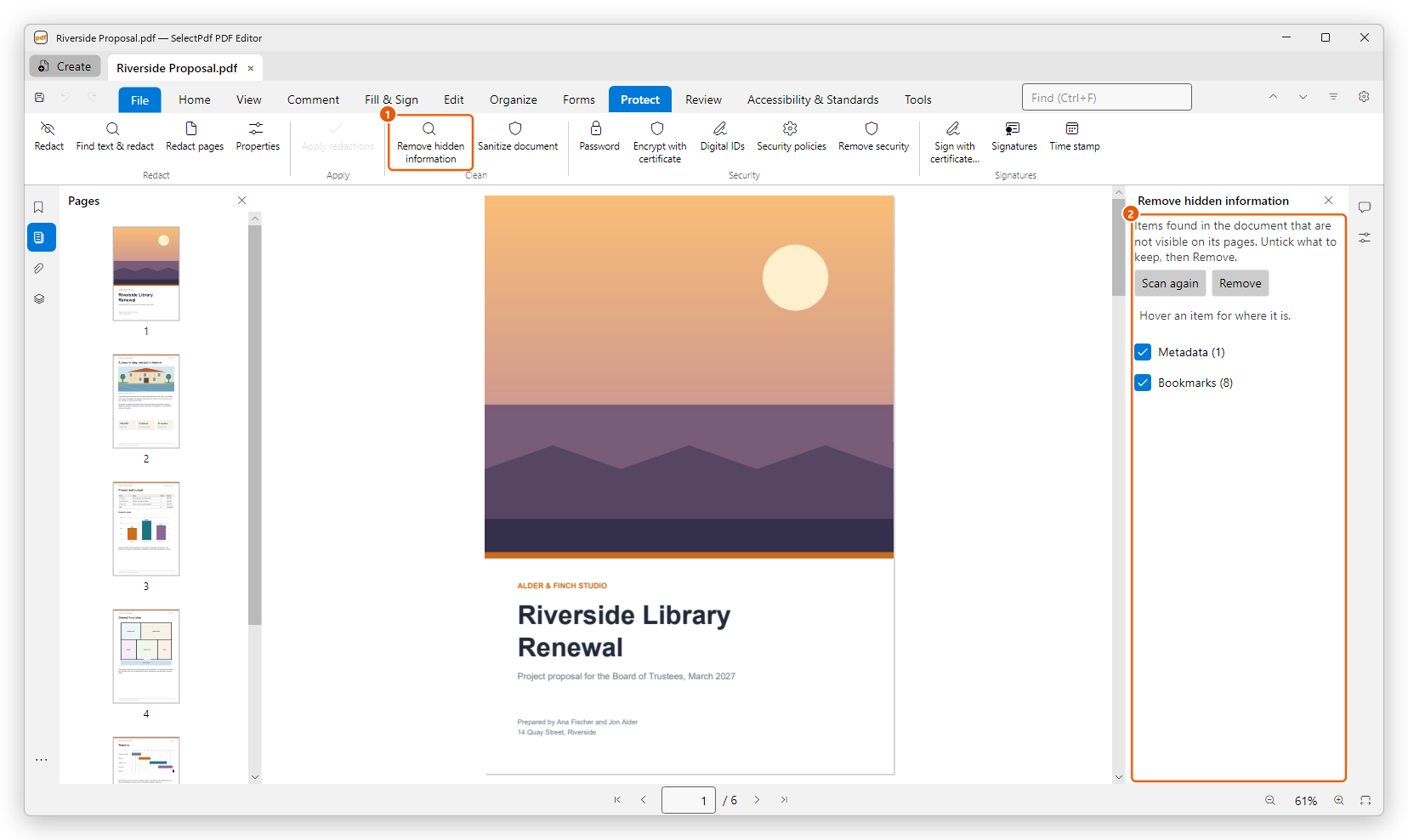
Remove hidden information
Redacting removes what you can see on the pages. A PDF can also hold what you cannot see: the author's name, comments, attached files, hidden text and layers, scripts. After you apply redactions, check the document for these too, since a comment or the document's details could still say what was redacted. See Remove hidden information and sanitize.