View a PDF
Zoom, move through the pages, show one or two pages at a time, use page thumbnails and bookmarks, turn the view, read in full screen or reflowed, and switch to the dark theme.
Zoom
On the Home tab, in the Zoom group:
- Zoom in and Zoom out make the pages bigger or smaller (Ctrl++ and Ctrl+-).
- Fit width makes the page as wide as the window (Ctrl+0).
- Fit page shows the whole current page.
The same zoom buttons are at the right of the page bar, at the bottom of the window, beside the current zoom in percent.
To choose how documents open at first, for example always at Fit page, see Page Display in Preferences.
Move through the pages
- Scroll with the mouse wheel or the scroll bar, or press the arrow keys.
- In the page bar, click First page, Previous page, Next page or Last page.
- Type a page number in the page bar's box and press Enter. If the document has its own page numbers (for example "iii" or "A-2"), you can type those too.
- Press Ctrl+Home for the first page and Ctrl+End for the last.
After you jump somewhere, for example with a bookmark or a link, Previous view on the View tab takes you back to where you were (Alt+Left), and Next view forward again (Alt+Right).
The View tab
The View tab has everything about how the pages are shown.

- Page display. One page or two side by side, scrolling or one at a time.
- Navigate. Previous view and Next view.
- Rotate view. Turn the pages on screen.
- Read. Reflow, Read aloud and Full screen.
The tab also has Snapshot, which copies part of a page as a picture, and the layout aids: Rulers, Grid, Snap to grid, Guides and Grid settings. See Rulers, grid and guides.
Show one or two pages
- Click the View tab.
- In the Page display group, click one of these:
- Single page: one page at a time.
- Scrolling: pages one under the other (the usual view).
- Two-page: two pages side by side, a spread at a time.
- Two-page scrolling: two pages side by side, scrolling.
- In the two-page views, click Cover page to show the first page alone, as the cover of a book, and the next pages in pairs.
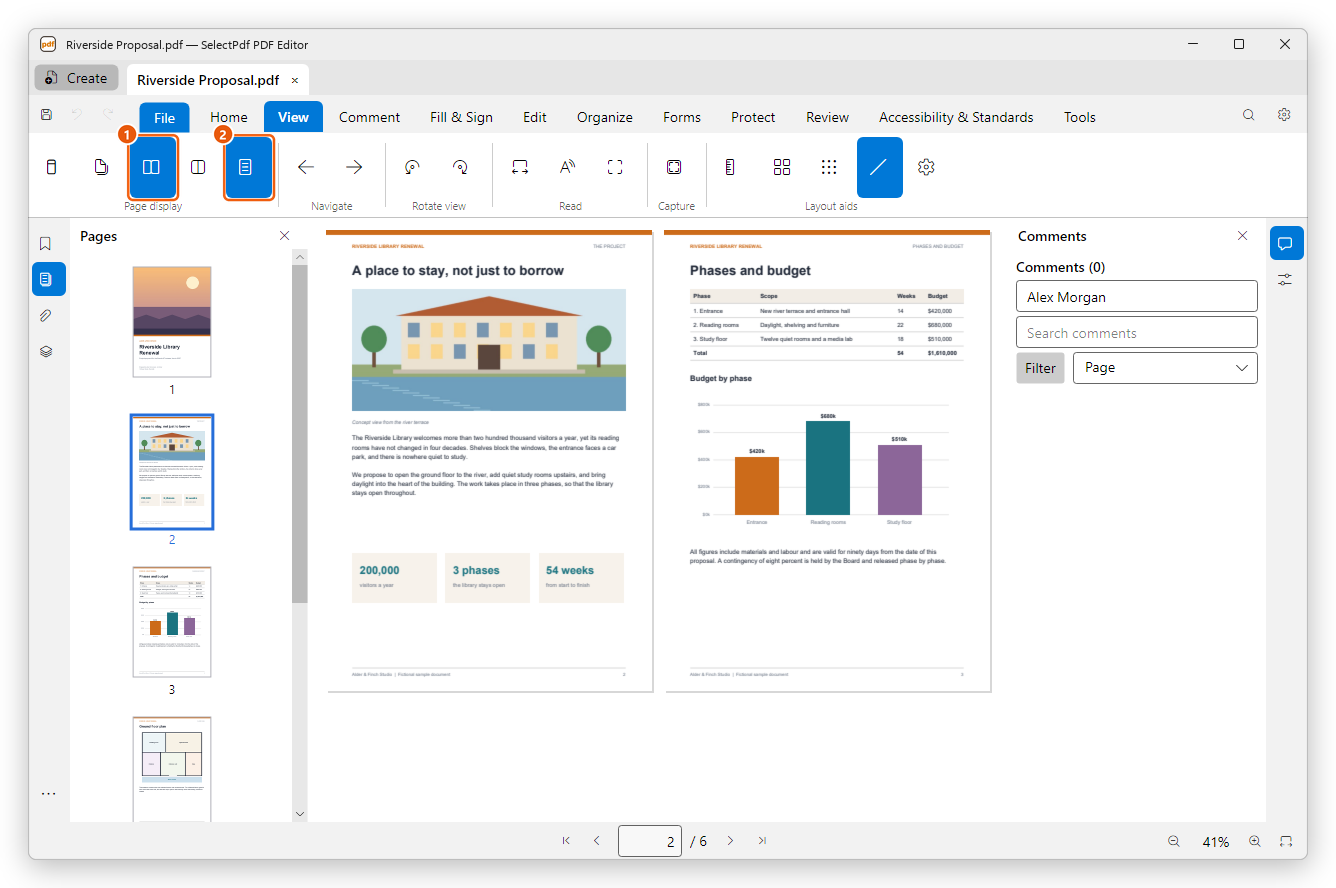
The editor keeps your choice, also the next time you start it. A document whose Page layout is set in its Document Properties (Initial View) opens in that layout instead; changing it on the View tab changes it for that document.
Page thumbnails
Click Pages in the bar at the left of the window. The panel shows a small picture of each page; the current page has a blue frame. Click a page to go to it.
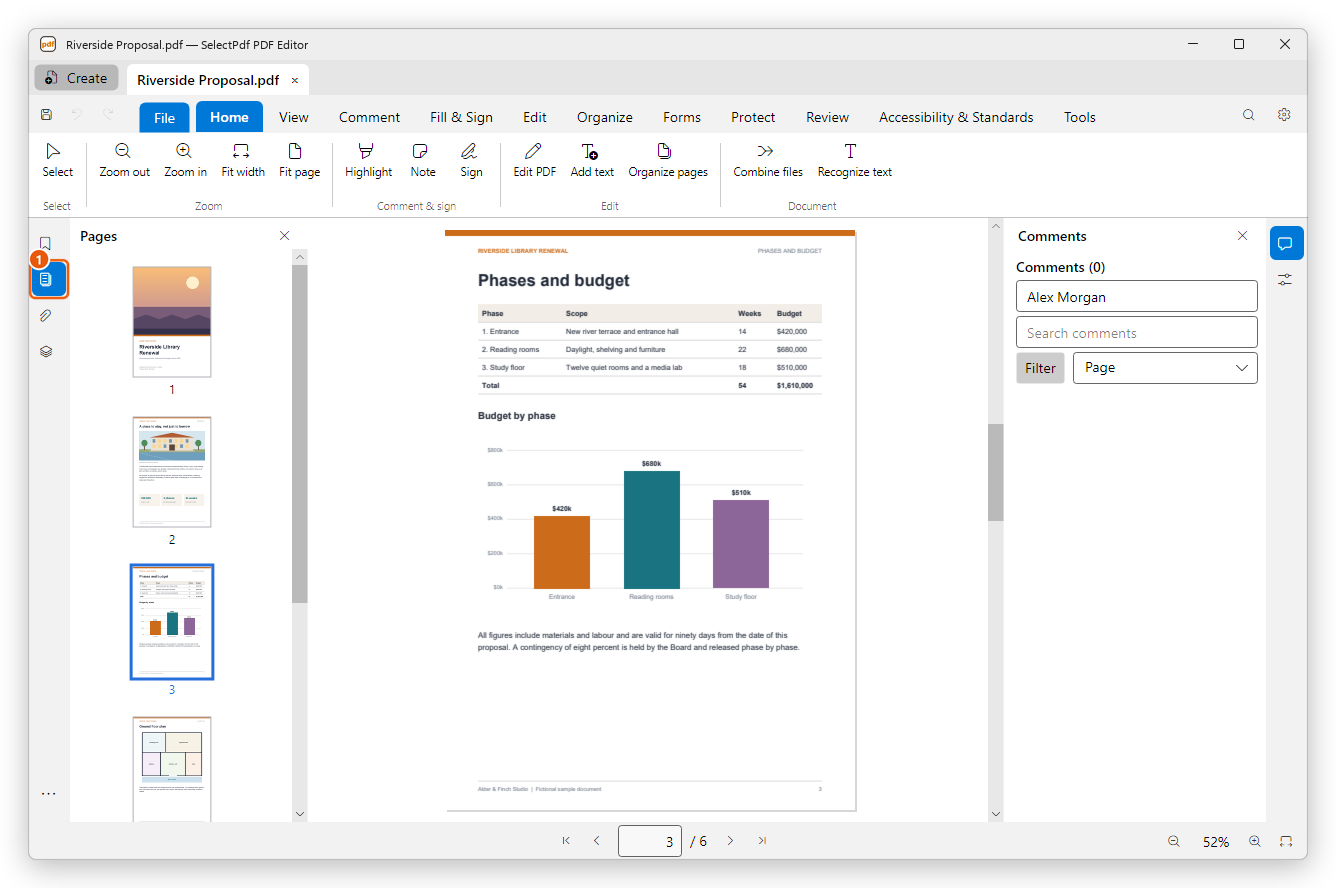
Click Pages again, or the × at the top of the panel, to close it.
Bookmarks
Many documents have bookmarks: a table of contents that leads to their parts. Click Bookmarks in the bar at the left, then click a bookmark to go to its page. Click the arrow beside a bookmark to show the bookmarks under it.
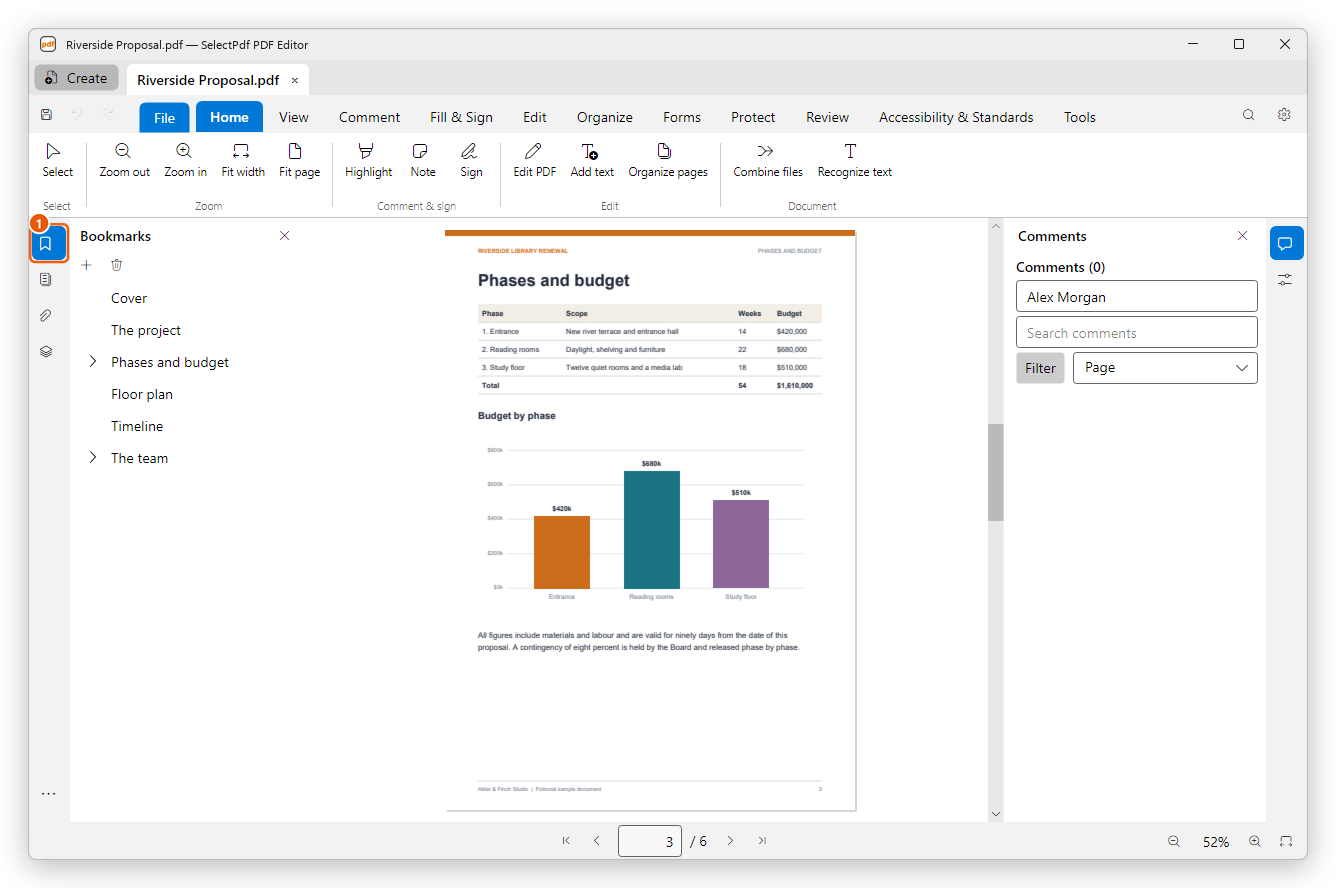
Reading bookmarks is free. Adding, renaming, moving and deleting bookmarks needs Pro.
Turn the view
A page scanned sideways, or a wide table, is easier to read turned. On the View tab, click Rotate clockwise or Rotate counterclockwise (Shift+Ctrl++ or Shift+Ctrl+-). Each click turns all the pages a quarter turn.
This only changes how the pages are shown: the document itself stays as it is. To turn pages for good, use Rotate left or Rotate right on the Organize tab.
Read in full screen
Click Full screen on the View tab, or press F11. Only the pages are shown, without the tabs, ribbon, panels and page bar. Press Esc (or F11) to go back.
Reflow the text
On a small screen, or at a large zoom, reading a page means scrolling sideways. Reflow shows the text of the current page in one column, as wide as the window, with its pictures.
- Go to the page you want to read.
- On the View tab, click Reflow, or press Ctrl+4.
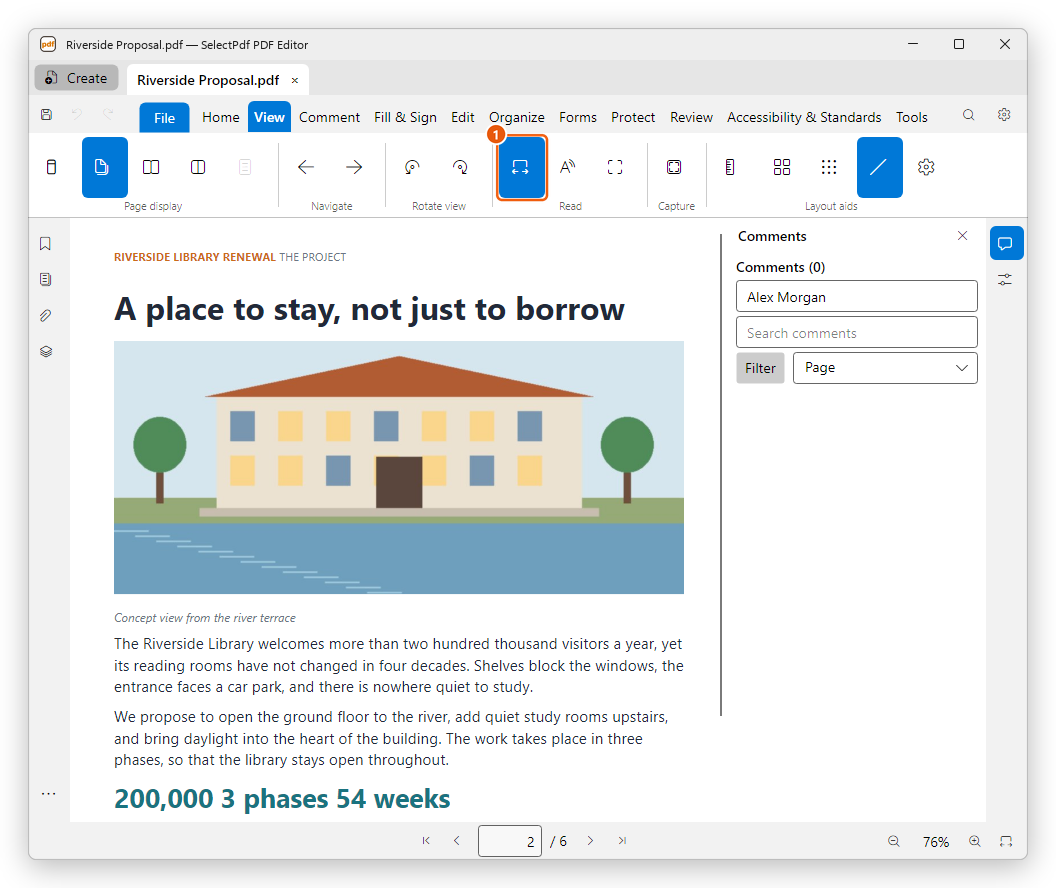
Zoom in or out to make the text bigger or smaller, and use the page bar to go to the other pages. Click Reflow again to see the pages as they are.
Reflow shows the text the page has. A scanned page is only a picture: recognize its text first with Recognize text on the Home tab (a Pro tool).
Listen to a document
Read aloud on the View tab reads the text with Windows' speech.
- Go to the page where you want to start.
- Click Read aloud, then Read this page or Read to the end of the document. The editor moves to each page as it reads it.
- To stop, click Read aloud again, or click it and choose Stop.
To choose the voice and the speed, open Preferences and click Read Aloud.
Dark theme
The editor can show its window light or dark. Open Preferences, and on the General page choose Dark for Theme. As the system follows the colour mode you chose in Windows.
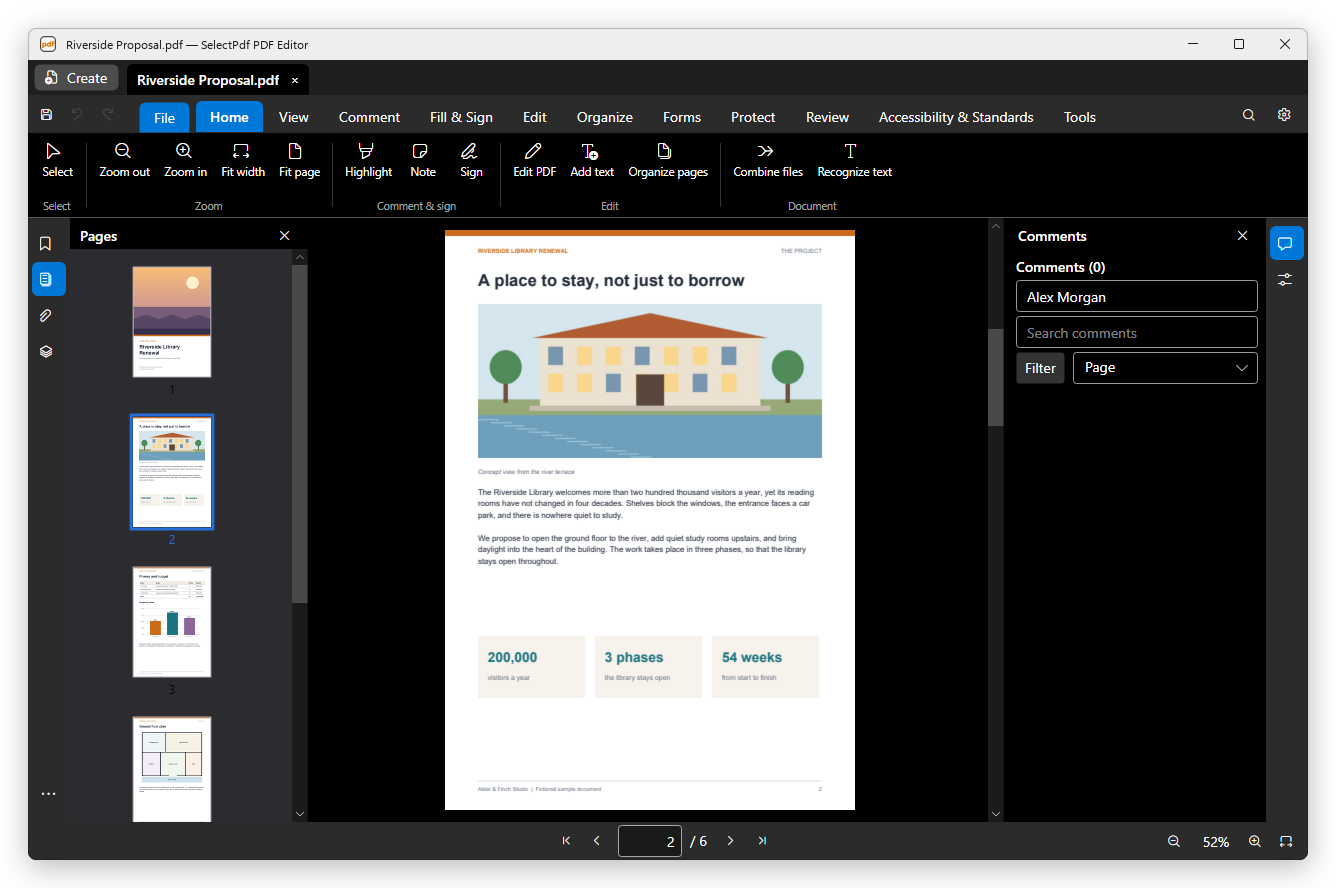
The pages keep their own colours in the dark theme. To show the pages in other colours, for example light text on black, see Accessibility in Preferences.