JavaScript
Add scripts to a PDF: document JavaScripts that run when it opens, actions when it closes, saves or prints or when a page opens, and the scripts of form fields; what the editor's script engine does and how it keeps you safe.
PDF documents can carry small programs in JavaScript, the language Adobe Acrobat uses for forms: they fill in a date, check what was typed, work out totals, show or hide fields and show messages. The editor runs these scripts as you fill a form, and lets you write your own.
Most forms need no script of your own: a total, an amount format or a range check is set in a field's properties without one (see Calculate, format and check values). Write a script for what those settings cannot do.
Where scripts go
| Where | When it runs | Where to set it |
|---|---|---|
| Document JavaScripts | When the document opens | Tools > JavaScript > Document JavaScripts... |
| Document actions | When the document closes, is saved or is printed | Tools > JavaScript > Document Actions... |
| Page actions | When a page is shown, or left | Tools > JavaScript > Page Actions... |
| A field's scripts | When a value is typed, checked, calculated or shown | The field's Format, Validate and Calculate tabs: see Calculate, format and check values |
| A field's actions | When the field is clicked, entered or left | The field's Actions tab: see Form field properties |
| A link or bookmark | When it is clicked | Its actions: see Links and actions |
| A batch | On each file of a batch | The Run JavaScript step: see Process many files at once |
Document JavaScripts
Document JavaScripts run when the document opens: use them for what the form must do from the start, or for functions that the field scripts share.
- Click the Tools tab, then JavaScript in the Automate group, and choose Document JavaScripts....
- Click Add... and type a name for the script.
- Type the script on the right.
- Click OK.
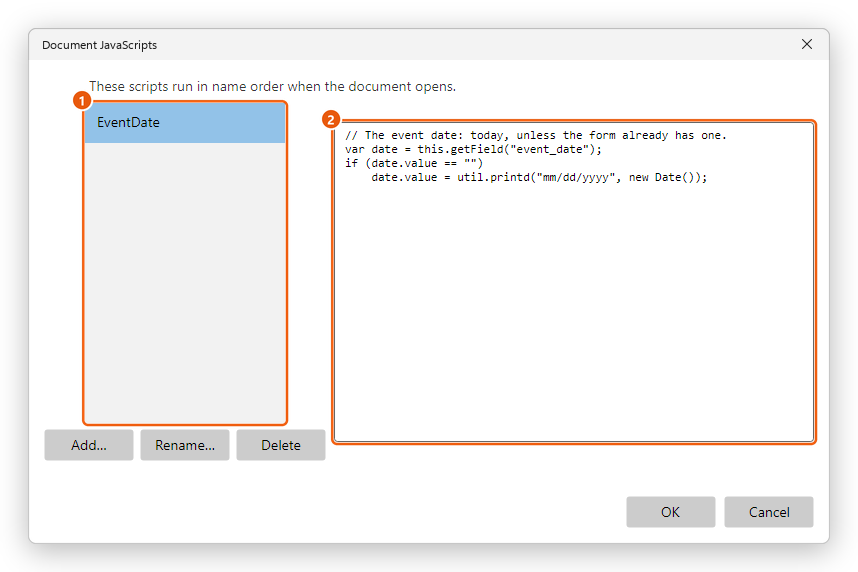
- The document's scripts, by name. They run in the order of their names.
- The script selected.
Rename... and Delete change the selected script. All the changes made in the dialog are one step to undo. The scripts run the next time the document is opened.
This script fills in today's date when the form opens without one:
// The event date: today, unless the form already has one.
var date = this.getField("event_date");
if (date.value == "")
    date.value = util.printd("mm/dd/yyyy", new Date());
Document and page actions
Document Actions... sets what happens when the document is about to close, is about to be saved or has been saved, is about to be printed or has been printed.
- Click Tools > JavaScript > Document Actions....
- Under When, choose the moment: Document will close, Document will save, Document did save, Document will print or Document did print.
- Choose Run a JavaScript under Select action, click Add..., type the script and click OK.
- Click OK.
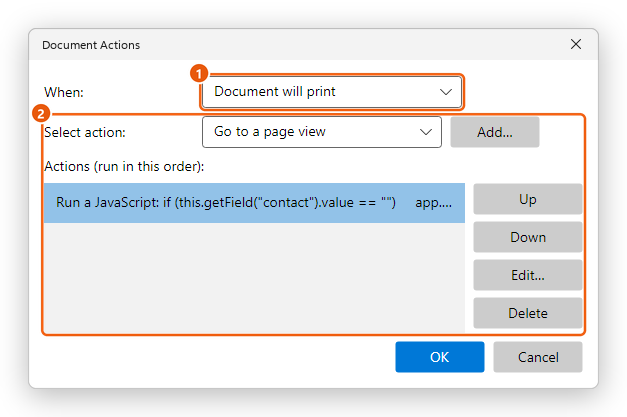
- The moment the actions run.
- The actions, run in this order. Up and Down change the order; Edit... and Delete change the selected action.
Other actions can run at these moments too, such as going to a page or showing a field: see Links and actions. This script reminds the person printing a booking to fill in the contact name:
if (this.getField("contact").value == "")
    app.alert("Please fill in the contact name before you print the booking.");
Page Actions... does the same for the page shown: choose Page open (the page comes into view) or Page close (another page is shown).
Scripts in form fields
A field's scripts run as the form is filled:
- the keystroke script checks each key typed (the Custom keystroke script of the Format tab);
- the validation script accepts or refuses the value (the Validate tab);
- the calculation script works out the value from other fields (the Calculate tab);
- the format script sets how the value is shown (the Custom format script of the Format tab).
When a value is committed, the editor runs them as Acrobat does: the field's validation, then every calculation of the form in the calculation order, then the format of each field that changed. See Calculate, format and check values for examples.
A field's Actions tab, a list's Selection Change tab and a signature field's Signed tab run scripts too: when the field is clicked, when a list's choice changes, when the field is signed.
What scripts can do
The editor runs the JavaScript of PDF forms as Acrobat defines it. A script uses:
this: the document.this.getField("name")gives a field;numFields,pageNum(the page shown),numPages,documentFileNameandinfo(title, author...) describe it;calculateNow(),resetForm(),submitForm()andprint()act on it.- A field's
valueandvalueAsString,defaultValue,readonly,required,hiddenanddisplay, its colours (textColor,fillColor,borderColor) andtextSize, the items of a list (numItems,getItemAt()),checkThisBox()andisBoxChecked()for check boxes, andbuttonSetCaption()for buttons. event: in a field's script, the value being typed, checked or calculated (event.value,event.change), the field it belongs to (event.target), andevent.rcto refuse a value.app.alert()to show a message,app.response()to ask for a line of text, andapp.launchURL()to open a web address.util.printd(),util.scand(),util.printf()andutil.printx()to write and read dates, numbers and text, andcolorfor colours.- Acrobat's own form functions, such as
AFNumber_Format,AFDate_FormatEx,AFSimple_CalculateandAFRange_Validate: the Format, Validate and Calculate tabs write these.
What has no meaning in this editor does nothing: timers, emailing the document, the document's comments.
A message from a script shows in a box titled Message from the document. A script that changed fields, run from a link or a button, is one step that Undo takes back.
Safety
The scripts of a document run without asking, as they do in Acrobat, so that forms work as soon as they open. They run apart from your computer:
- A script cannot read or write your files, start programs or reach the internet by itself. It sees only the document it is in.
- A script that runs too long, or uses too much memory, is stopped.
- A script that opens a web address asks you first, the first time for each document.
- A script that sends the form asks you first, and so do the links and buttons that send it. A form with required fields still empty is not sent.
- A script that prints shows the Print dialog; one that asks for a picture lets you choose the file.
To remove every script from a document, use Remove hidden information or Sanitize. The PDF Optimizer can discard them too.
Adding and changing scripts and actions needs Pro, as Prepare form does. Documents that have scripts run them for everyone: filling in a form that calculates or checks its values is free.