Remove hidden information and sanitize
Find what a PDF holds besides its pages (metadata, attachments, comments, hidden text and layers, scripts, links and more), remove what you choose, or sanitize the document to remove all of it in one step.
A PDF can carry much more than its pages show: the name of its author, comments and their replies, attached files, text that is drawn invisible, hidden layers, scripts that run when it opens, the data of the app that made it. Before you send a document outside your organization, check what it holds and remove what nobody should see.
The tools are on the Protect tab, in the Clean group:
- Remove hidden information lists what the document holds, and removes what you tick;
- Sanitize document removes everything on that list in one step.
To remove words or pictures on the pages, redact them; to protect a document from being opened, add a password.
Remove hidden information and Sanitize document need Pro.
Remove hidden information
- Open the document and click the Protect tab.
- Click Remove hidden information. The panel of the same name opens on the right and lists each kind of item the document holds, with how many there are.
- Point at an item to see where it is: on which page, and what it is (for example the name of an attached file, or Opens a web address for a link).
- Everything is ticked. Untick what you want to keep.
- Click Remove. The panel scans the document again and says how many items were removed.
- Save the document. Use Save As with a new name if you want to keep the original as it was.
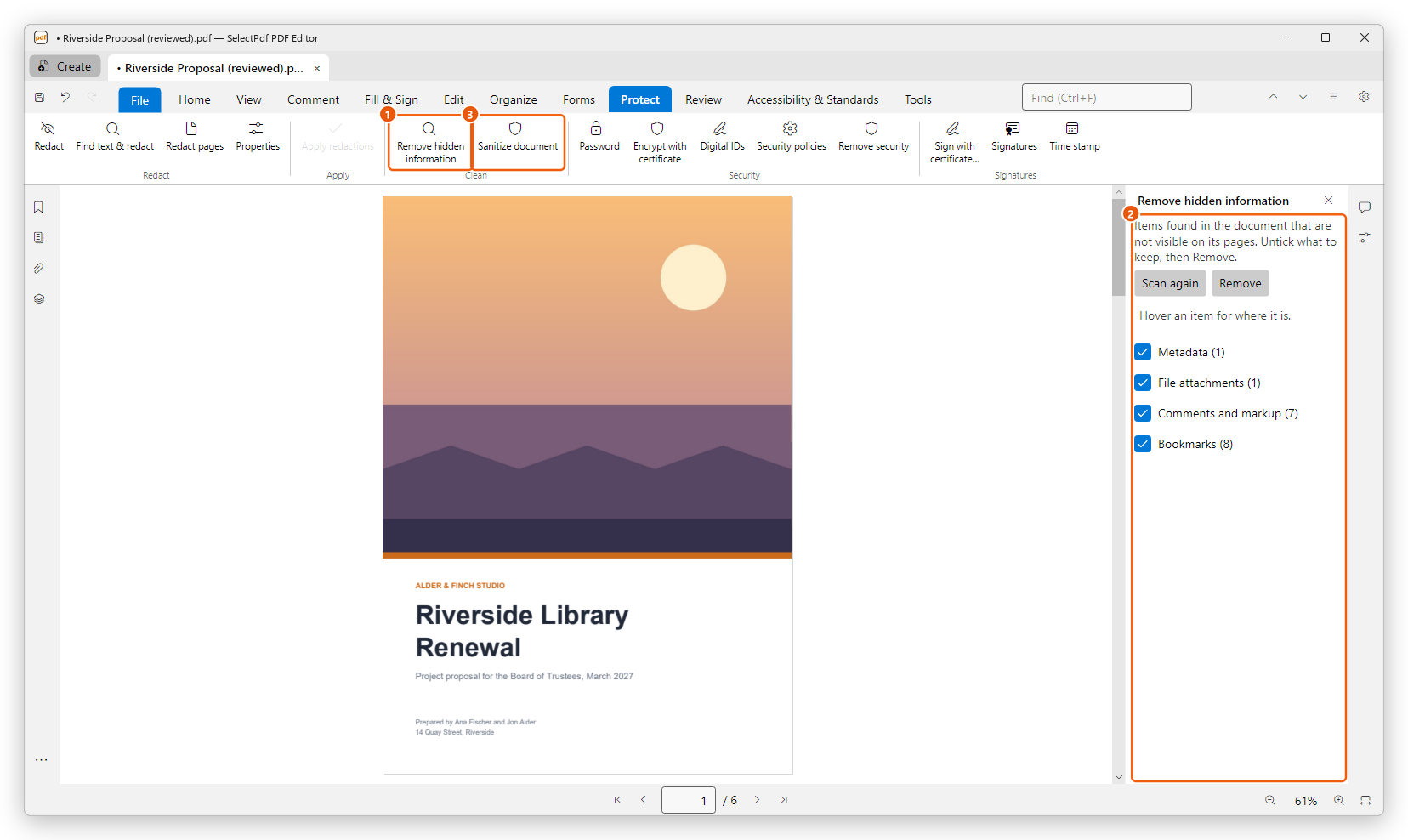
- Remove hidden information on the Protect tab.
- The panel: what the document holds, each kind with a box to tick.
- Sanitize document: everything at once.
Scan again checks the document again, for example after you have made other changes. When the document holds nothing hidden, the panel says Nothing hidden was found.
Until you save, Undo (Ctrl+Z) puts back what was removed, in one step.
What the panel finds
| Item | What it is | When removed |
|---|---|---|
| Metadata | The title, author, subject, keywords and the other details of the document, and its XMP metadata. | They are cleared. A document that is PDF/A or PDF/UA keeps the line that says so. |
| File attachments | Files attached to the document or to its pages. | The files are taken out. |
| Comments and markup | Notes, highlights, drawings, stamps and the other comments, with their replies. | Removed; links and form fields are not comments and stay. |
| Form fields (burnt into the pages) | The fields of a form and what was typed in them. | The fields are flattened: what they show becomes part of the page and can no longer be changed. |
| Hidden text | Text that is in the file but drawn invisible. The text that Recognize text adds to a scan is such text. | Removed: a scanned page can then no longer be searched or copied. |
| Hidden layers | Layers that are turned off, and what they draw. | Removed with their content. |
| Bookmarks | The document's bookmarks. | Removed. |
| Private data, search index and thumbnails | Data kept by the app that made the file, an embedded search index, and page thumbnails. | Removed. |
| Content outside the pages (cropped) | Text and pictures outside the visible part of a cropped page. | Removed for good, as redaction removes content. |
| JavaScript | Scripts that run when the document opens, or when something happens in it. | Removed. |
| Actions (launch, submit, import…) | Actions that open another file or program, send form data, import data or go to another document. | Removed. |
| Web links | Links that open a web address. | Removed. |
| Multimedia and 3D | Sound, video, 3D models and rich media. | Removed. |
| XFA form | An XFA form, whose scripts and data are kept outside the pages. | Removed. |
The panel lists only the kinds the document has.
Sanitize a document
Sanitizing removes every kind of item above in one step, as well as any signatures, for a document with nothing in it but what its pages show.
- On the Protect tab, click Sanitize document.
- The editor lists what will be removed. Click Sanitize.
- The status bar says how many items were removed. Save the document, preferably with Save As under a new name.
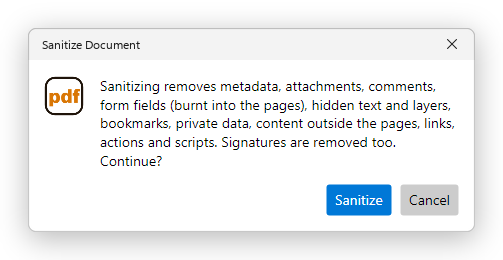
Removing hidden information and sanitizing both rewrite the whole file, so the earlier versions of the document that a PDF can keep inside it are gone too: content you deleted before cannot be recovered from the sanitized file.
Which one to use
- Use Remove hidden information when you want to keep some of it: for example the bookmarks and the links of a report, but not its comments and author.
- Use Sanitize document before you publish a document or send it to people you do not know: nothing hidden or active stays in it.
- To remove text or pictures that are visible on the pages, use redaction. Applying redactions removes only what the marks cover; remove the hidden information as well, since the author's name or a comment could still say what was redacted.
Signed documents
Any change to a signed document would make its signatures invalid, so removing hidden information removes the signatures too. When the document is signed, the panel lists Signatures with the other items and says so before you remove anything:
- leave everything ticked to remove the hidden information and the signatures;
- untick Signatures to keep them: nothing else can be removed then, and the other boxes are unticked.
Remove the hidden information before you sign a document, never after. See Digital signatures.