The editor's window
The parts of the PDF Editor's window, from the document tabs and the ribbon to the side panels and the page bar.
When a document is open, the window has six parts.
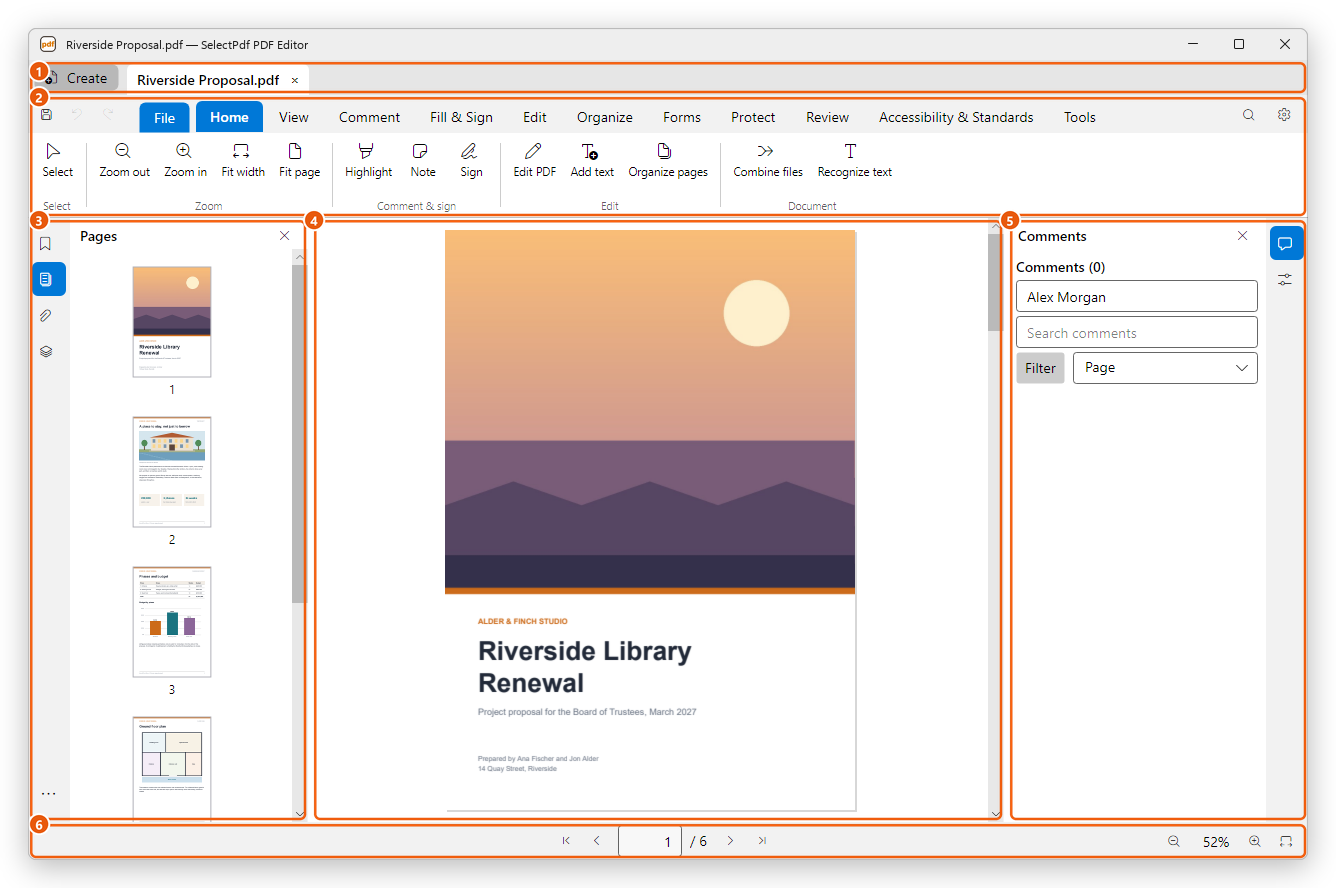
- Tabs. Each open document has its own tab, so you can switch between several files. Create on the left makes a new PDF.
- Ribbon. The tools, grouped in tabs: Home has the most used ones, and View, Comment, Fill & Sign, Edit, Organize, Forms, Protect, Review, Accessibility & Standards and Tools have the rest. File opens, saves, exports and prints. On the left are Save, Undo and Redo (see Save a PDF); on the right, the search button and Preferences.
- Left panels. Page thumbnails, bookmarks, attachments and layers. Click an icon to open its panel, and again to close it. More panels (the three dots) lists the others.
- The pages. Scroll to move through the document. What you click here depends on the tool chosen in the ribbon.
- Right panels. The comments of the document, and the properties of what you have selected.
- Page bar. Go to the first, previous, next or last page, type a page number, and zoom in or out.
The ribbon
Each tab of the ribbon shows its tools in groups. The Home tab has the tools used most: selecting, zooming, highlighting and notes, signing, editing and organizing pages.

When the window is narrow, the ribbon shows its buttons without their names. Point at a button to see its name and shortcut.
Can't find a tool? Press Ctrl+K and type what you want to do, for example "rotate" or "watermark". The editor lists the commands that match, and you can run one from the list. See Search commands and keyboard shortcuts.
Without a document
When no document is open, the editor shows its welcome page: open a PDF, choose a tool, or pick one of your recent files. See Open a PDF.