Compare two versions
See what changed between two versions of a PDF, side by side or drawn over each other, and save a report of the changes.
Compare files shows what changed between two versions of a document: text taken out, put in or replaced, changes of font, size and colour, pictures, drawings, comments and whole pages.
Comparing files needs Pro.
Compare two versions
- Open the older version.
- On the Review tab, click Compare files.
- Choose the newer version.

The document open in the editor is compared as it is now, with any changes you have not saved. With no document open (from the welcome page's Compare files), you choose the old version first, then the new one.
The Compare Files window opens and compares the two. The line at the top counts the changes: how many were replaced, inserted and deleted.
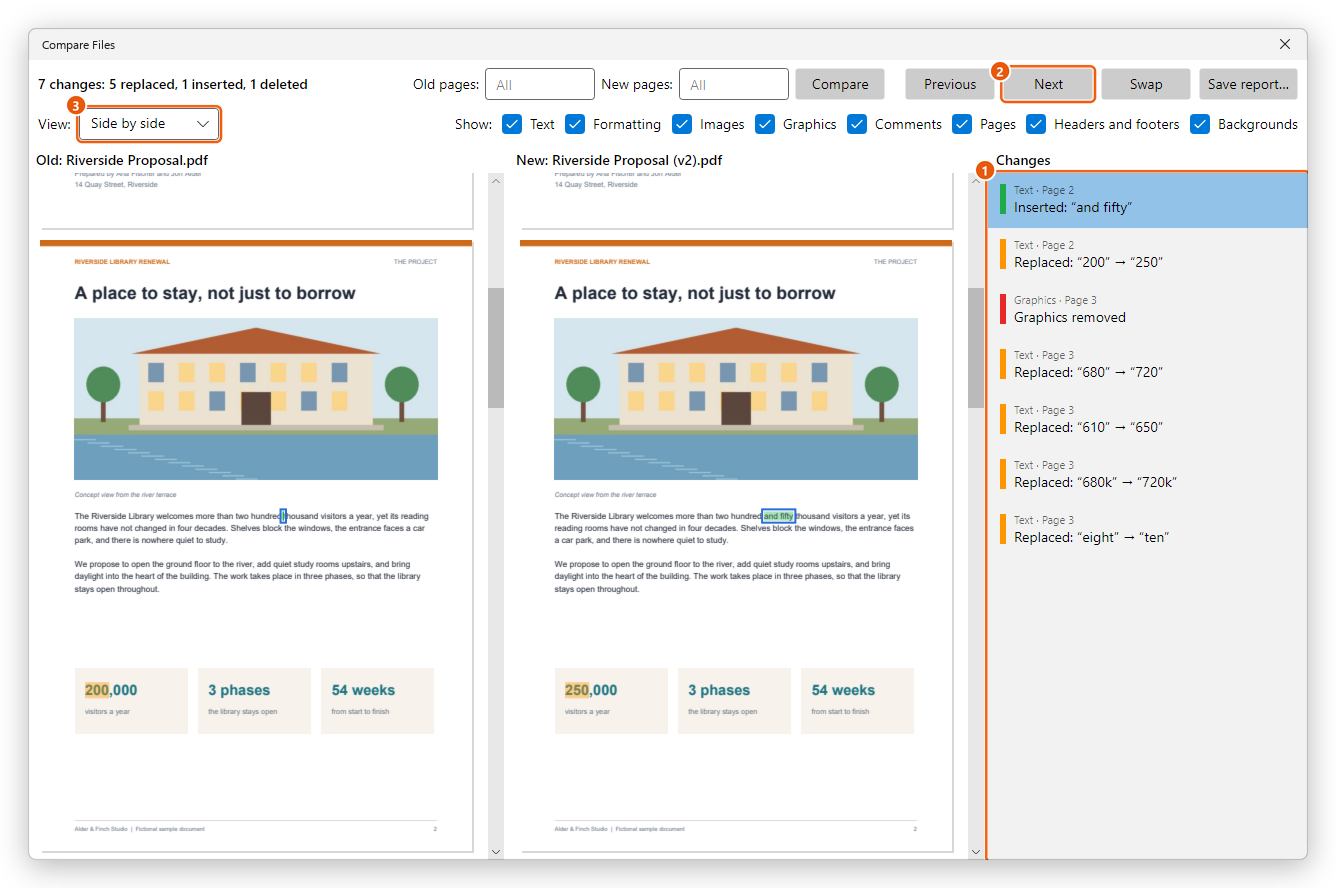
- The Changes list: each change, with its kind and page. Click one to show it on both versions.
- Previous and Next go from one change to the next.
- View shows the versions side by side, or one page over the other.
Read the changes
The old version is on the left and the new one on the right. The changes are marked in colour:
- Red: taken out. It is marked on the old version.
- Green: put in. It is marked on the new version.
- Orange: changed, on both versions.
- Blue: a page that moved.
Where a change is on one side only, a bar on the other side shows where it would be.
To see only some kinds of changes, clear the others under Show: Text, Formatting, Images, Graphics, Comments, Pages, Headers and footers and Backgrounds.
Other views
In View, choose how to look at a pair of pages:
- Side by side: the two versions next to each other (as above).
- Overlay: the new page drawn over the old one. Move the slider between Old and New to fade from one to the other.
- Swipe: drag across the page to move the line between the old page and the new one, or use the Left and Right arrow keys.
- Difference: the old page faded, with every point that differs in magenta. Content that only moved is not shown as a difference.
Use the arrows above the page to go to the next or previous pair of pages.
More options
- Old pages and New pages: to compare only some pages, type them (for example 2-4) and click Compare.
- Swap makes the old version the new one, and the other way round.
- Save report saves a PDF with the list of changes and the pages that changed, to send to others.
Scanned pages are compared by their text too, when text recognition is available on your computer: the editor recognizes it first, in the language you used last for Recognize text.