Check spelling
Check the spelling of comments, form fields and edited text with Check Spelling, see misspelled words underlined while you edit text, and choose the dictionary language.
The editor checks spelling with the dictionaries of Windows. It checks the text people write in a PDF: comments, form fields, and the text you edit with Edit PDF.
Check the spelling of a document
- Click the Review tab, then Check Spelling (or press F7).
- The Check Spelling dialog opens and goes to the first word that is not in the dictionary. It shows where the word is (for example In a comment (Note) on page 2) and the sentence around it, with the word in red.
- For each word, choose what to do:
- Change: replaces the word with the one in the box under Not in dictionary:. Click a word in Suggestions: to put it in the box, or type the right spelling there yourself.
- Change All: replaces the word here and in the rest of the check.
- Ignore: leaves the word as it is, this once.
- Ignore All: leaves the word as it is everywhere, until you close the editor.
- Add: adds the word to your dictionary, so that it is never flagged again (for example a name, or a word of your trade).
- The dialog goes on to the next word. When there are no more, it says how many words were changed, or that no misspelled words were found.
- Click Done.
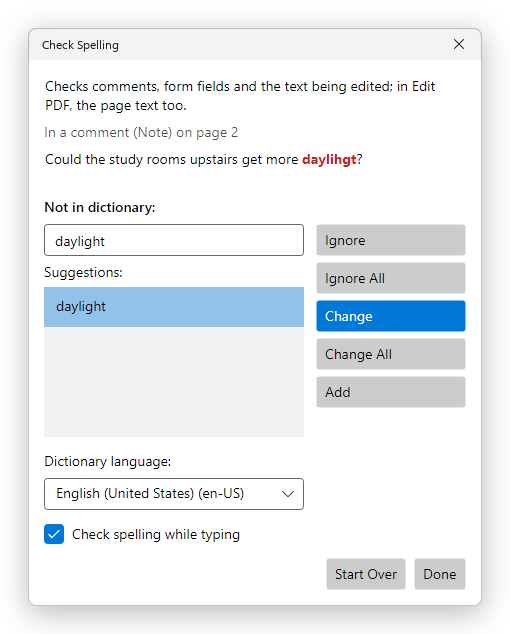
Enter clicks Change while a word is shown. Double-clicking a suggestion changes the word to it at once. Start Over checks everything again from the beginning.
The dialog does not block the window: you can keep it open, go on working, and click Start Over to check again.
What is checked
Check Spelling goes through:
- the text of every comment: notes, text boxes, callouts, replies, the words of insertions and replacements...;
- the text form fields that you can fill in (not those that are read-only, and not password fields);
- the text you are editing at that moment with Edit PDF;
- when Edit PDF is on and you are not editing a paragraph, the page text too: every paragraph of every page, from the current page on. Each paragraph is shown and selected on its page when a word in it is offered.
It does not check the page text of a document you are only reading: to check it, turn on Edit PDF first (see Edit text and images). A changed comment or field is one step that Undo (Ctrl+Z) takes back; a change in page text keeps the style of each character.
Misspelled words while you type
While you edit text with Edit PDF, words that are not in the dictionary are underlined with a red wavy line. Right-click an underlined word for its spellings: click one to replace the word, or choose Ignore All or Add to Dictionary.
To turn the underlining off, untick Check spelling while typing, in the Check Spelling dialog or in Preferences > Spelling.
The dictionary language
At first the editor checks in the language of the document, when the document says which language it is in (see Document properties), and otherwise in the language of the editor. To choose the language yourself:
- in the Check Spelling dialog, choose it in Dictionary language:; or
- in Preferences > Spelling, choose it in Language:.
Automatic, the first choice of the list, goes back to the document's language. The list offers the languages Windows can check. If yours is missing, add it in Windows' settings, under Time & language > Language & region, with its spelling feature; the dialog says so when it has no dictionary for the language.
Checking spelling is free. Checking the page text needs Edit PDF, which needs Pro.
To find and replace words in the page text, see Find text.