Preferences
Every setting of the PDF Editor's Preferences, page by page, from the language, the theme and your name on comments to the grid, signatures, trusted certificates, high-contrast colours and the downloaded components.
Open Preferences
Click Preferences (the gear) at the right end of the ribbon, or press Ctrl+,. You can also click File, then Preferences.

The settings are grouped in pages, listed at the left of the dialog. Click a page to see its settings, change what you want on any of the pages, then click OK to keep all the changes, or Cancel to leave everything as it was. Only what you do on the Components page happens at once, whichever button you click.
Some buttons open Preferences at the right page: Grid settings on the View tab, for example, opens Units and Guides.
General
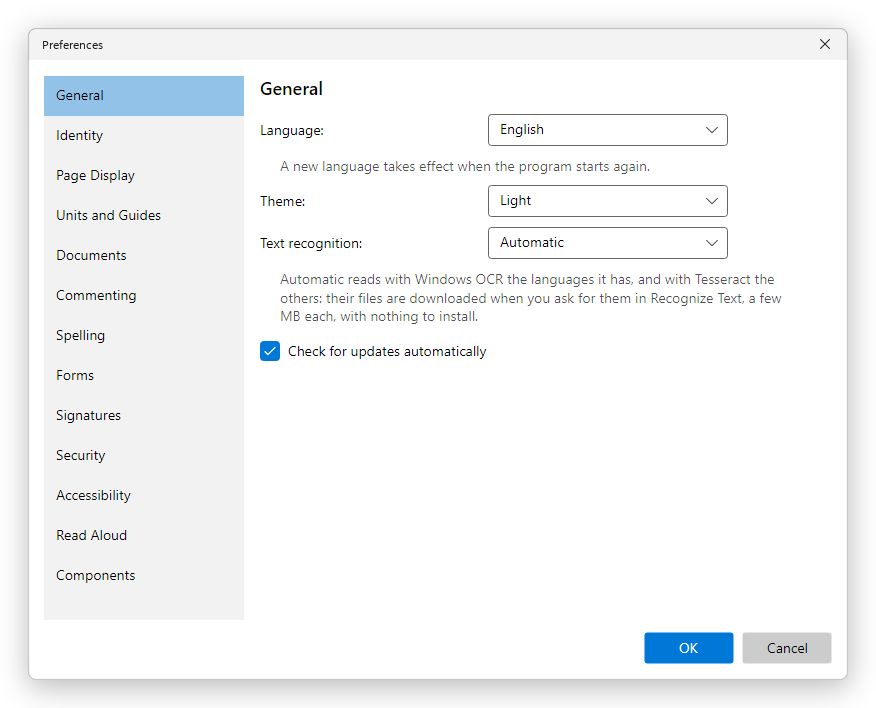
- Language: the language of the editor's menus and dialogs. System language follows Windows. The editor speaks English, Romanian, German, French, Spanish, Italian, Portuguese (Brazil), Dutch, Polish, Japanese, Chinese (Simplified) and Korean. A new language is used the next time the editor starts: after OK, it offers to restart at once (Restart now) or Later. The commands the editor adds to File Explorer change language too (see The editor and Windows).
- Theme: Light, Dark, or As the system to follow the colour mode you chose in Windows. See View a PDF.
- Text recognition: which engine reads the text of scanned pages. Automatic uses Windows' own (Windows OCR) for the languages it has, and Tesseract for the others; or choose one of them always. See Recognize text.
- Check for updates automatically: the editor looks for a new version once a day and asks before downloading it. See Install and update.
- Crash reports: what happens when the editor has a problem it cannot recover from: Send automatically, Ask each time or Never. A report says the version, the system, the license type and where in the program the problem happened. It never holds your documents, file names or anything you typed.
- Default PDF app: when the editor is not your PDF app yet, Make default opens Windows' settings at the page where you choose it. See The editor and Windows.
Identity
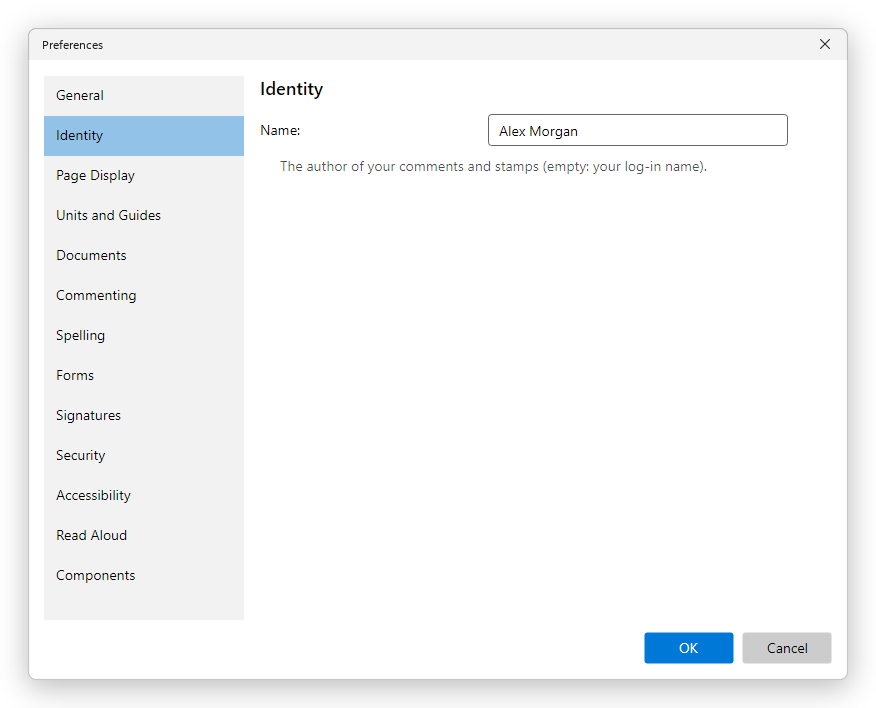
Name is the author shown on your comments and stamps, so that others reviewing the document know who wrote what. Left empty, the editor uses your Windows log-in name.
Page Display
How the pages are shown:
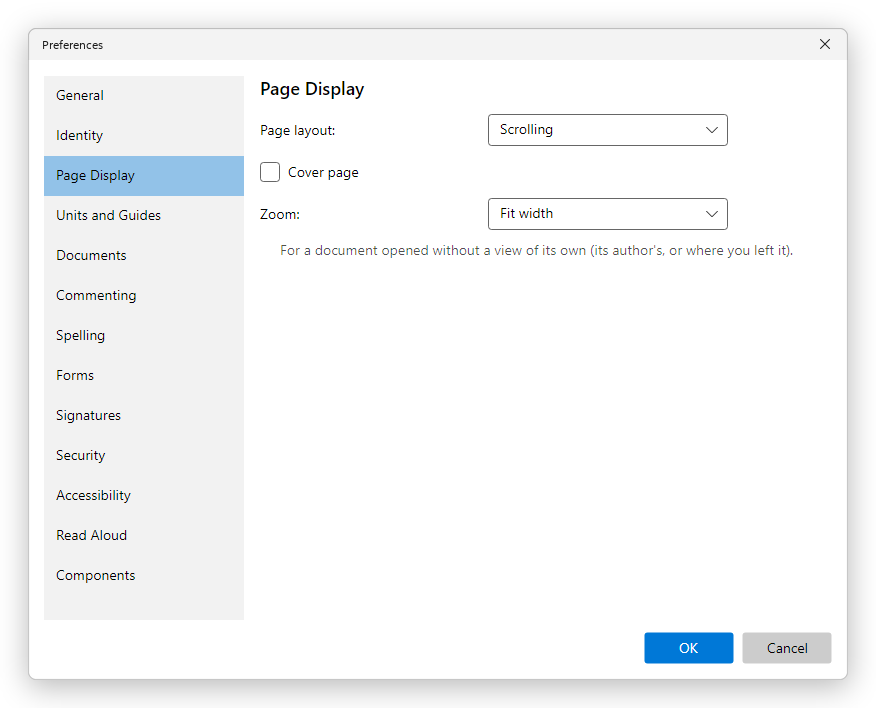
- Page layout: Single page, Scrolling, Two-page or Two-page scrolling, with Cover page for the two-page layouts. These are the same as the Page display buttons on the View tab.
- Zoom: the zoom a document opens at: Fit width, Fit page, Actual size or a percentage. It is used for a document opened without a view of its own: one its author set (see Document properties), or the place where you left it last time.
Units and Guides
The units of the rulers, and the layout grid: its spacing, offset, subdivisions and colour, and the colour of the guides. Defaults brings back the grid of one inch with three subdivisions.
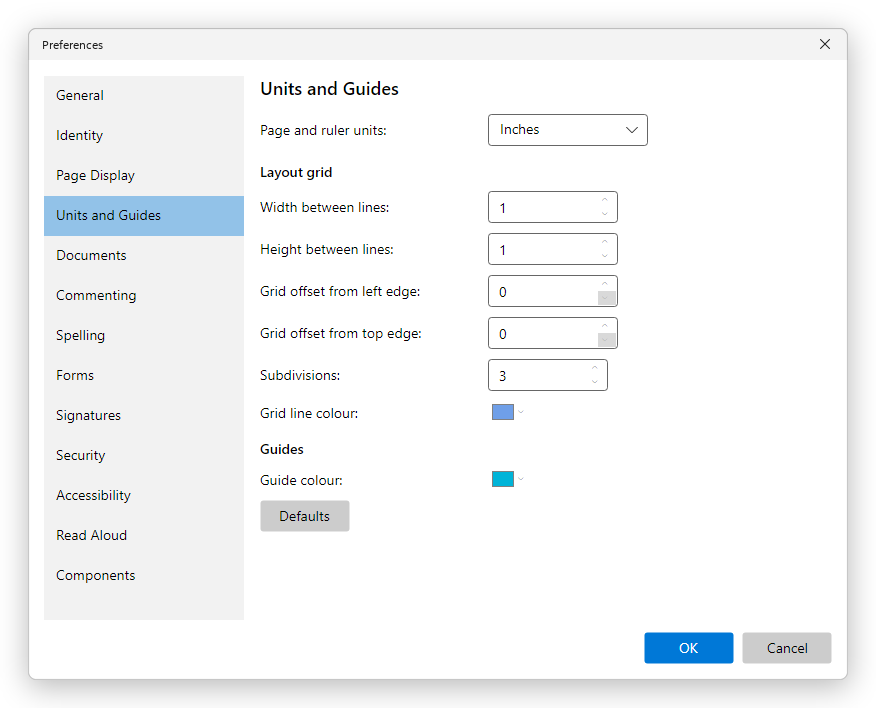
See Rulers, grid and guides for each setting.
Documents
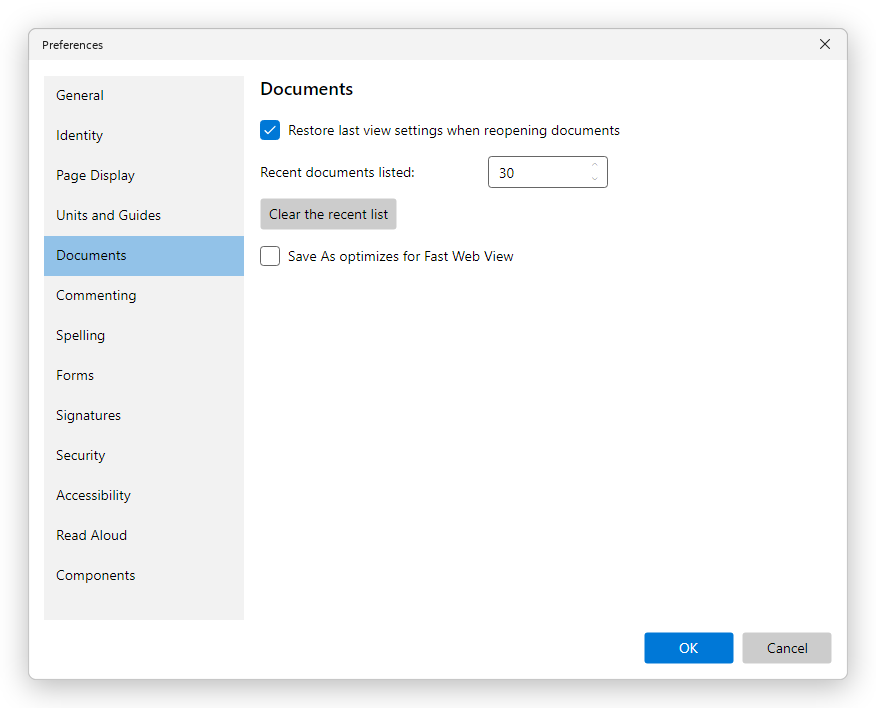
- Restore last view settings when reopening documents: a document you opened before opens at the page and zoom where you left it. Cleared, every document opens as its author set it, or at the zoom of Page Display.
- Recent documents listed: how many files the recent list keeps (the welcome page, File > Recent files and the taskbar's jump list), from 1 to 100.
- Clear the recent list: empties the list when you click OK.
- Save As optimizes for Fast Web View: Save As arranges the file so that a web browser shows its first page before the whole file has downloaded. See Save a PDF.
Commenting
- Show a comment's text when the pointer is over it: point at a comment on the page to read it, without opening it.
- Always use the log-in name as the author (the box shows your log-in name): your comments are signed with your Windows log-in name, whatever the Name on the Identity page says. Cleared, the Identity name is used.
See Comment on a PDF.
Spelling
- Check spelling while typing: underlines the words it does not know in comments, form fields and text you edit.
- Language: the dictionary to use. Automatic (the document's, else the program's) uses the language the document says it is in, and otherwise the editor's language. The list has the languages Windows can check.
See Check spelling.
Forms
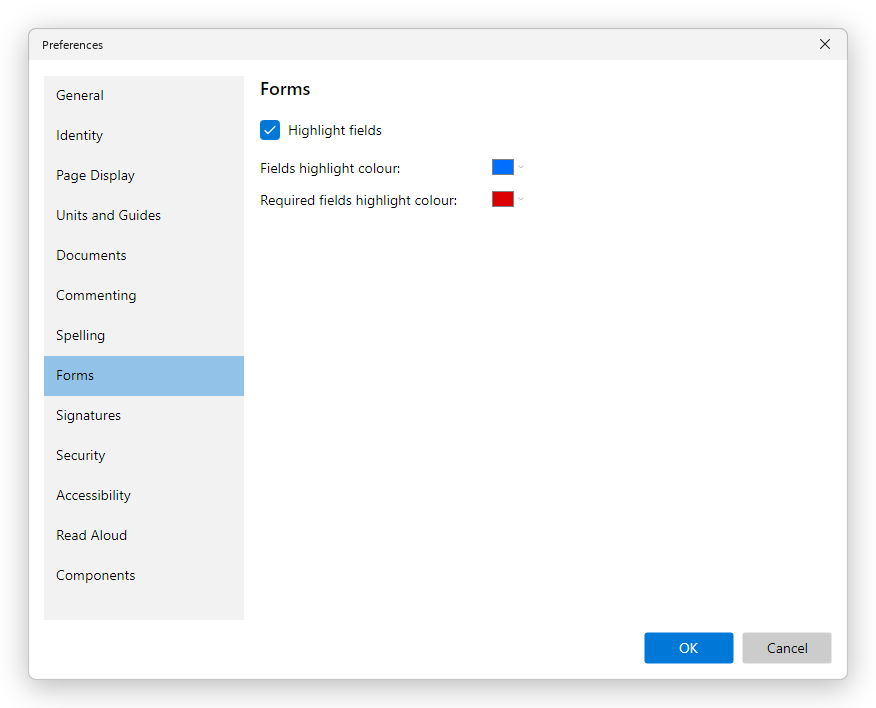
- Highlight fields: shows the fields of a form in colour, so you see where to fill in. The same as Highlight fields on the Forms tab.
- Fields highlight colour and Required fields highlight colour: click a colour to choose another. Required fields have their own colour, so you see what you cannot leave empty.
See Fill in forms.
Signatures
What a signature with a certificate starts with. You can change each of these when you sign.
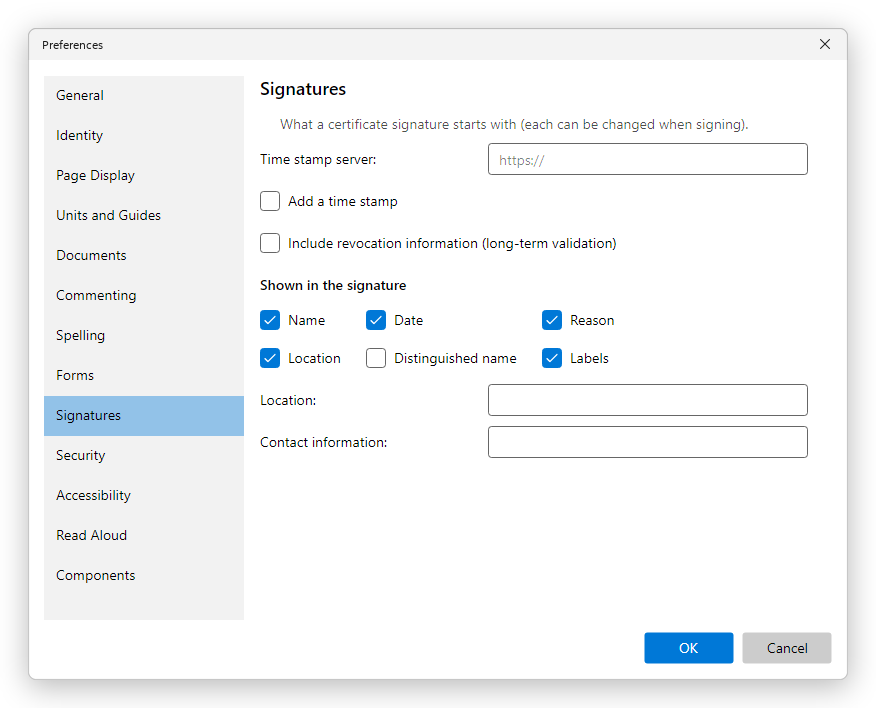
- Time stamp server: the address of the server that adds trusted time stamps.
- Add a time stamp: signatures take their time from that server, not from your computer's clock.
- Include revocation information (long-term validation): keeps in the document what is needed to check the signature years from now, after the certificate has expired.
- Shown in the signature: the details a visible signature writes beside its picture: Name, Date, Reason, Location, Distinguished name and Labels (the name of each detail before it).
- Location and Contact information: added to your signatures.
See Digital signatures.
Security
Which signatures the editor trusts when it checks the signatures of a document:
- Trust the certificates the operating system trusts: the certificates Windows trusts.
- Trust the EU Trusted Lists: the European Union's lists of qualified trust service providers. The editor downloads them the first time a document has a signature, and keeps them up to date; the line under it says when they were last checked.
- Trust major document signing providers (DigiCert, GlobalSign and others).
- Check revocation online when verifying signatures: asks the certificate's issuer whether it was revoked. Needs an internet connection.
- Manage trusted certificates: certificates you trust yourself, for example a colleague's self-signed one. The line beside it says how many there are.
See Digital signatures.
Accessibility
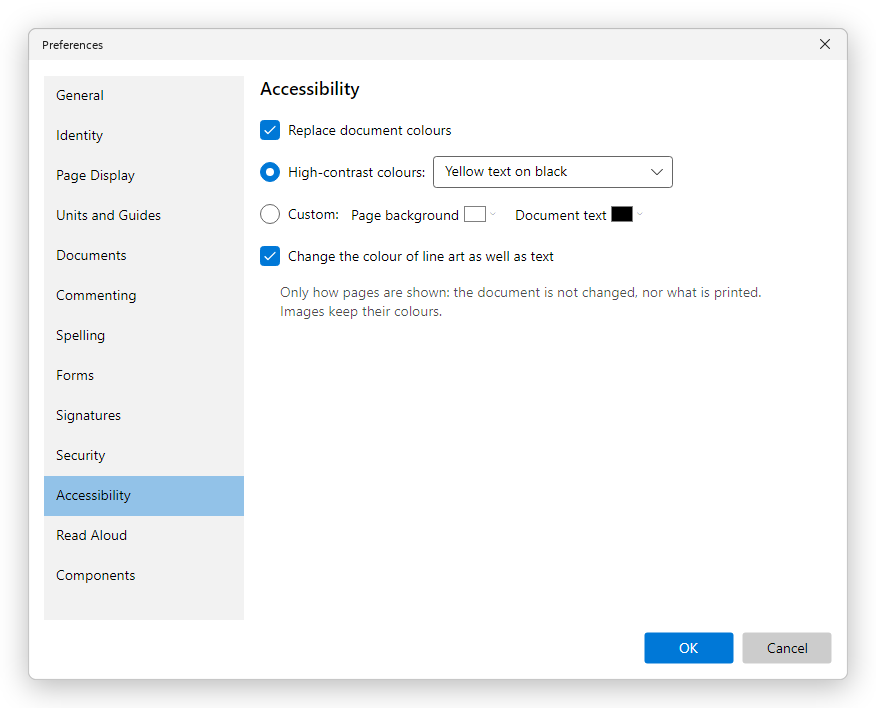
Replace document colours shows the pages in other colours, for people who read better with high contrast:
- High-contrast colours: Green text on black, Yellow text on black, White text on black or Black text on white.
- Custom: choose the Page background and the Document text colours yourself.
- Change the colour of line art as well as text: lines and shapes take the text's colour too.
Only the screen changes: the document and what is printed stay as they are. Pictures keep their colours. See Accessibility.
Read Aloud
- Voice: The system's default voice, or one of the voices installed in Windows.
- Speed: from half the normal speed to three times as fast.
See Listen to a document in View a PDF.
Components
The parts the editor downloaded the first time a feature needed them, such as fonts, text recognition languages and the web page converter. See Install and update.
- Installed: each part with its version and size. Update brings it to the newest version, and Remove deletes it from your computer; a part in use is removed when the editor starts again. A part installed for all the computer's users says Installed for all users, and cannot be removed here.
- Available to download: the parts you can download now, with Download. Get fonts chooses more fonts for Edit PDF, and Get languages more languages for Recognize text.
- Check for updates reads the list of downloads again, to see new versions.
What you do on this page happens at once: Cancel does not take it back.