Create a PDF
Make a PDF from a Word, Excel or PowerPoint file, a picture, a scan, the clipboard, a web page or a blank page.
The editor turns other files into PDFs: Word, Excel and PowerPoint documents, pictures, XPS files, scanned pages and web pages. What you create opens as a new document in its own tab. It is not saved until you save it.
Open the Create page
Use any of these:
- On the welcome page, click Create a PDF.
- Click Create at the left of the document tabs, then Create a PDF.
- Click File, then Create a PDF.
The Create page opens in a tab of its own. On the left, choose what to create the PDF from. On the right are the options for that choice, and the Create button.
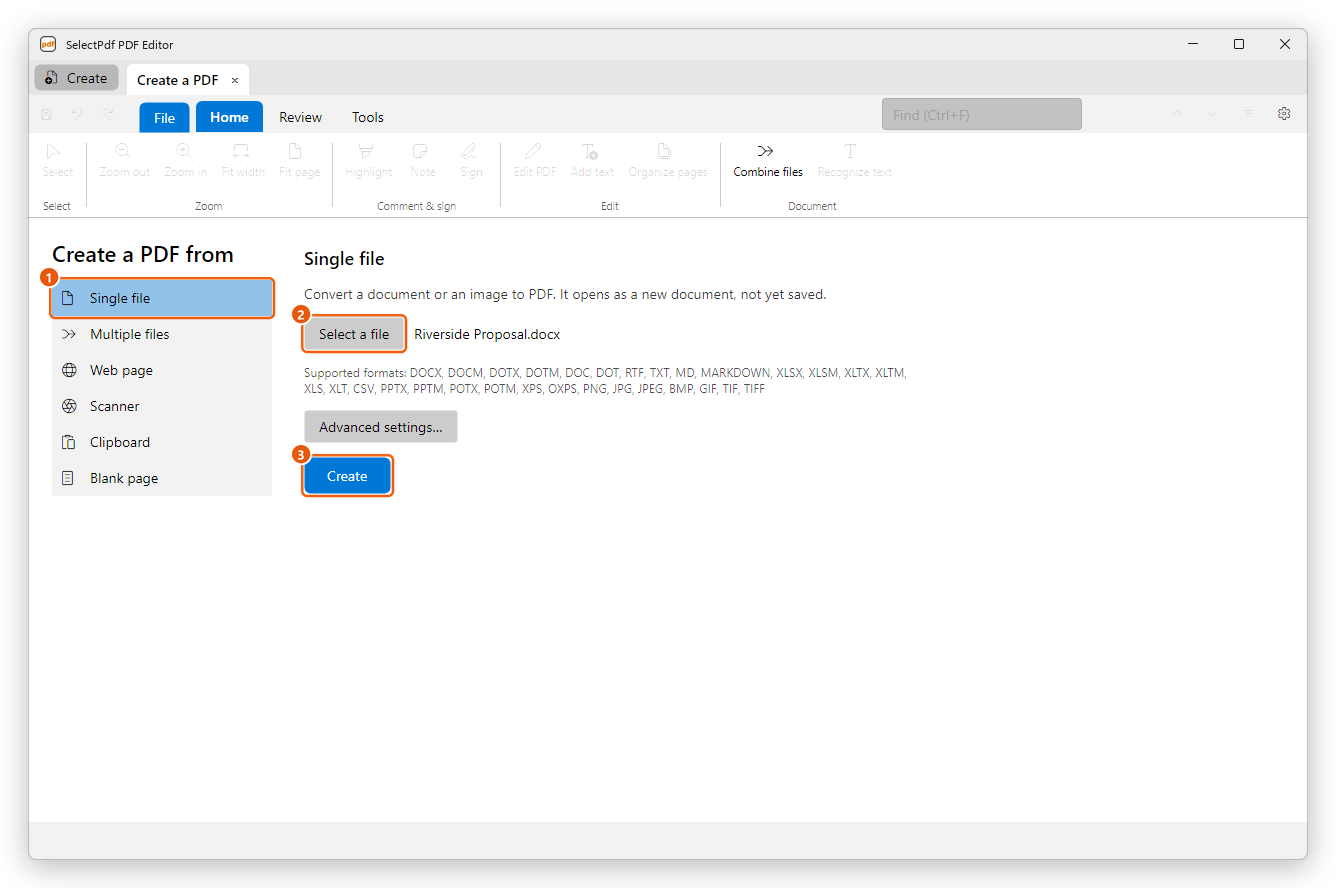
From a file
- Click Single file.
- Click Select a file and choose the file.
- Click Create.
The PDF opens in a new tab, named after the file. Close the Create tab when you no longer need it.
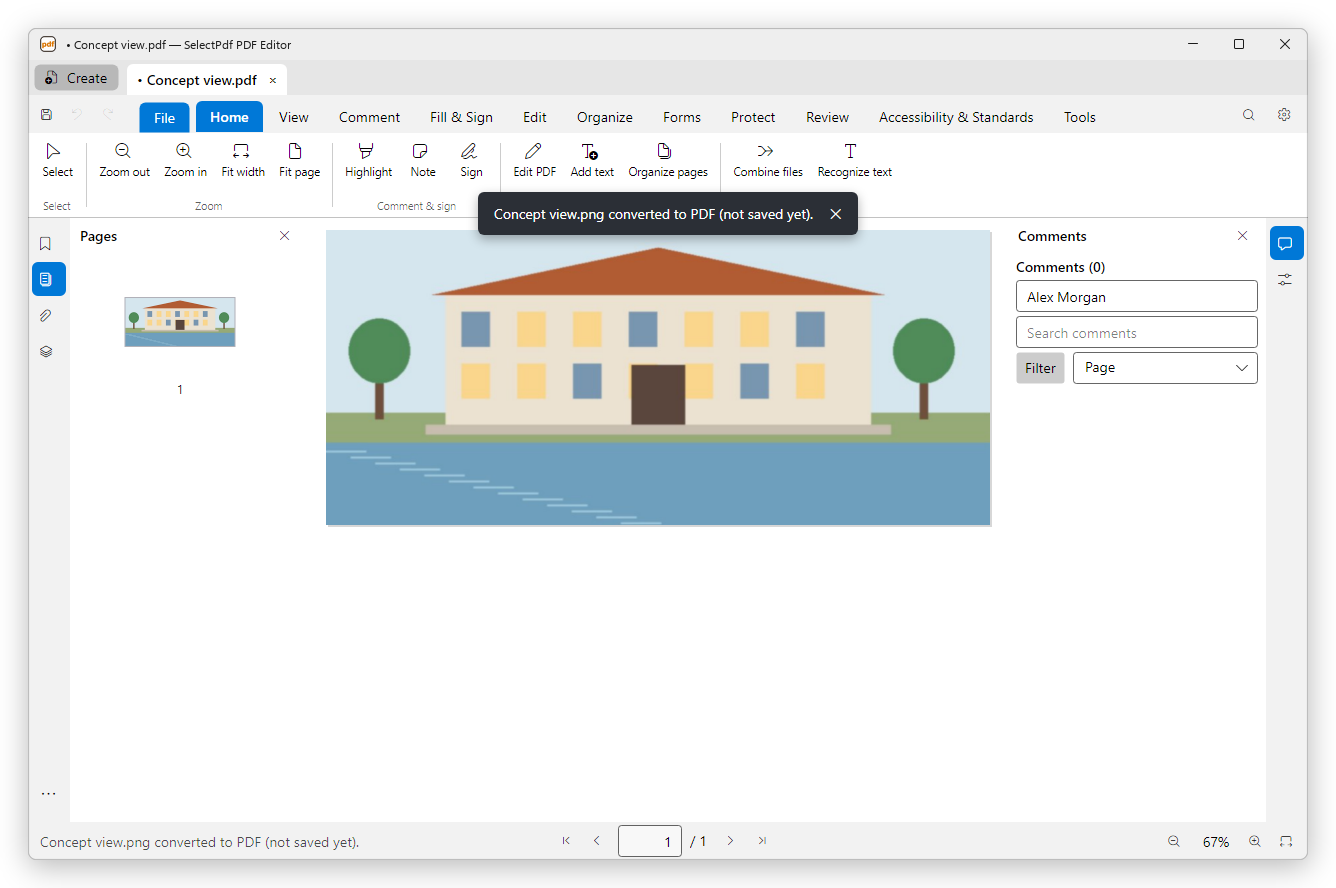
These files can be made into PDFs:
| Kind | File types |
|---|---|
| Word and text | .docx, .docm, .dotx, .dotm, .doc, .dot, .rtf, .txt, .md |
| Excel | .xlsx, .xlsm, .xltx, .xltm, .xls, .xlt, .csv |
| PowerPoint | .pptx, .pptm, .potx, .potm |
| XPS | .xps, .oxps |
| Pictures | .png, .jpg, .jpeg, .bmp, .gif, .tif, .tiff |
Older PowerPoint files (.ppt) are not accepted. Open them in PowerPoint and save them as .pptx first.
A picture becomes a page of its own size. A Word, Excel or PowerPoint file is converted by the editor itself: you do not need Microsoft Office.
You don't have to use the Create page. Open a Word file or a picture with File > Open, or drag it onto the editor's window, and it opens as a PDF the same way.
Settings for Word documents
Before a Word document is converted, the editor shows the Create PDF from Word settings:
- Enable accessibility and reflow with tagged PDF makes a tagged PDF that screen readers can read. It is on at first.
- Bookmarks makes bookmarks From the headings, From Word bookmarks, or none.
- Add links keeps the document's links working in the PDF.
- Convert Word form fields to PDF form fields turns the document's form fields into fields you can fill in.
- PDF/A compliance and PDF/UA (universal accessibility) make a PDF that meets those standards.
Clear Show these settings before converting if you don't want to be asked each time. To change the settings later, click Advanced settings on the Create page. Excel and PowerPoint files are converted without asking, with the same tagging, bookmark, link, PDF/A and PDF/UA settings.
From several files
Click Multiple files:
- Combine files puts several files, of any of the types above, into one PDF. See Combine files.
- Create multiple PDF files turns each file into a PDF of its own, using the saved settings.
Create multiple PDF files needs Pro. Combining files is free.
From a scanner
- Click Scanner.
- To add the scanned pages to the end of a PDF you already have, tick Append to existing file and click Choose to pick the file. Otherwise the pages become a new document.
- To make the scanned text searchable at once, tick Recognize text (OCR).
- Click Create. The Windows scan window opens: choose the scanner's settings there and scan.
The text is read in the language you used last for Recognize text. Scanner is listed only when Windows scanning is available on your computer.
Scanning is free. Recognize text (OCR) needs Pro.
From the clipboard
Copy a picture, some text or files in another app, then click Clipboard and Create.
- A picture becomes a page of its own size.
- Text becomes pages of text.
- Files copied in Windows Explorer are made into a PDF; several files open in Combine files.
A blank page
- Click Blank page.
- Choose the Page size (Letter, Legal, Tabloid, A3, A4 or A5) and Portrait or Landscape.
- Click Create.
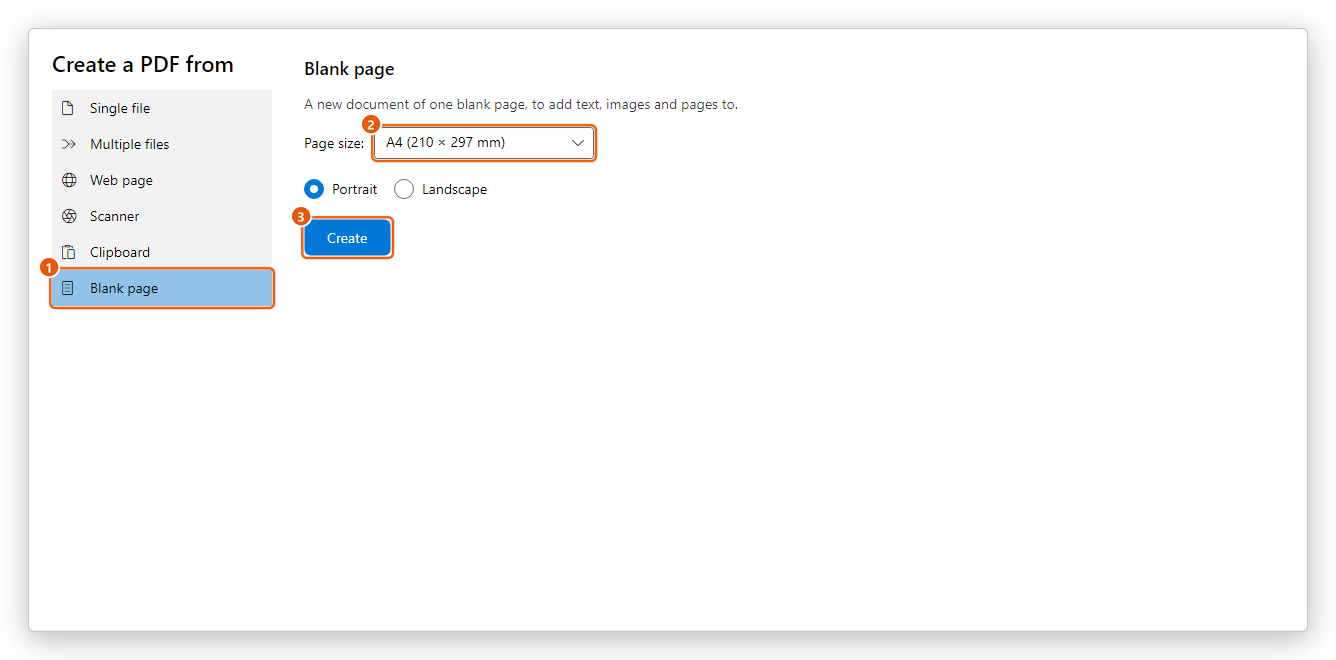
The new document has one empty page. Add text, pictures and more pages to it with the Edit and Organize tabs.
From a web page
- Click Web page, then Create.
- Type the web address, or click Browse to choose an HTML file on your computer.
- To convert the pages the page links to as well, tick Also convert the pages this page links to. Choose how many clicks away to go, or Follow every link (the entire site), and whether to stay on the same website or folder.
- Click Create.
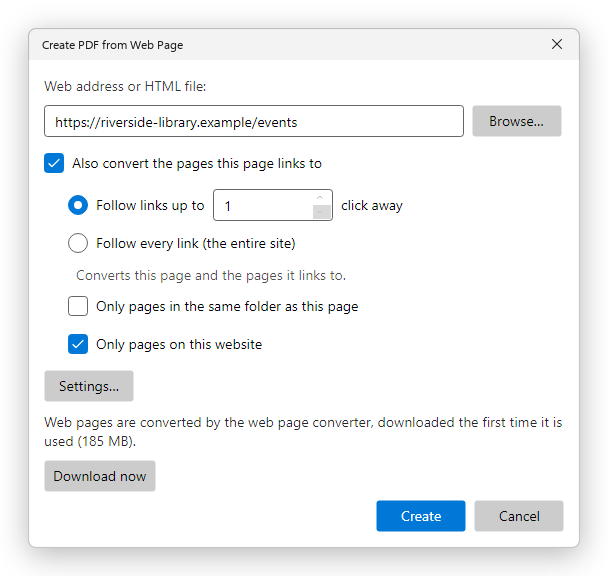
The new document is named after the web page's title. Settings chooses the page layout and what the PDF gets: bookmarks, links, backgrounds, and headers and footers on the new pages.
The web page converter is downloaded the first time you use it; the dialog says how large it is. Click Download now to get it before you convert. It is kept for the next time.
Creating a PDF from a web page needs Pro.